How to confirm course settings in Canvas.
You need to check that all the overall course settings are correct before publishing your course. You will only ever need to change a few of the settings, but you should check that they all appear correct before publishing your course.
- Click on Settings in the navigation menu.
There is an image on the tile for your course on the Dashboard. This is where you choose what image you want there. - Click Choose Image if the course doesn’t have an image already. Accepted images include JPG, JPEG, GIF, and PNG files. For best practice, images should be 262 x 146 pixels. You can change the image if an image is already there by clicking the three dot at the top right of the image.

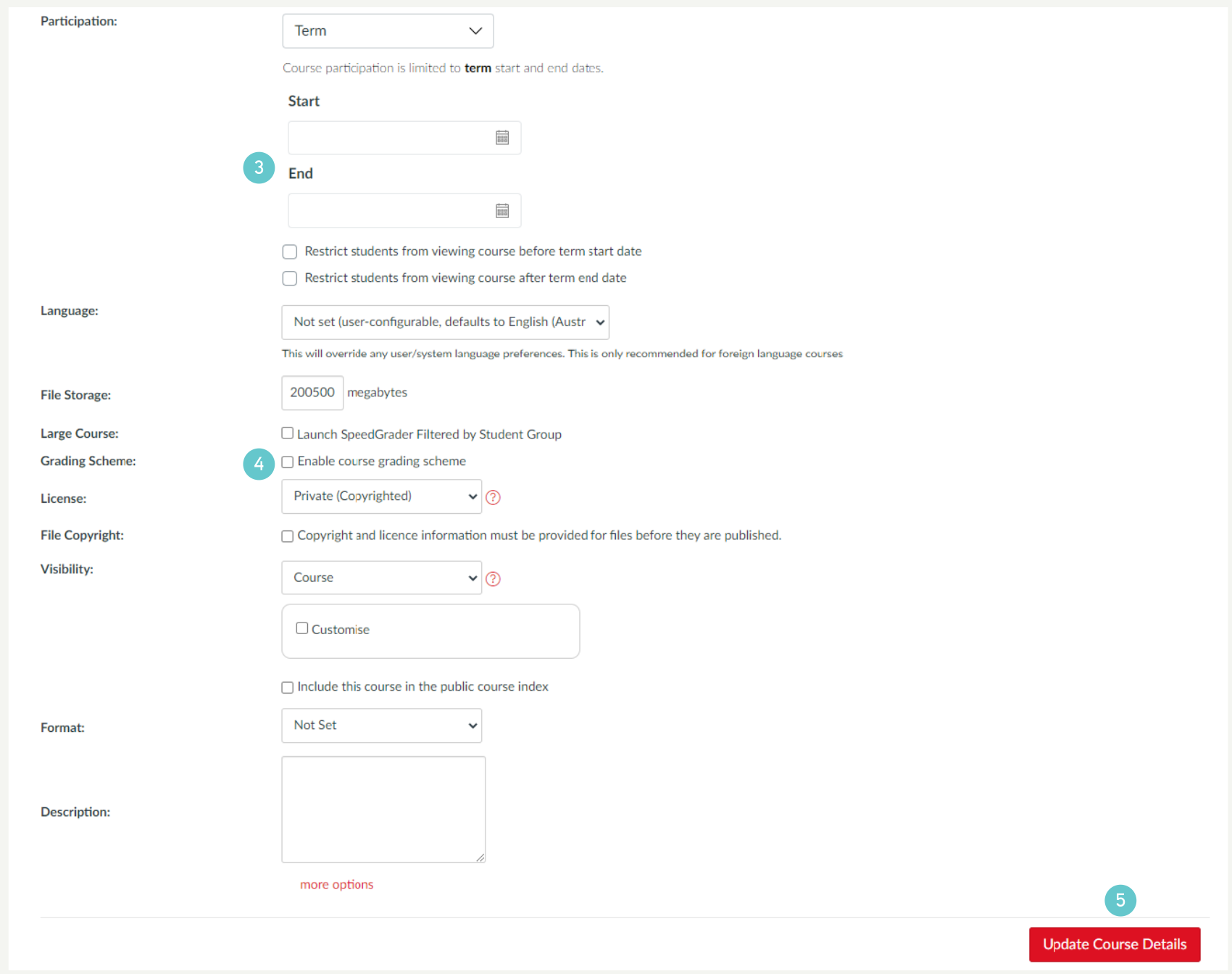
- Check the remaining settings. They have been pre-populated and they should be correct. Check the Start and End dates of the course are what you expect them to be.
- If your course is achievement -based, add a Grading Scheme so that marks are automatically have a grade associated with them. Tick Enable course grading scheme to do this.
- If you have changed anything (image or grading scheme), remember to click Update Course Details. If you have changed anything (image or grading scheme), remember to click Update Course Details.