How to edit the Home page in Canvas based on the MIT Canvas Standards template.
It is also a good idea to have an idea of the modules that will be in your course – you will need a list of modules to finish editing the Home page.
Use the MIT Canvas Standards template as a template for your Canvas course. This template contains all the features that your Canvas course needs. A key part of this template is its Home page. This is the page your students see first, so it must be right. Make sure you know how to edit a Page in Canvas before following these instructions. It is also a good idea to have an idea of the modules that will be in your course – you will need a list of modules to finish editing the Home page.
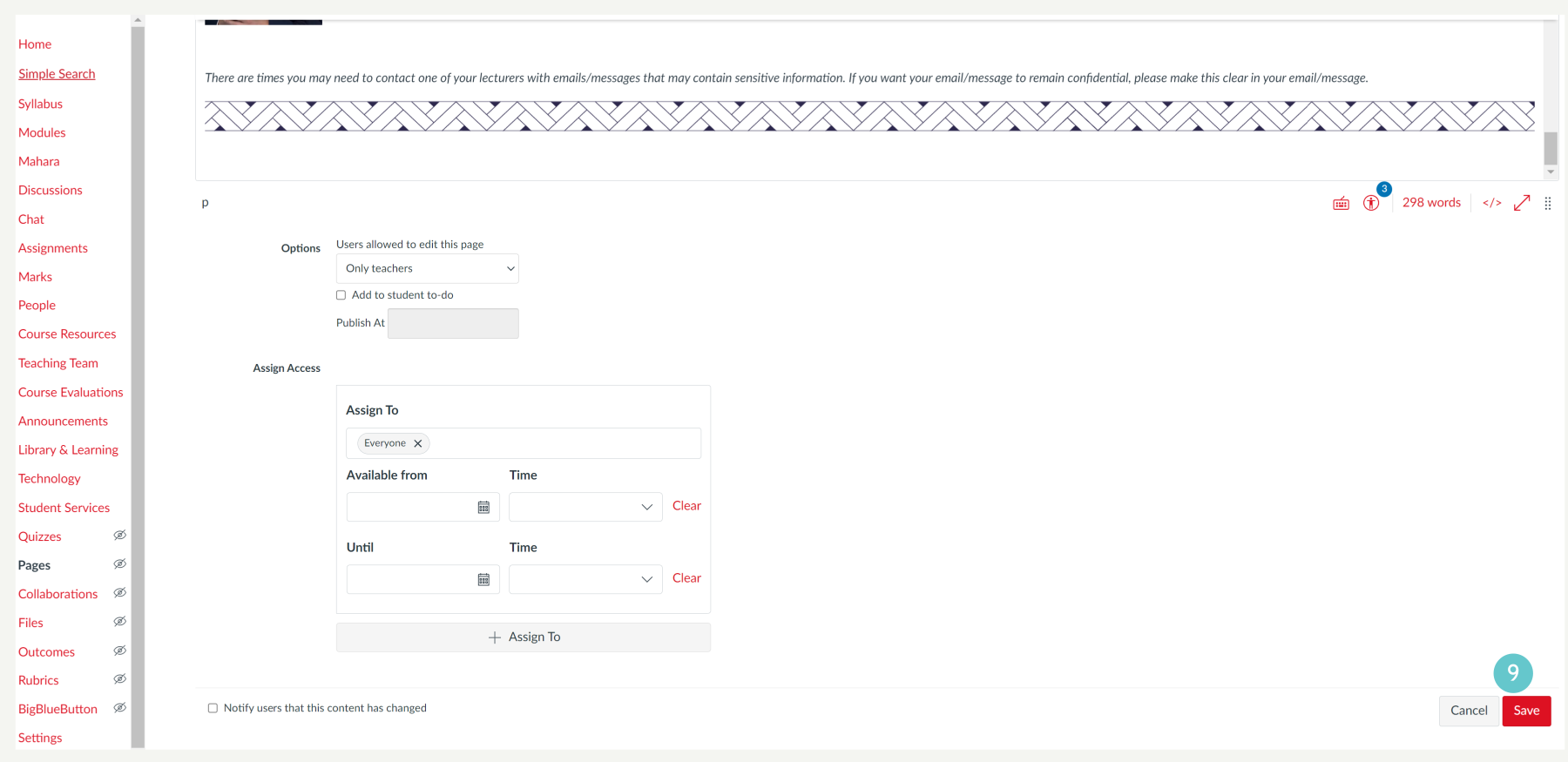
Edit the Home Page as follows:
- Click on Home in the navigation menu on the left.
- Click the Edit button on the top right of the page

Use the editing tools in the toolbar to change items on the page.
- Edit the course name and occurrence number. The course name must be as written in the course descriptor. The course occurrence/number is in this format: 111.111-21-OT-01
- Edit the Welcome text. Replace/remove square bracket text. Replace placeholder text with your welcome message. Make sure your welcome message is written in ‘friendly speak’ for your students.
- Replace the image with a welcoming image for your course

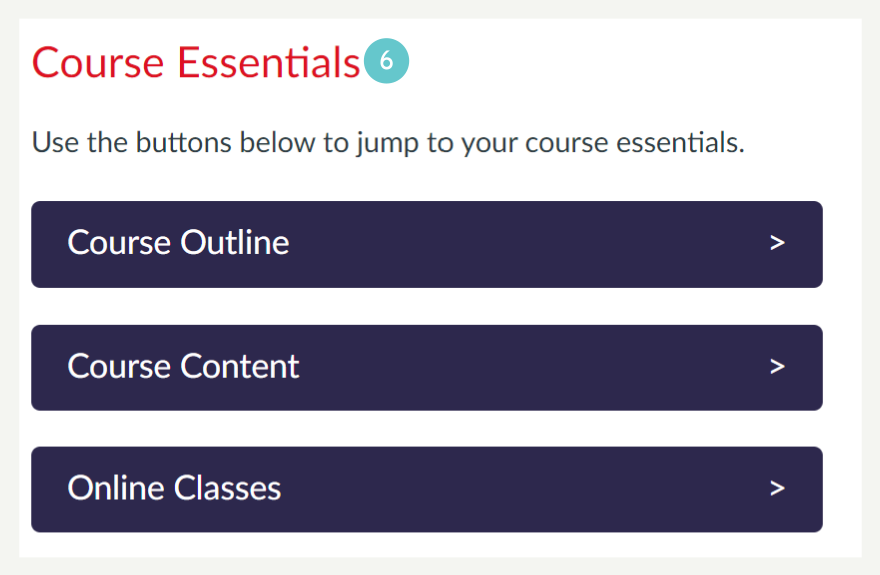
- Replace the links on the Course Essentials buttons and link to the revelent page of each button. Watch this video, it will show you how to link the homepage buttons.
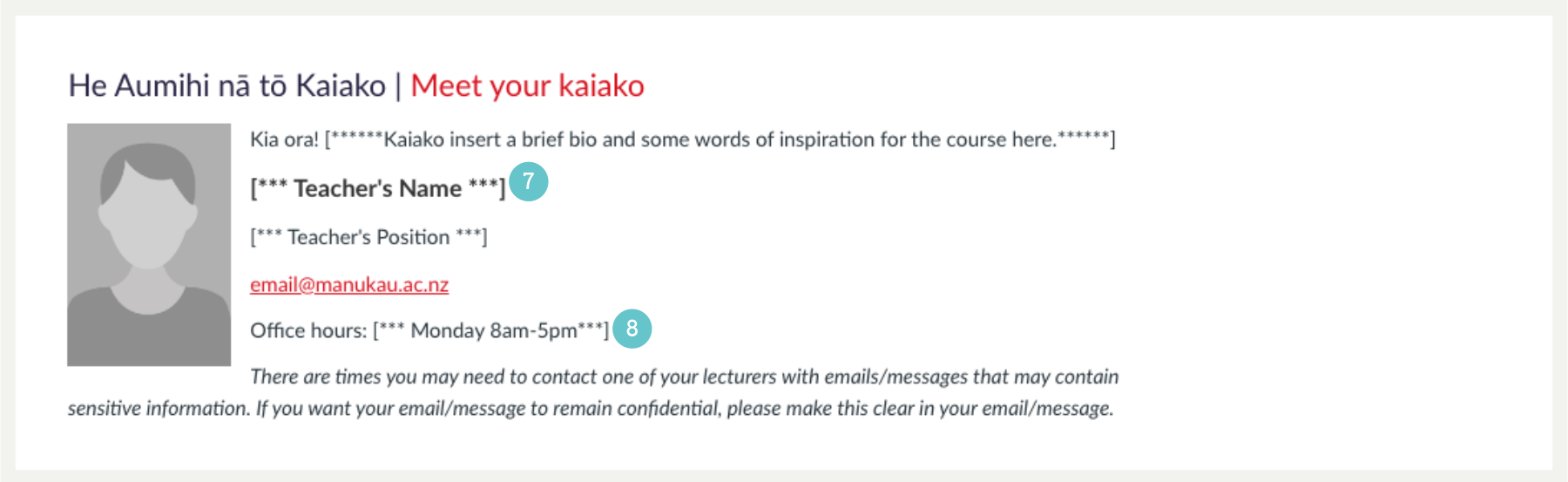
- Update the staff contact information. Replace the placeholder image with a picture of yourself and update the text in square brackets with your MIT contact information.
- Update the office hours information. Replace the text in square brackets.
- Click Save when you have finished editing the Home Page.