

What an interactive Microsoft Stream video is and how you can use it.
Adding a survey, poll, or quiz to a Microsoft Stream video
What is an interactive Microsoft Stream Video?
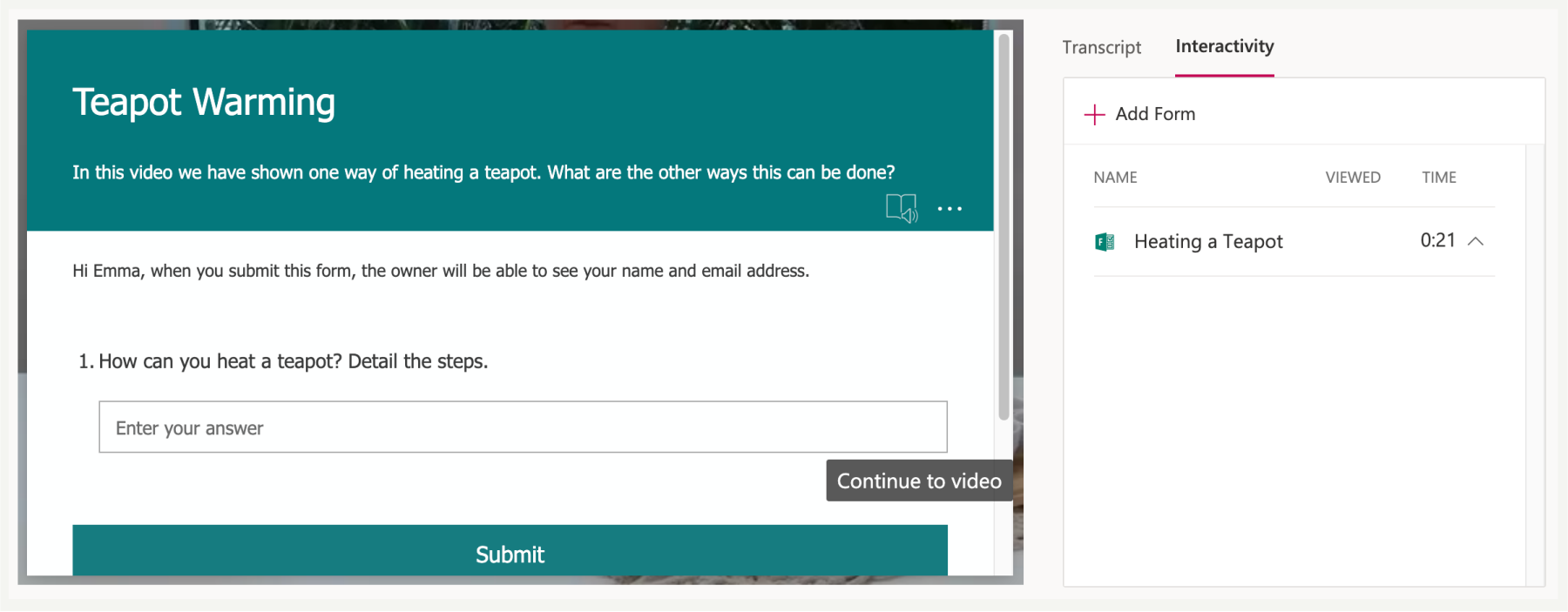
You can make Microsoft Stream videos more engaging and interactive for learners, by seamlessly adding a Microsoft Form (quizzes, forms, or polls) directly into your video. The form appears as a separate, clickable element in the Stream video scrubber so it doesn’t interrupt your media. Students complete the form and then return to the rest of the video. A video can contain multiple forms, i.e. you can quiz or poll your students at multiple points within the video.
At the end of the Form, which opens apart from the video but still in the video frame, a Continue video button appears that brings viewers back to their current spot in the video.
Why do I want to use this?
Example
You have a video on your Canvas course. It is a 40-minute video that you expect students to watch before they come to class next week (or before you have an online discussion in Teams with your class next week).
- You are concerned that not all students will watch the video
- You are concerned that students may not watch the video with the right lens (they may not pick up the key teaching points you want them to from this video)
By making the video interactive you can ‘pause’ the video at a certain point, e.g. after a key part of the video and make the students complete a poll or a short quiz before the video plays again. You can ask specific questions about what the students have just watched, e.g. do they agree with the speaker or ask a more open-ended question about what their opinion is of what they’ve watched.
When the student has completed the Form, there is a button for them to continue watching the video.
You can see responses to the Form questions. This means:
- You will know which students have answered the questions, and what their answer are (you will be able to remind those students who haven’t watched the video that they still need to)
- You will know that the students have answered questions/thought about the correct key points of the video.
You are able to create multiple points in the video where a Form can interrupt watching a video.
Benefits of using Interactive Stream Videos
- A longer video is broken down into shorter learning key points to keep student attention
- You will know if students have watched the video before the next class (this supports you in your flipped classroom practices)
- You can see student responses before class allowing you to pre-empt discussion
Hints and Tips
- Think carefully about what questions you want to ask to encourage students to think about key points of the video
- Make sure the Form(s) is/are inserted at the correct point in the video
- Use Form responses to engender discussion with your students
- Check on form responses before your next session so that you can remind students that they still need to watch the video and complete the Form.
- An interactive Stream video maybe not be fully functional if embedded into Canvas.
- After you have added the form and tested it, the video will no longer ‘pause’ for you because you have seen the form. However, the video will still ‘pause’ for the students.
Take a look at the 60 Second How-To video on how to create an interactive Microsoft Stream video.