

How to create a Collaboration in Canvas.
Create a Collaboration in Canvas
Click Collaborations in the navigation menu.
Choose the tool OneDrive.
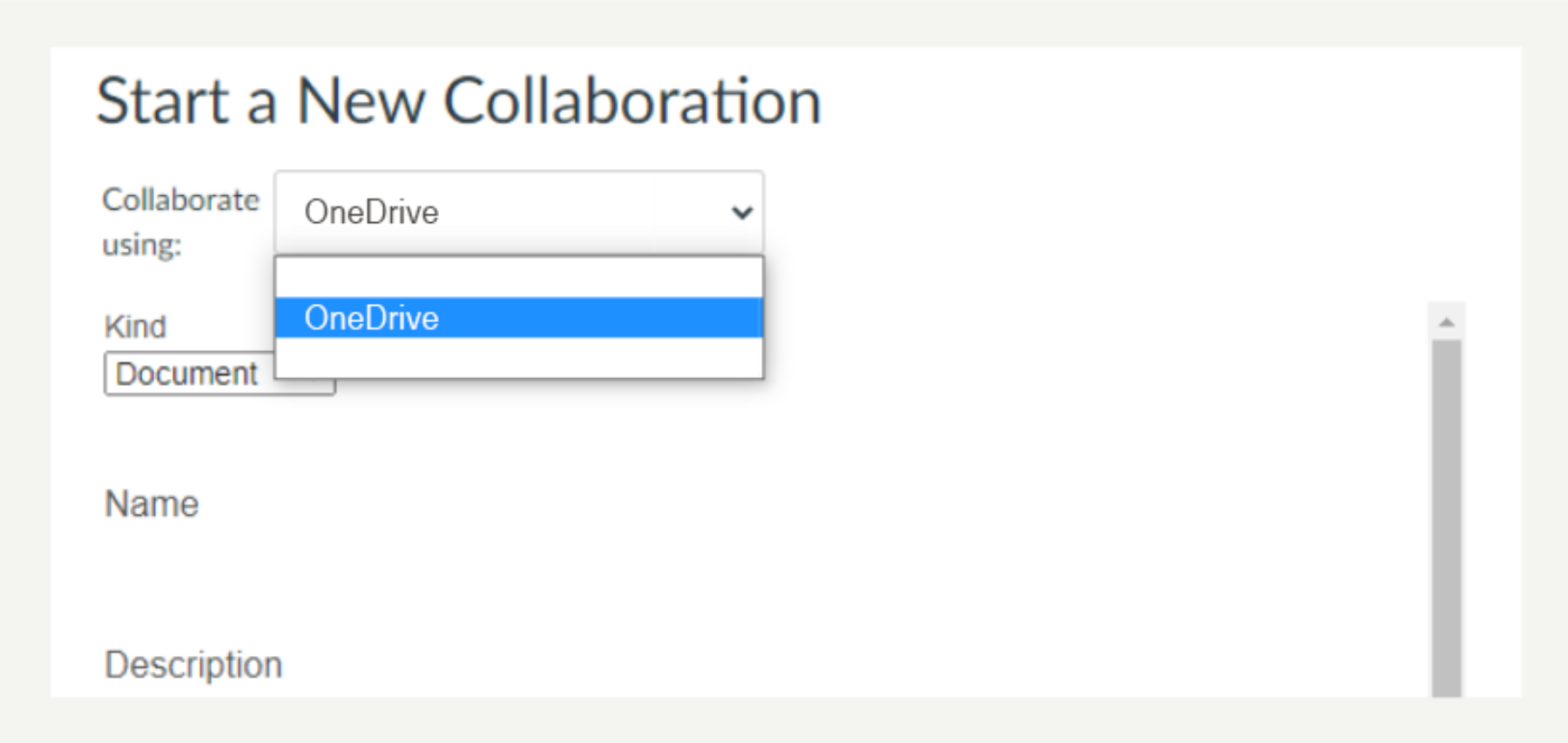
Or
Click +Start a New Collaboration. (You get this option after you have already created a Collaboration).

Using OneDrive
- Choose the Type of OneDrive document you want to use (you are limited to Word, Excel and PowerPoint).
- Type a name for the document.
- Add a description. This is useful for students to know what the purpose of the document is.
- Add the people you want to share the document with. Your whole student class will be listed here. If you are organising your class to work on different documents each create multiple collaborations and add certain students to certain documents. You may have already set up your students into groups. You can use Student Groups you have already created.

- Scroll down then click Save.
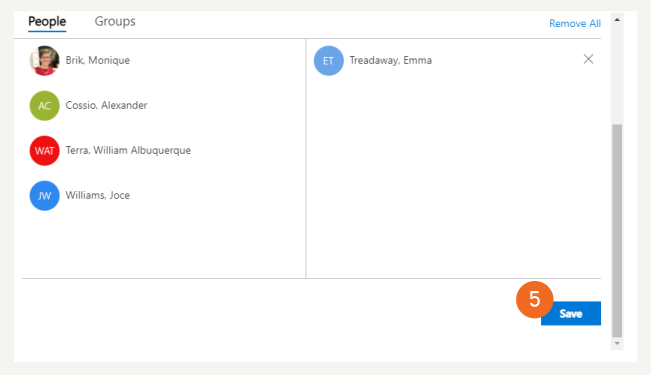
A file will now be created for that collaboration. When you return to Collaborations in the Canvas navigation menu, the file has been created.

A file will now be created for that collaboration. You can now click on this file in Canvas.
Hints and Tips
- If you want to collaborate using a file that is not word processing, spreadsheet or presentation, use Office365 (or Google Apps).
- Make sure you show your class how to use the collaborating environment (don’t abandon them to Office365).
- We recommend you use Office365 over Google Apps because students have a Microsoft account through their study, whereas student would otherwise need to set up their own Google account.