

How to access Canvas page history and restore pages to earlier versions
When you can edit course pages, you can view the page history and see the date, time, and author of any changes made to the page. Page editors can also roll back the page content to a previous version of the page.
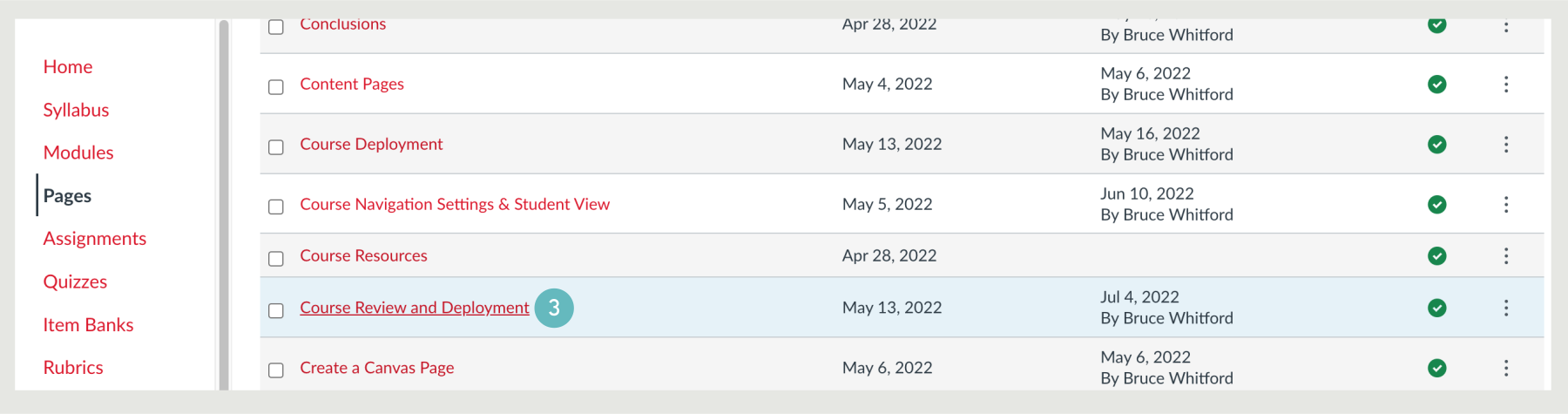
- In Course Navigation, click the Pages link.

- Click view all pages.

- Click the page you want to view.
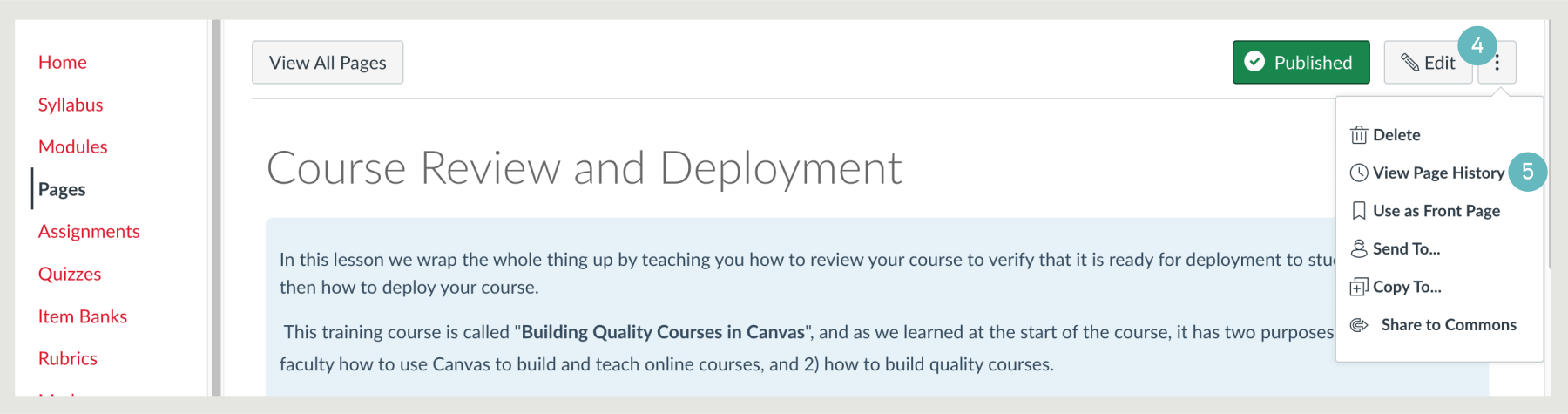
- Click the Options icon.
- Select the View Page History link.
- By default, the page history will show the latest revision.

- To open a prior version of your page, click the date you want to access.
- Click the Restore this revision link.

Canvas will restore the prior version to the most recent revision . If you want to replace your current page with different content, click a different date and page revision. Note that restoring a page revision will also associate your name with the page history.
Note: To return to the current page revision, click the close icon. You can also use the breadcrumb navigation to return to the current page or the pages index.