

It can be time-consuming to add questions manually to a quiz or exam in Canvas, and it is easy to accidentally omit portions of a question, introduce errors such as typos, or improperly identify a correct or incorrect response. If you’ve been writing your questions in a word processor, you have a long copy-and-paste session ahead of you before your quiz is available to students. When you have lots of quizzes, an extensive exam, or are planning to build question banks, it is more efficient to automate the process.
Here’s how to format and draft quiz and question bank questions in a .csv file, convert the CSV file to a QTI ZIP file, and upload the file to your course in Canvas.
Note: Canvas quizzes have many types of questions available, including fill-in-the-blank, matching, numerical, essay, and file upload. This process works only for multiple choice, true/false, and multiple response questions.
Step 1: Prepping the Template and Writing the Questions

- Add your questions to the template using Microsoft Excel or another spreadsheet tool.
- Column A is the type of question: MC (multiple choice) and MR (multiple response). For True/False questions, use MC.
- Column B is not used but must be there.
- Column C is the point value of the question. It can be between 0-100 and up to two decimal places (3.33)
- Column D is the question body.
- Column E is the correct answer. The numbers 1-5 each correspond to the one of the possible answers listed in column F-J. Use 1 to indicate a, 2 to indicate b, 3 to indicate c, 4 to indicate d, and 5 to indicate e. For True/False questions, use 1 for True and 0 for False. Clear any unused cells.
- Columns F-J are the possible answer choices. You can have 2 or more.

- Save the CSV file.
Step 2: Convert the .CSV File to a QTI .ZIP
You are able use this online converter, Classic to Canvas (QTI 2.0) Converter to convert the CSV file to a QTI file in the form of a ZIP file.
- Click Choose Files and select your CSV file.
- Click Perform Conversion. A ZIP file will be saved to your computer. Do not unzip the file.

Step 3: Import into Canvas
Follow the instructions in the How do I import quizzes from QTI packages?
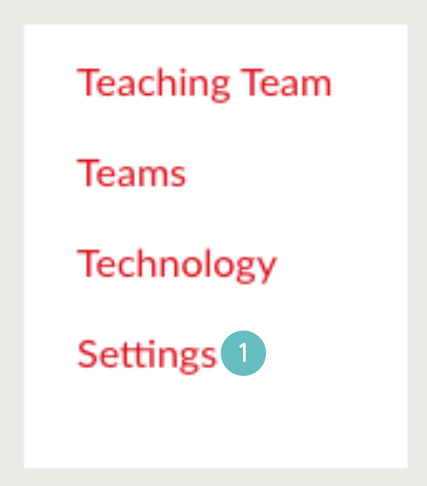
- Open Settings
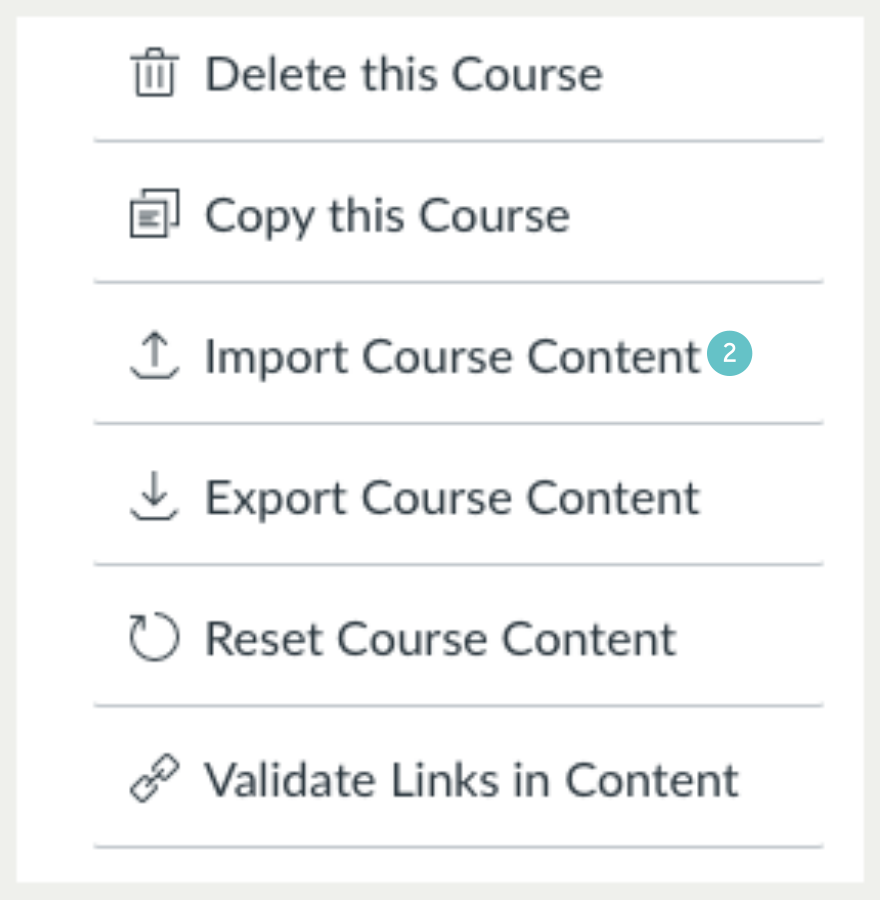
- Click the Import Course Content button.
- Select Content Type

- You can manage options for your import before it is created.

Step 4: View Import Options
You can manage options for your import before it is created.
- If New Quizzes is enabled in your course, you can convert quizzes in the import package to the New Quizzes format.
- To overwrite the assessment content with matching IDs, click the Overwrite assessment content with matching IDs checkbox.
- You can also overwrite assessment content with matching IDs.
- To convert quizzes in the import package to the New Quizzes format, click the Import existing quizzes as New Quizzes option. If this option is not selected, quizzes convert to Classic Quizzes format.

Notes:
- The Import existing quizzes as New Quizzes option only displays for courses that have enabled New Quizzes.
- If you have enabled New Quizzes but the option does not display, your institution has not enabled New Quizzes migration upon import.
- You cannot select a default question bank when using the Import assessment content as New Quizzes option.
Select Question Bank:
In the Default Question bank drop-down menu, select the Question bank you want to use for your question bank.
Step 5: Importing a File
- Click the Choose File button.
- Find and click the ZIP file you want to import. Click the Open button.
- Click the Import button.

Step 6: View Current Jobs
The Current Jobs section displays the status of your import.
- Running reports display a progress bar indicating the time remaining to complete the import.
- The import may also display other status indicators as part of the import process.
- Learn more about course import statuses.
- When the course has completed, view your quizzes by accessing the Quizzes page in Course Navigation.

Note: If you imported your assessments to New Quizzes, you can view your quizzes from the Assignments page.
Hints and Tips
- Importing to a question bank will also create a quiz containing all of the questions in the bank.
- If you would like to pull just a small selection of questions from the bank:
- First, delete the imported quiz from the Quiz or Assignments tab (the question bank will remain).
- Create a new quiz.
- Follow the instructions in the How do I create a quiz with a question group to randomize quiz questions? to select a subset of questions from the question bank.