

An introduction to the procedures to implement the Plagiarism Framework for Canvas Assignments.
The Turnitin Plagiarism Framework is an alternative way to check for similarities and Generative AI usage in students’ assignment submissions. It is integrated into the Canvas assignment settings page, and there is no need to configure its settings separately.
You can still use our existing Turnitin LTI external tool (called Turnitin Feedback Studio) in your Canvas assignments that will toggle off this new alternative each time.
Below is the procedure to create your Canvas assignment with Turnitin Plagiarism Framework.
- Click Assignments in the navigation menu.
- Click the red Assignment button at the top right of the page to open an Assignment Settings page.

- On the Assignment Settings page, fill in the text fields; Assignment Name, Assignment Description, Points, Assignment Group, Display Marks, etc., as usual.

- Set Submission Type to Online and tick the checkbox beside File Uploads.
- Keep Submission Attempts to Unlimited.

- Set Plagiarism Review to Turnitin Plagiarism Framework, keep Store submissions in to Standard paper repository, tick all six checkboxes and put 10 Words under Exclude small sources check box.
- Keep Show report to students to Immediately

- Skip this step if you are not using Group Assignment. Otherwise, tick This is a Group Assignment checkbox and pick up a Group Set.
- Add the assignment period dates and times and the due date and time.
- Then click Save button to save the settings.

- Add your Rubric by clicking +Rubric button.
- If you are satisfied with everything, publish the assignment by clicking Publish button. Otherwise just leave it until you are ready.

After the students have submitted their work, you can check their similarity rates in SpeedGrader, as shown below.
- Click on SpeedGrader.

- Click on the similarity rate to open the Turnitin similarity and AI report page.


The students can check the similarity rates of their submissions by following the steps below.
- Click Submission Details to get the submission details page.
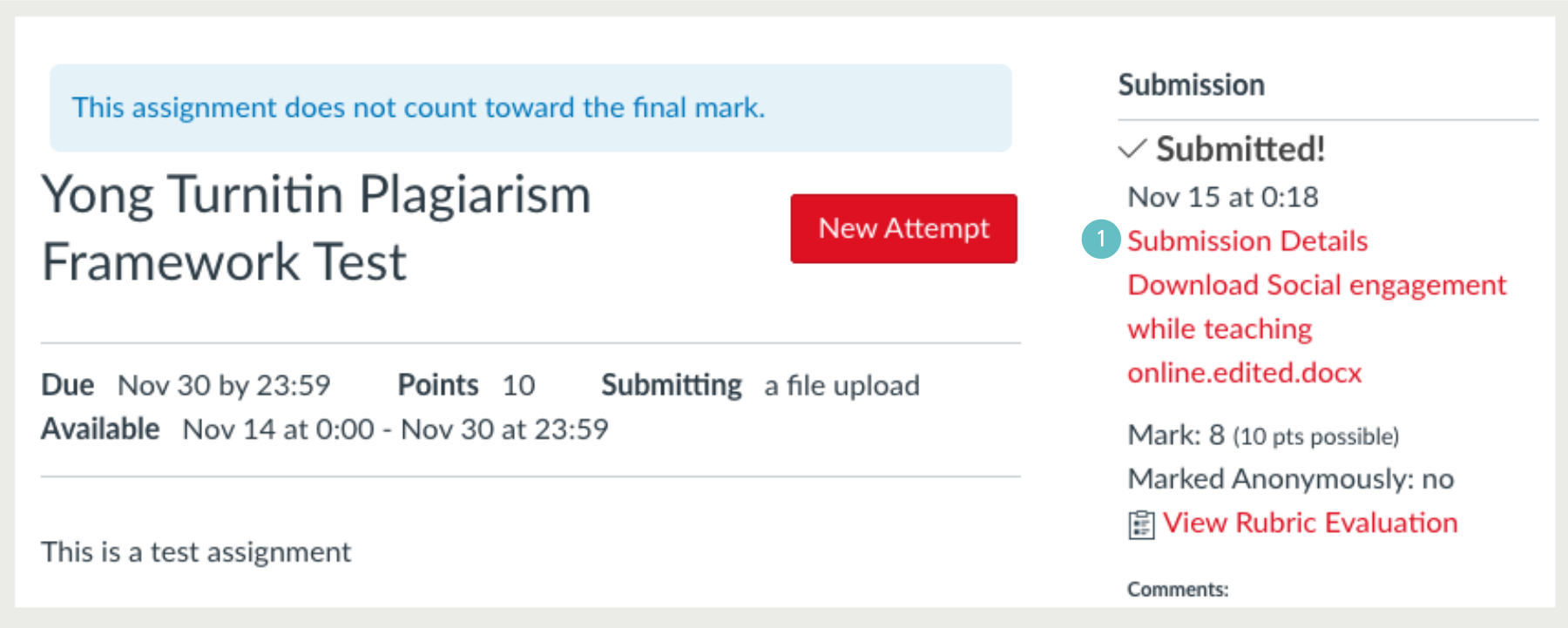
- The submission details page includes Turnitin similarity rate, file submitted and re-submission option (before the due date), as well as marks and teacher’s comments if available. Students can click on the similarity rate to see details of the Turnitin report. AI report is not available to the students at the current stage.

