

If you use external websites for your Canvas course, Canvas provides easy options to help your students navigate to those websites. You can add the website to your Canvas course sidebar using the Redirect Tool, or to a Module using the External URL option.
This tutorial shows how to use the Redirect Tool App in Canvas to add links to external Web resources so they show up as navigation items in course, user or account navigation. The URL you specify opens in a new tab users click the tool
Steps for Using the Redirect Tool
- Login to Canvas and find your course.
- On the left hand course navigation menu, click Settings, found at the bottom of the navigation menu.

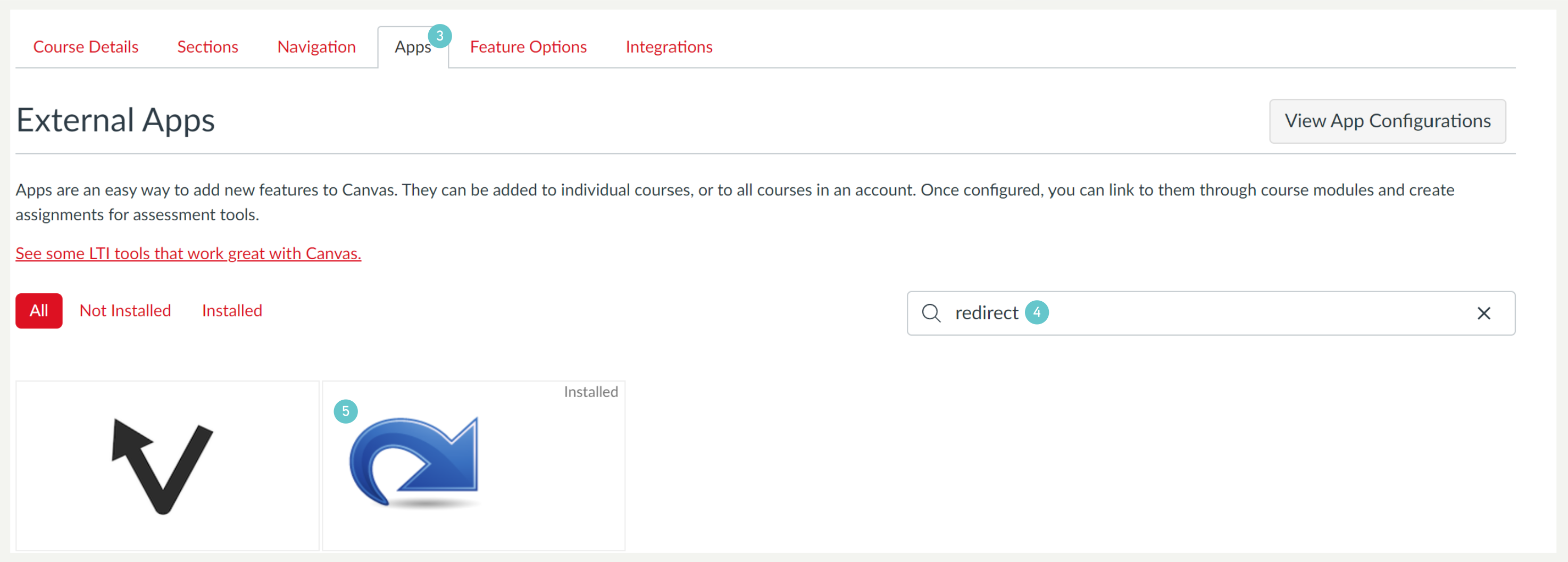
- in the Settings window, click the Apps tab, which displays external apps that are integrated in Canvas.
- Scroll down until you find the Redirect tool or search for it in the search bar.
- Click on the Blue Arrow-Redirect icon that appears as shown below and this will open the page for the app.
- Click on the + Add App button under the App image.

- The App is now installed and looks like this in you ‘Apps ‘ window

- In the Add App popup:
- in the Name entry field, enter the name as you want it to appear in the course navigation menu. (e.g., Manukau Institute of Technology)
- In the URL Redirect entry field, enter the URL for the page you want to redirect to. Make sure you use the https:// prefix https://www.manukau.ac.nz/
- By default, “Force open in a new tab (For External Links Only),” is checked. Leave it that way.
- Click the checkbox for Show in Course Navigation, so it appears the tool the course navigation menu.
- Click the red Add App button.
