

Below is a step-by-step guide into converting Moddle courses to Canvas.
You can import prior content from Moodle exports into Canvas.
Note: Moodle Lessons are not supported by Canvas import.
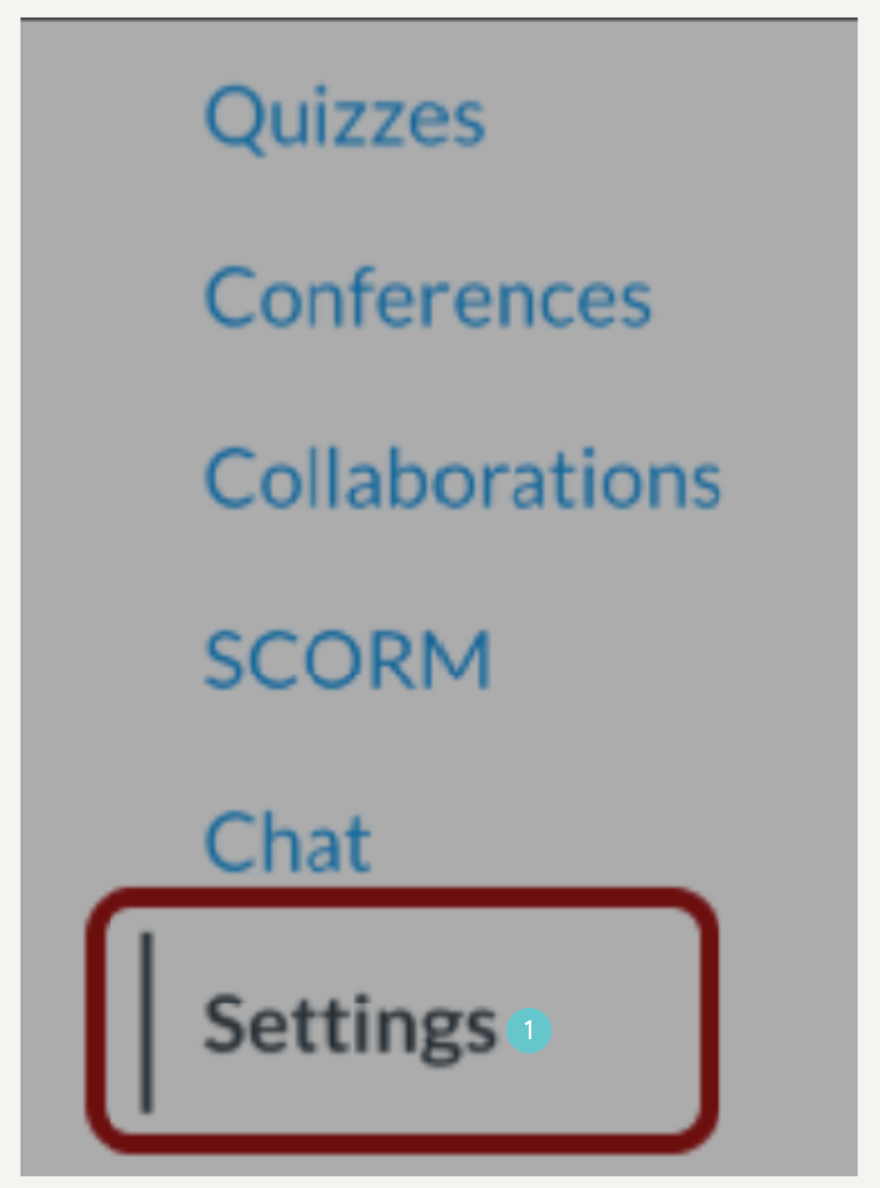
- In Course Navigation, click the Settings link.
- Click the Import Course Content link.

- Select Content Type
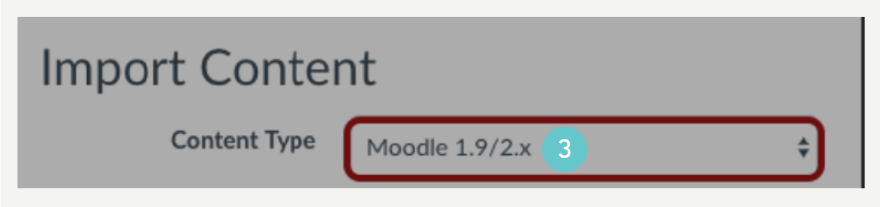
- In the Content Type drop-down menu, select the Moodle 1.9/2.x .zip file option.
- Click the Choose File button.

- Find and click the Moodle .zip or .mbz file you want to import.
- Click the Open button.

- Select Question Bank
- In the Default Question bank drop-down menu, select the Question bank you want to use for your question bank from Moodle.

- Create Question Bank
- If you do not have a question bank you want to use, you can create a new question bank. In the drop-down menu, select the Create new question bank option.

Select Migration Content
- To import all content from the course, select the All Content radio button.
- If you want to select specific content, click the Select specific content button.
- If you select the specific content option, you are required to select the content you want to import after you review the remaining page options. After you start importing the content, the import selection cannot be cancelled.

- If you want to adjust the due dates associated with the course events and assignments, click the Adjust events and due dates checkbox.

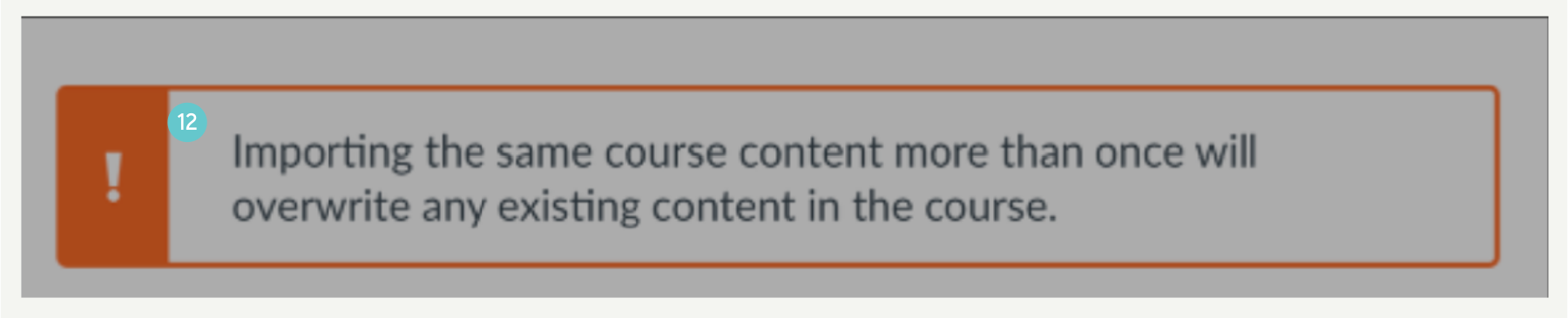
- When importing content, a message displays explaining that importing the same course content or export package more than once overwrites any existing content in the course.
- Click the Import button.
- A progress indicator displays the upload status by percentage.

View Current Jobs
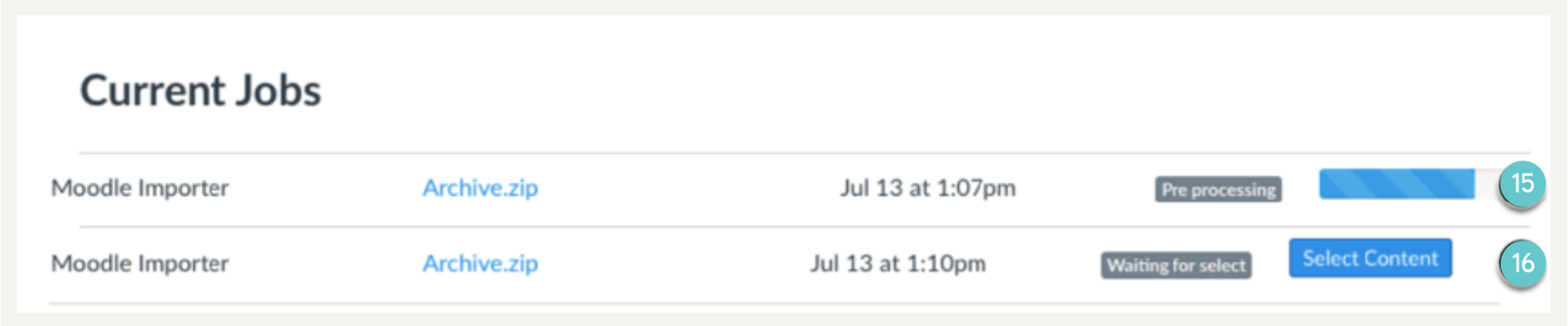
- The Current Jobs section displays the status of your import. Running reports display a progress bar indicating the time remaining to complete the import.
- If you chose to select specific content in your course, the current job will show as Waiting for Select, which means you must select the content you want to import.
View the content from any completed imports by accessing any link in Course Navigation.