

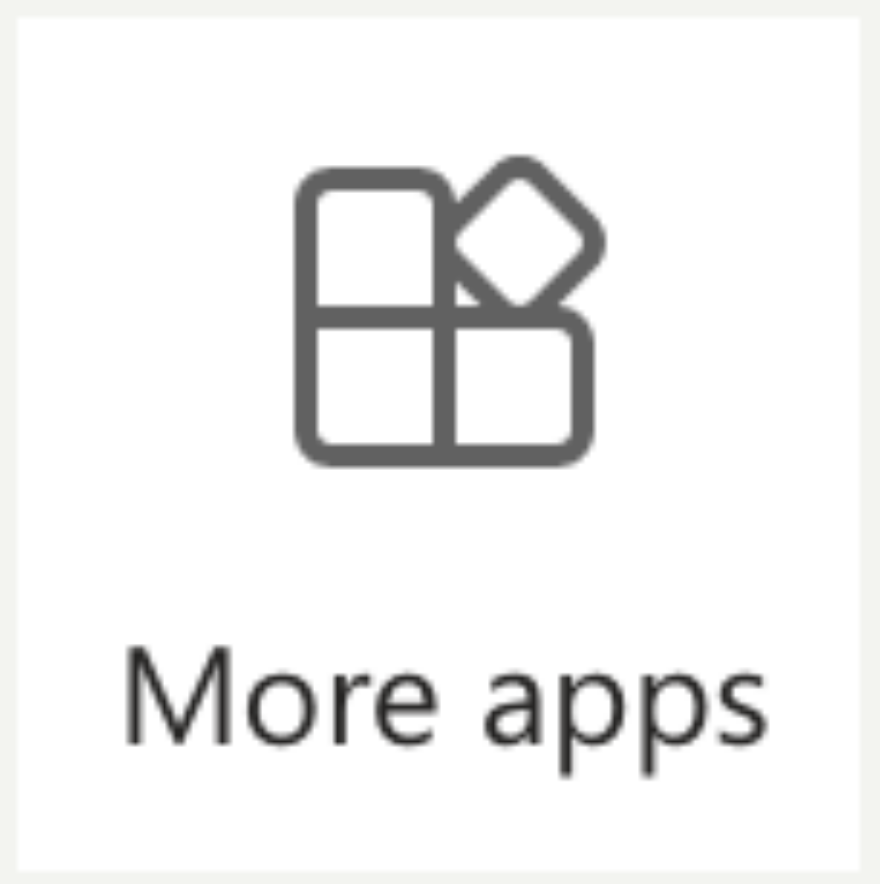
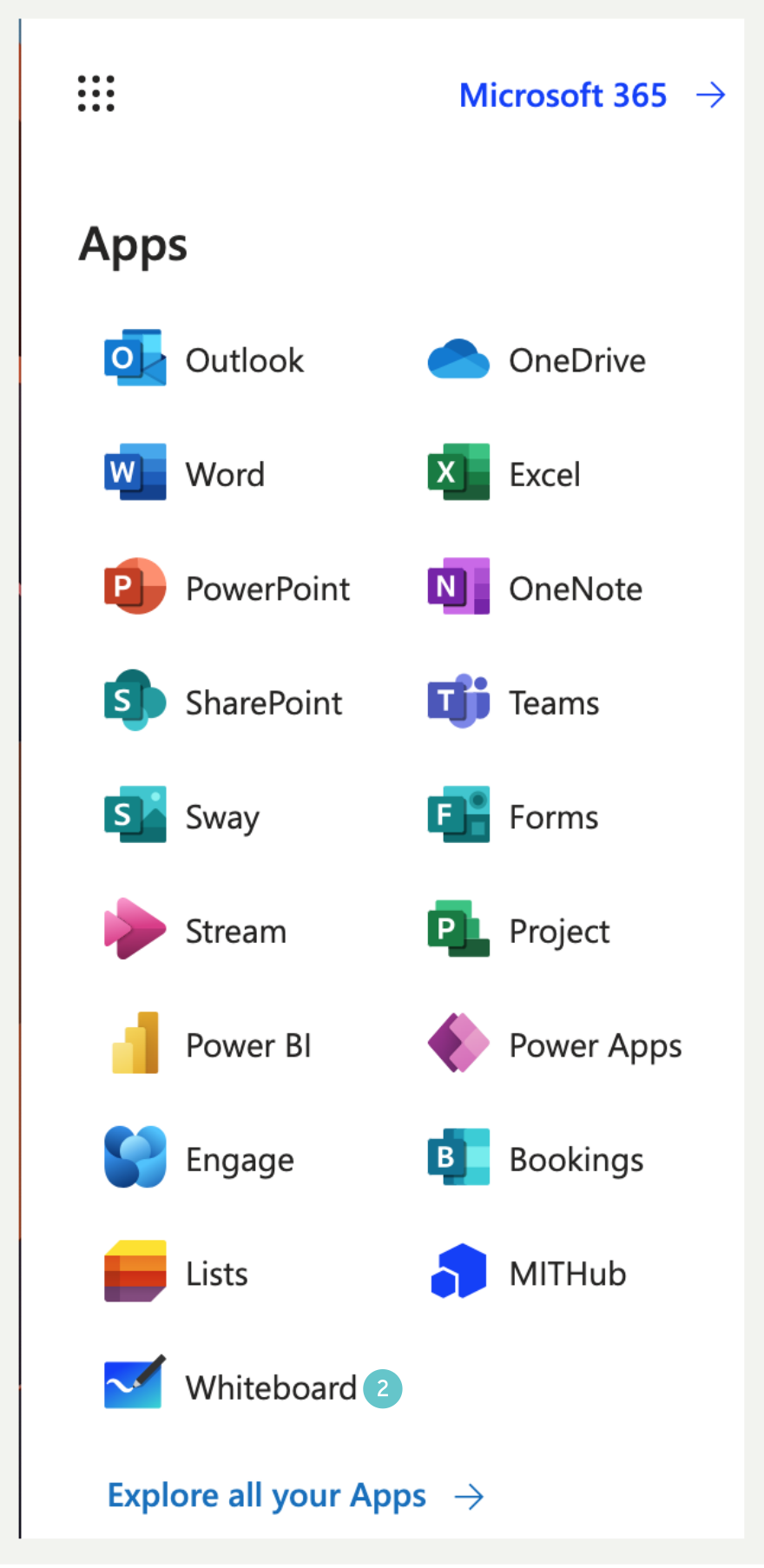
Microsoft Whiteboard is an app available to you through Microsoft 365. You may need to find it under the More apps icon to make it available. Select the Whiteboard app from apps options available, If you just added the app, it will be at the bottom of the list.
Microsoft Whiteboard is an app available to you through Microsoft 365. To access any of the MS365 apps, click in the waffle (9 dots in a square, top left corner of your screen when in any MS 365 product online e.g. OneDrive or SharePoint) Highlighted here (1):
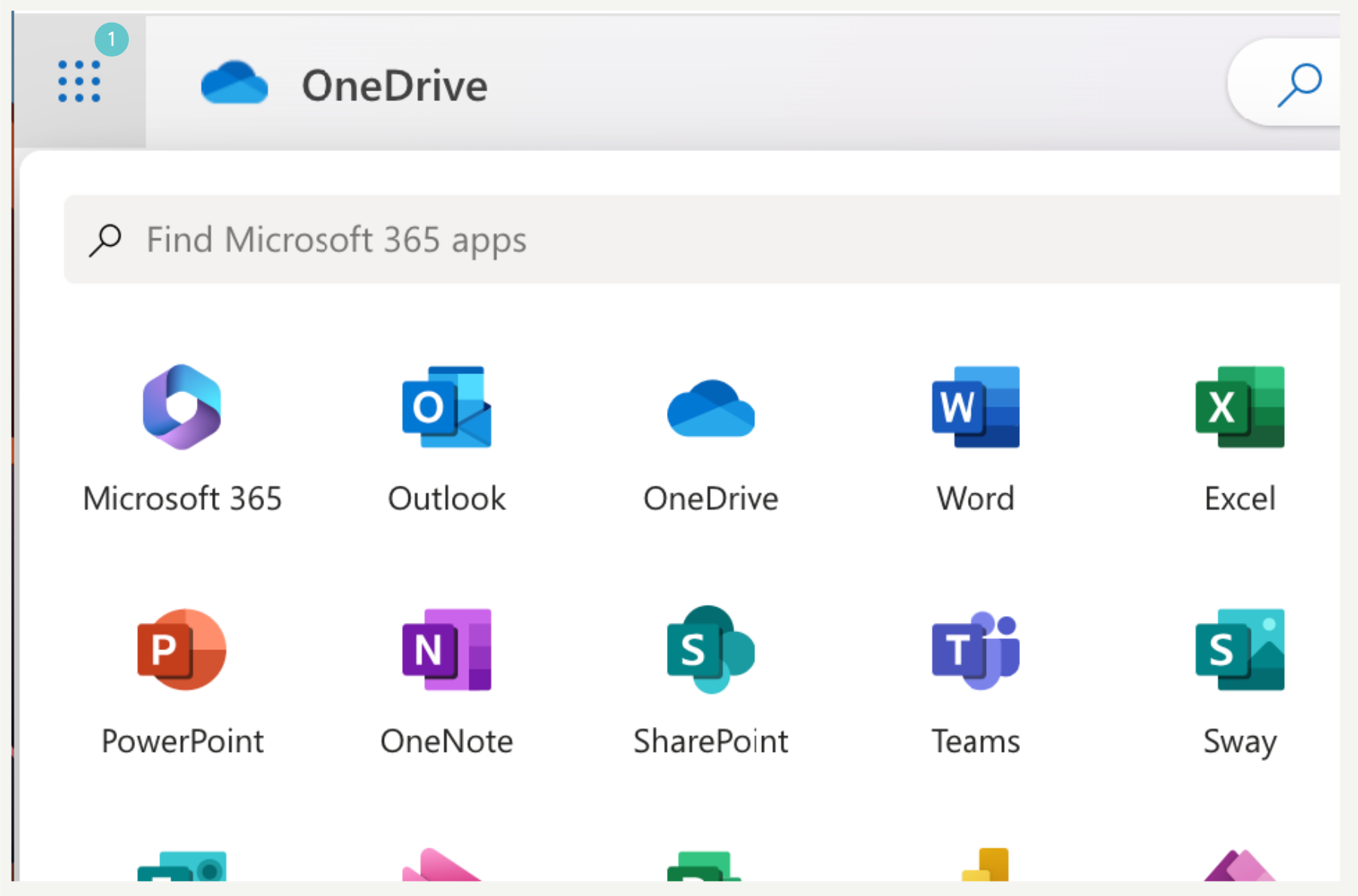
You may need to find it under the More apps icon to make it available. Select the Whiteboard app from apps options available, If you just added the app, it will be at the bottom of the list.
- Select Whiteboard to open the app.
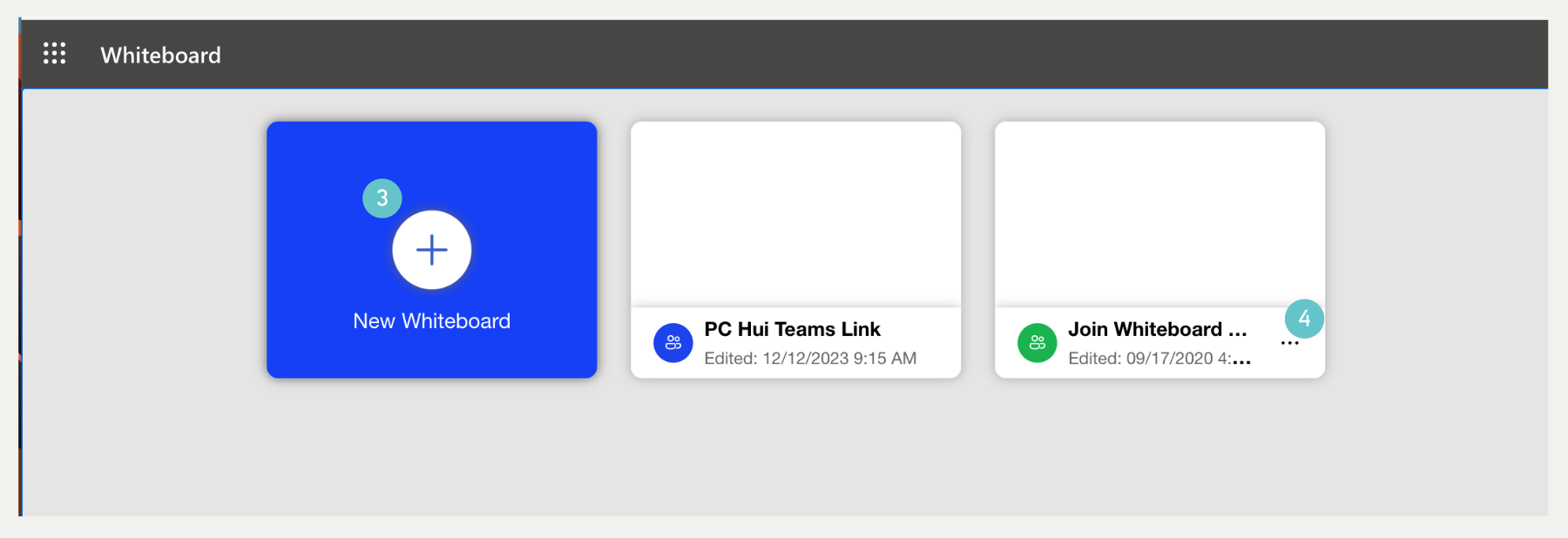
- Once opened you can create a new Whiteboard or select an existing whiteboard to work on.
- Select the 3 dots (…) on the whiteboard image to delete or Rename.
- Select the type of blank canvas type works for what you intend to discuss and present. The Where in the world style was selected in this case.

- You have the option to Preview to see what it looks like
- Or just Use this template.
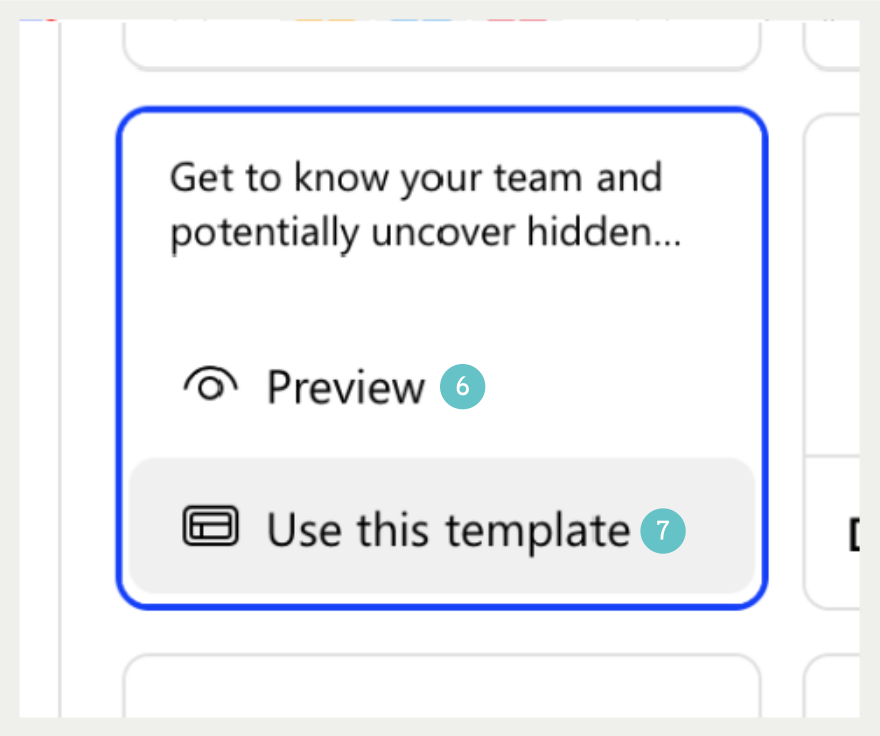
- By selecting Use this template, you will then be presented with a pre-populated template ready for your input and changes.
- There also useful tools provided at the bottom of the page to add lines, arrows, move objects, place objects etc.
- A placeholder heading and text is provided, along with Tips.
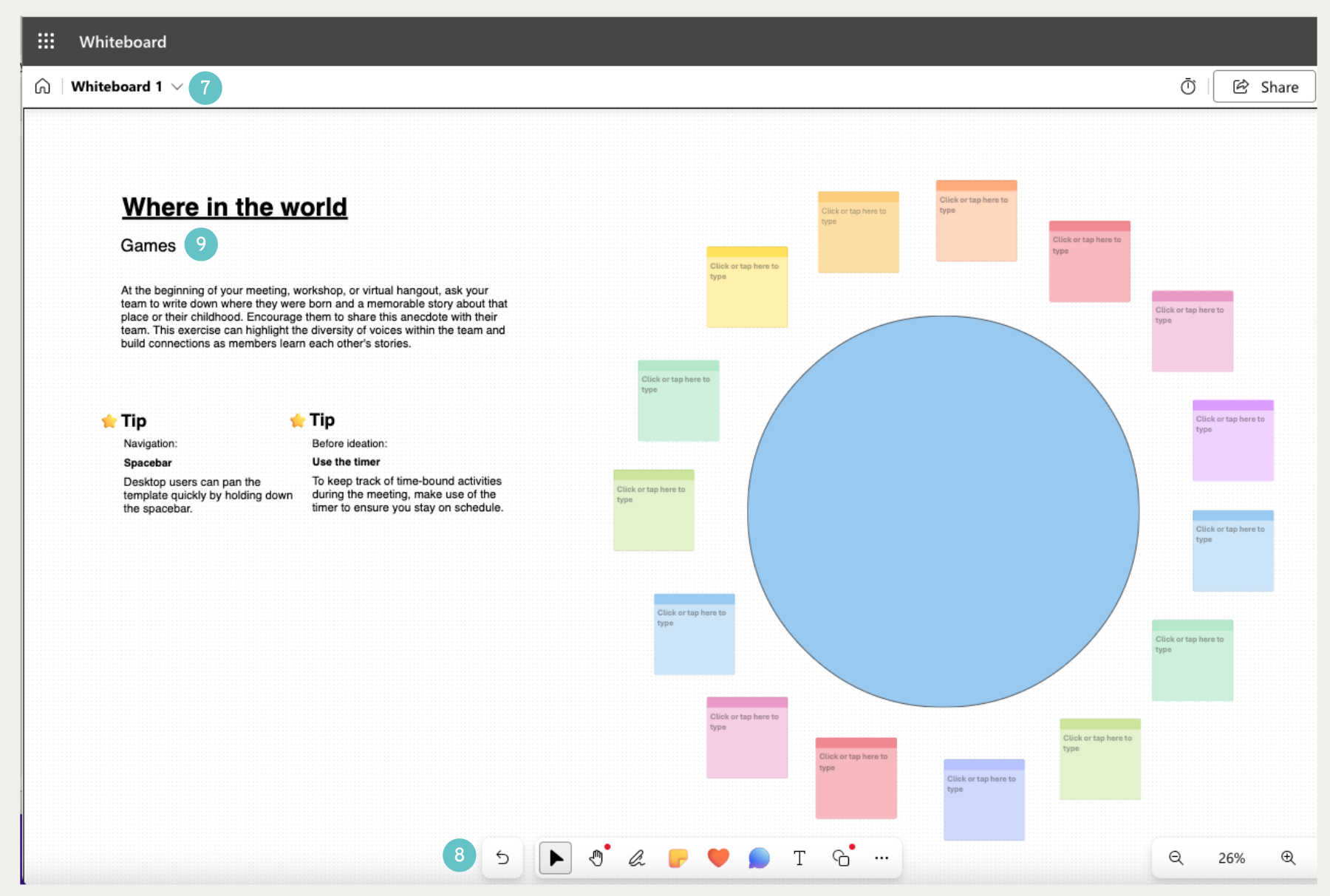
It will pay to spend a little time experimenting and trying out the Whiteboard templates and tools to get the full benefit of this useful tool. As you can see, the template are quite varied, and you should find something that suits your needs. Look out for new features as are developed.
Once you have created your Whiteboard you will be ready to share on Teams with you colleagues.
Share a whiteboard in Microsoft Teams
You can share a new/existing whiteboard with all participants in a Teams meeting. That same whiteboard is available across all devices.
You can also choose an existing whiteboard to share in a Teams meeting. This makes it easy to prepare a whiteboard ahead of time or continue working on a project outside of Teams.
- Select the Share icon in the meeting’s share tray.

- Select Microsoft Whiteboard.
- The board picker view will open. Select an existing board from the list or start a new board

If a whiteboard is already associated with the meeting, Teams will share that board by default. You can choose a different board to share by navigating to the Home icon in the top left.