

Learn how to create a custom colour swatch in Canvas LMS and easily apply it to text using the font colour options.
Creating a New Colour Swatch
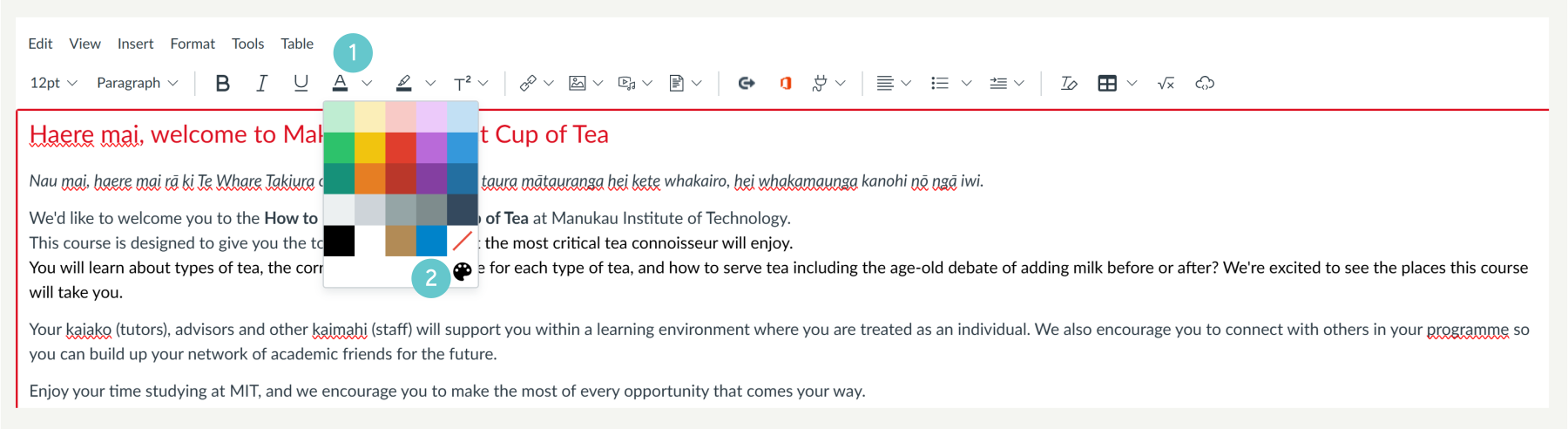
- At the bottom right of the font colour menu, click the palette icon.
- Locate the “A” icon in the text editor toolbar and Click the arrow next to the “A” to open the font colour menu.
- Use the colour picker to choose a new colour or you can enter a specific colour code.
- Click Save

- Once selected, the new colour will be saved in your swatches and can be used repeatedly.

Applying the Colour to Text
- Highlight the Text you want to colour.

- If your desired colour is already selected (indicated by the bar under the “A”), click the “A” icon to apply it.
- If not, open the font colour menu, select the saved swatch.

- The colour will be applied to your text.
