

This Canvas Knowledge Base article is a helpful guide on how to extract student marks, rubrics and comments from Canvas for moderation for an individual student.
- Click the People link on the left menu
- Select the learner results to print.
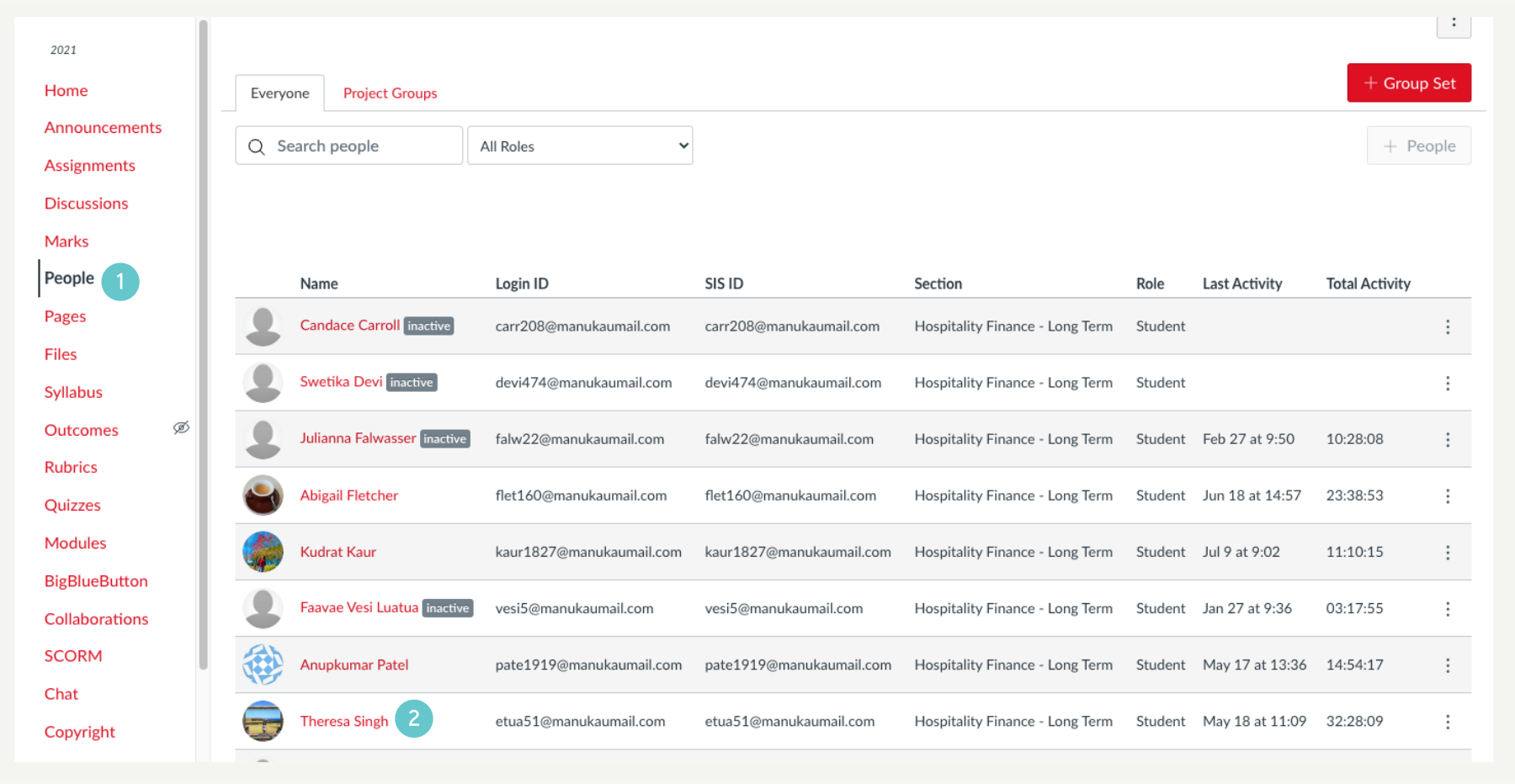
- Click Marks in the window that appears.

- Marks will appear as follows.

- You can choose to extract marks, rubrics and comments for a student using the options below.
- Note: these icons only appear when marks, rubrics or comments have been entered for a student. Not all these icons may be available.
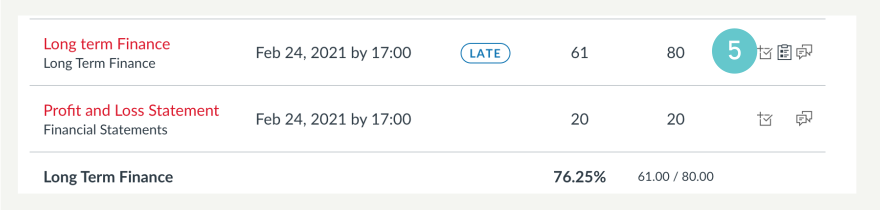
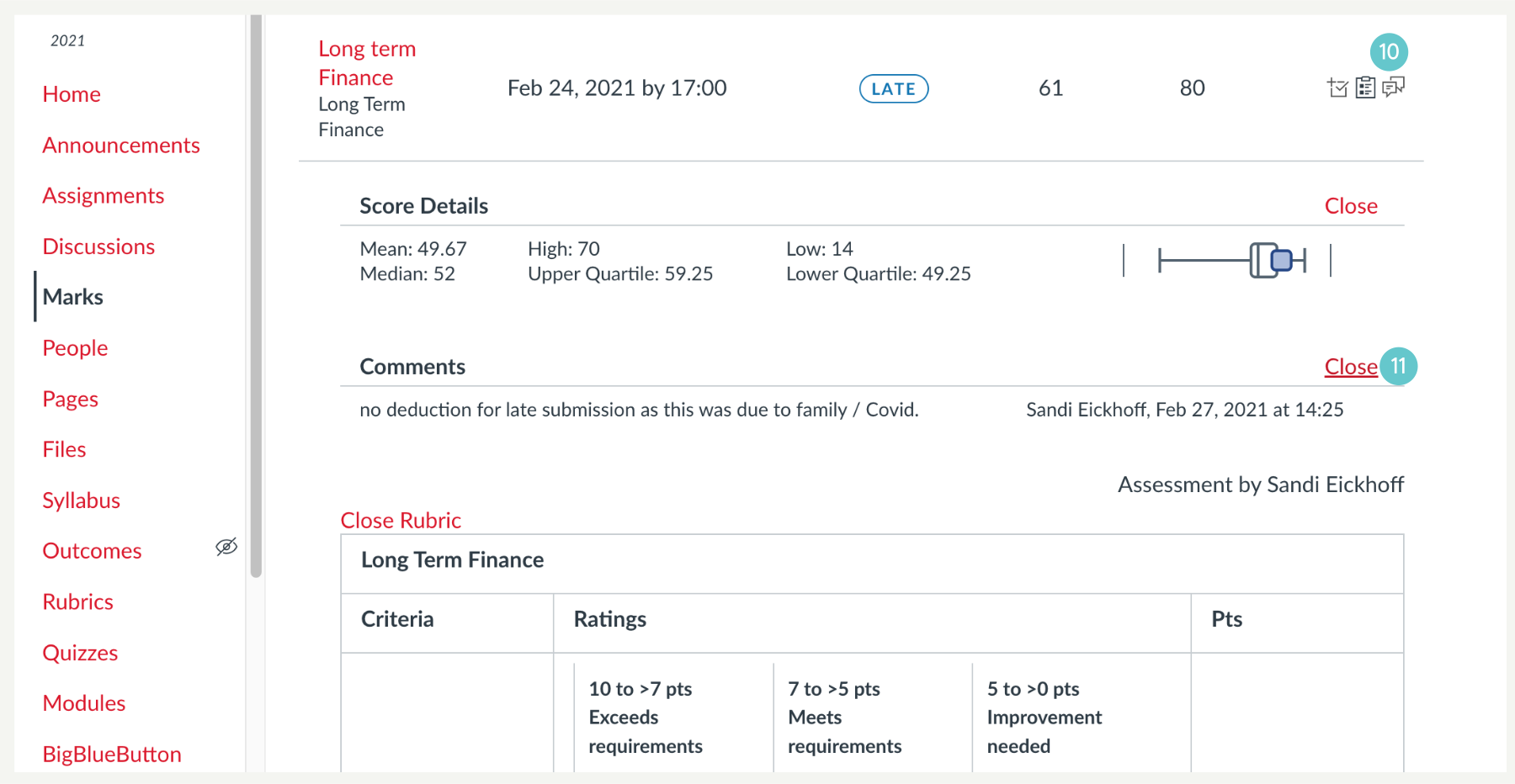
- Click on the score icon. It will show the student’s score and the highest and lowest scores, and the median and upper and lower quartiles. (This information is not needed for moderation, however it is of interest to the lecturer).
- Click Close to hide the information if not needed.

- Select rubrics and comments if they have been entered.
- Click close to hide.

- Do the same for comments.
- Click close to hide
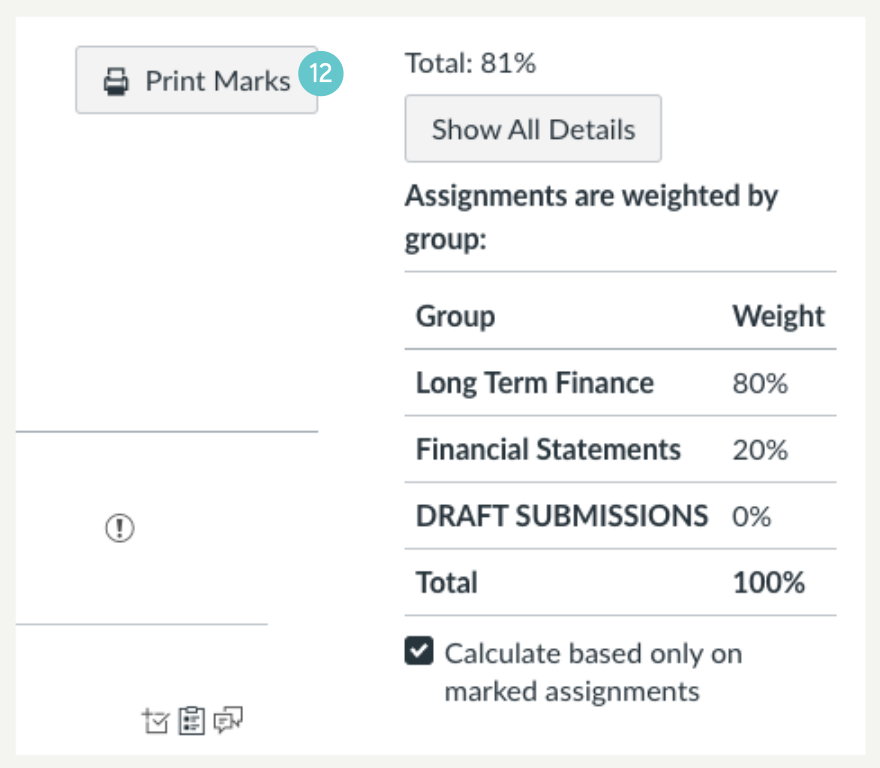
- Click Print Marks
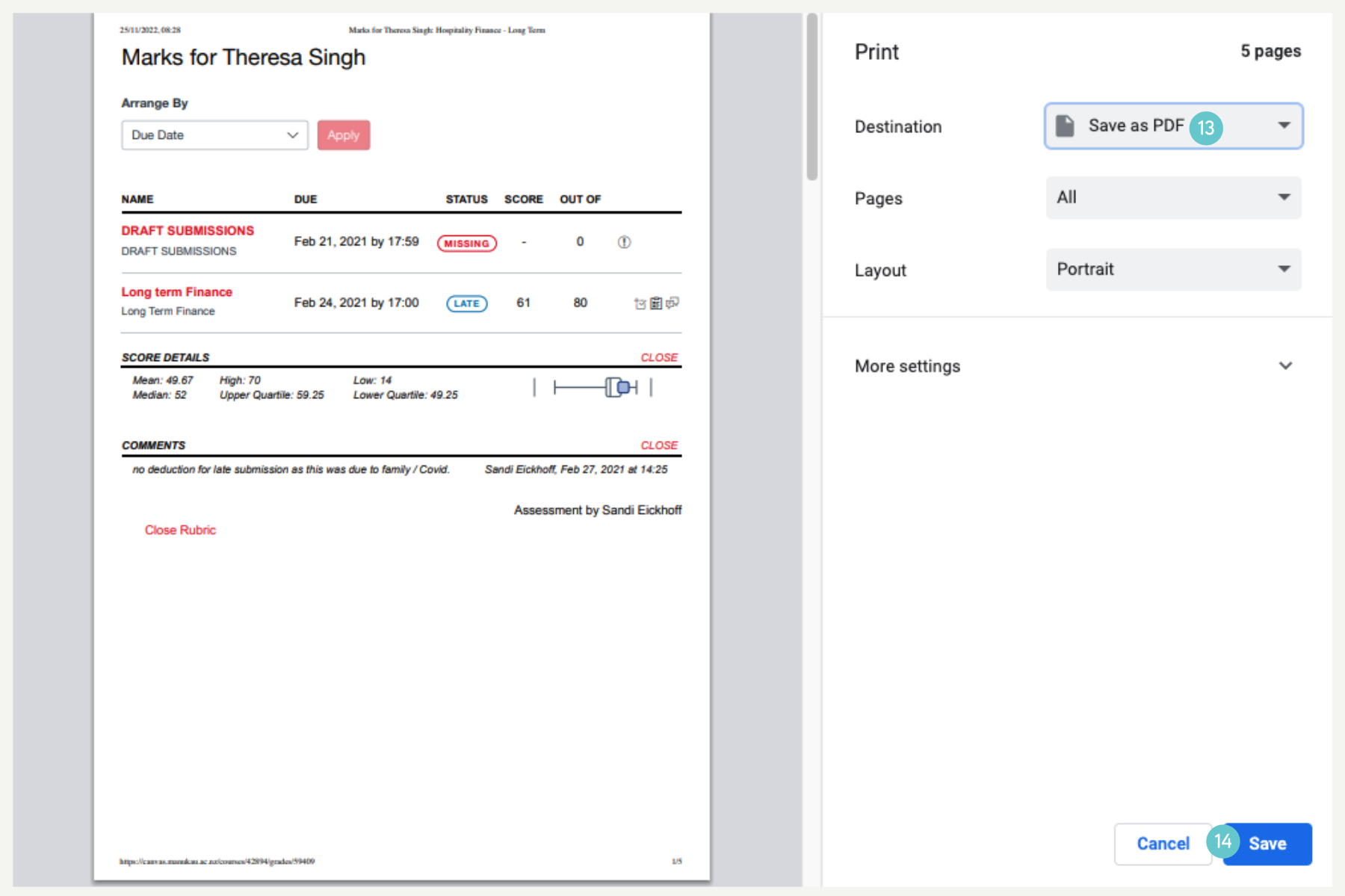
- Choose Save as PDF, from the menu
- Click Save.
- The result is a multi-page PDF file, ready to be redacted in Foxit pdf editor program.
