

How to resize images in Windows 7, 8, 10, Vista, XP & Mac
How To Resize a Picture or Image using “Paint” in Windows 10, 8, 7 or Vista
Open Paint:
- In Windows 10: click the Search icon or box, type Paint, and click on the Paint desktop app.
- In Windows 8: on the Tiles screen, type Paint, and click on the App icon for Paint
- In Windows 7 or Vista: click the Start button > click All Programs > click Accessories > then click Paint.
- Or Right click on the image you want to resize and from the drop down menu, select “Open with” and then “Paint“.

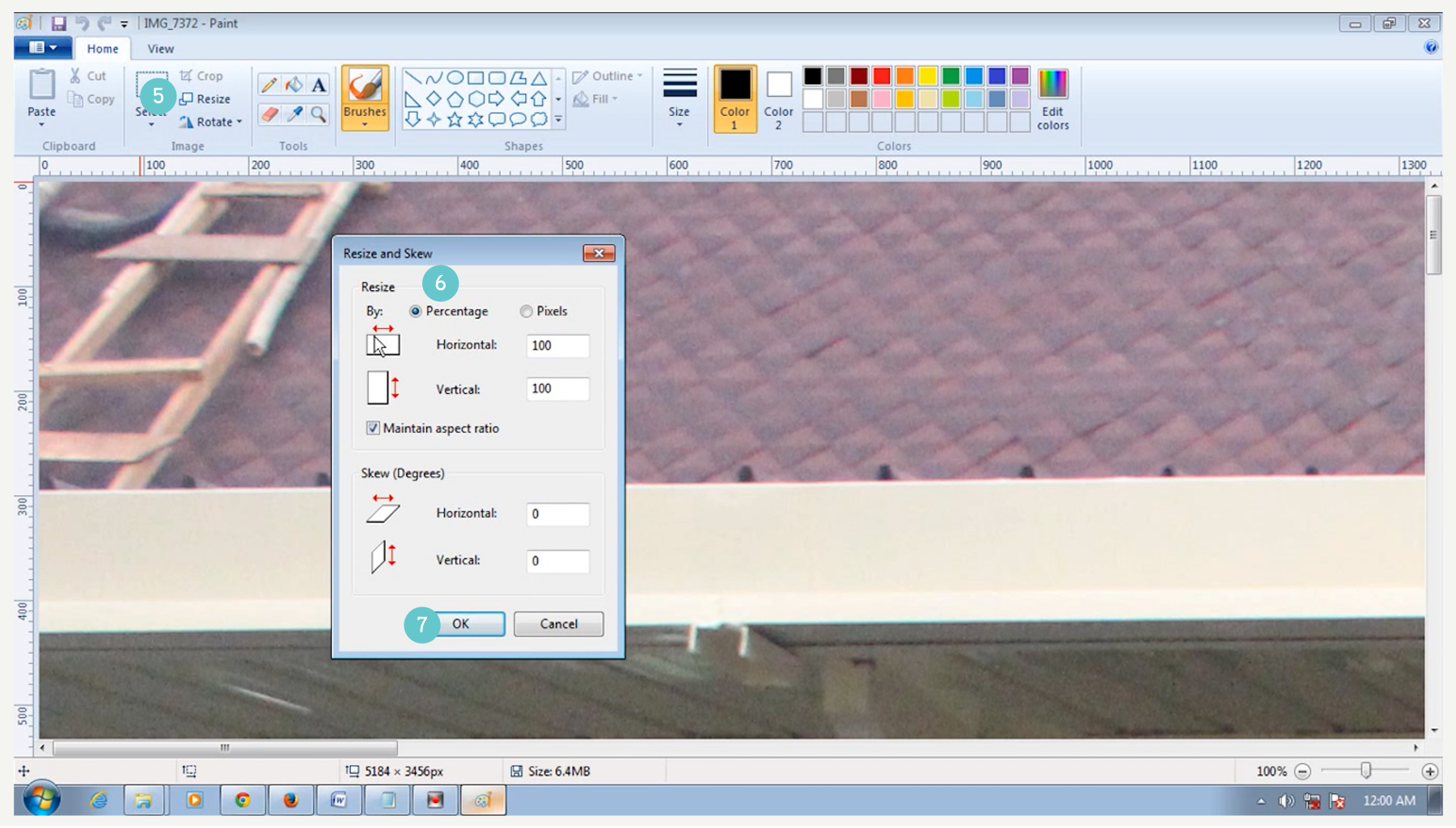
- When the image is opened up on the MS paint interface, click on the “Resize” button from the toolbar.
- In the new dialog box that appears, set all the parameters in accordance to your need like Percentage, Pixels, Skew, and don’t forget to check the Maintain aspect ratio
- To resize your picture by a certain percentage, click Percentage, and then enter a percentage to reduce the width by in the Horizontal box, or a percentage to reduce the height by in the Vertical box.
- To resize the picture so it’s a specific size, click Pixels, and then enter a new width in the Horizontal box, new height in the Vertical box.

- Click File in Windows 10 or 8 or the Paint button in Windows 7/Vista > point to Save as > then click the picture file type for the resized image.
- Type a new file name in the File name box, and then click Save.
How To Resize a Picture or Image using “Paint” in Windows XP
- Click Start >All Programs > Accessories > Paint
- On the Paint Menu, click File
- Open change “Look In” to the location of the image to be resized
- click Open
- On the Paint Home Menu click Resize
- Stretch/Skew
- To maintain the original width-to-height aspect ratio, enter the same percent (such as 50%) for both Horizontal and Vertical under Stretch. Note: Do not enter any Horizontal or Vertical Degree value under Skew.
- Click Okay to preview the resized image
- Click File > “Save As”

- Enter a filename
- Click Save.

For Mac
- Right click on the image you want to resize
- Click Open With then Click Preview

- Select Tools on the top menu
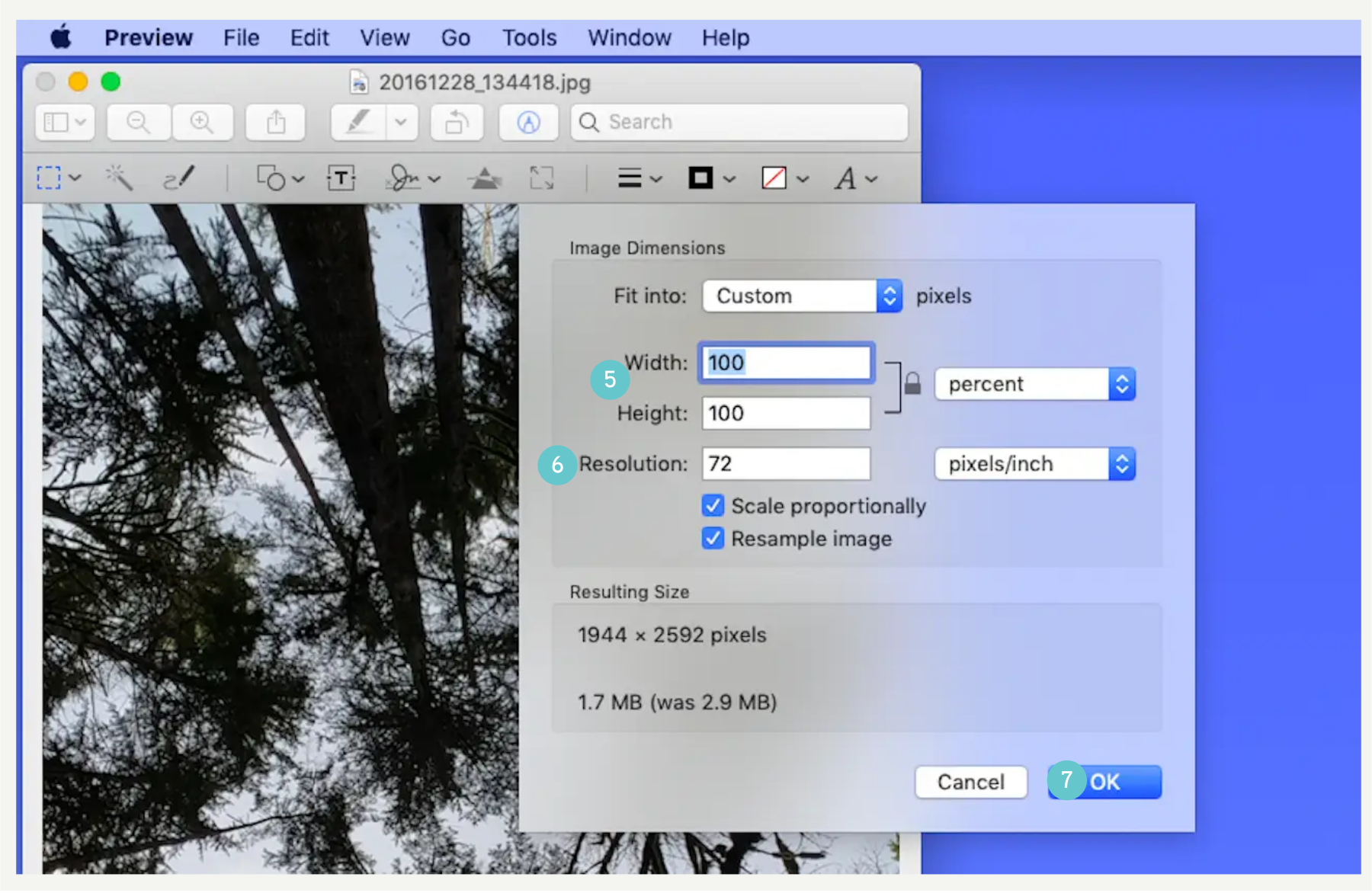
- Then click Adjust Size

- Adjust size by either increasing or decreasing the percentage
- Keep the resolution at 72 Pixels/inch
- Click OK
- Click File and Save As on the top menu bar to save your resized image.
Tip: To reduce the file size of multiple images at the same time, display the images in the same window, select them in that window’s sidebar. Follow the same steps as above.