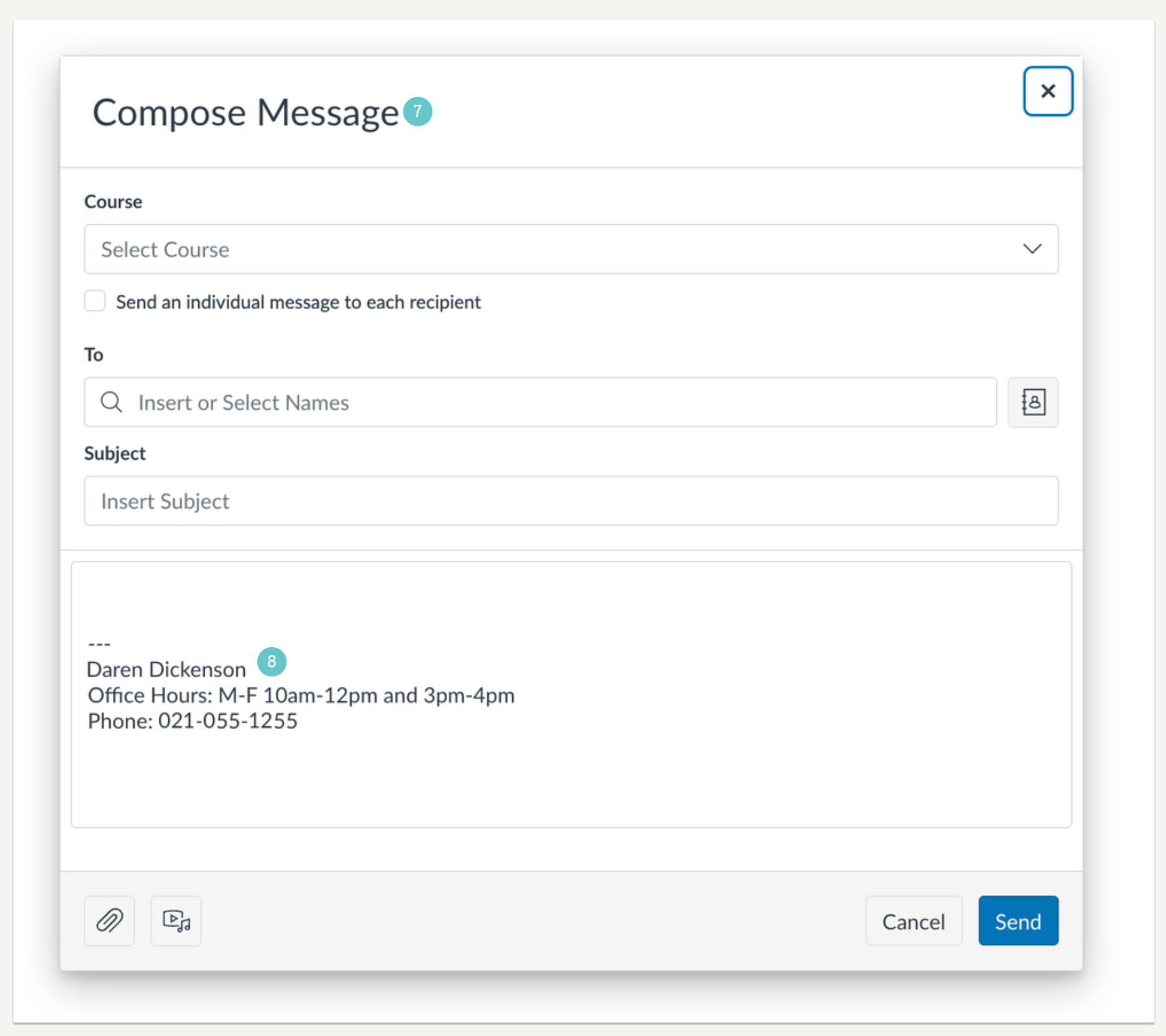
This feature streamlines communication and enhances the effectiveness and professional appeal of inbox messages.
When the Enable Inbox Signature Block is enabled, lecturers have the option to configure a signature when composing a message. Additionally, admins have the option to disable the Inbox Signature Block for students.
Note: The Enable Inbox Signature Block setting is disabled by default
To Enable Signature Block
- In Account settings, select the Enable Inbox Signature Block checkbox to enable for all users.
- To disable this feature for students select the Disable Inbox Signature Block for Students checkbox.
- Note: By default, the Disable Inbox Signature Block for students checkbox is not selected.

- In your Inbox, click the Settings button.

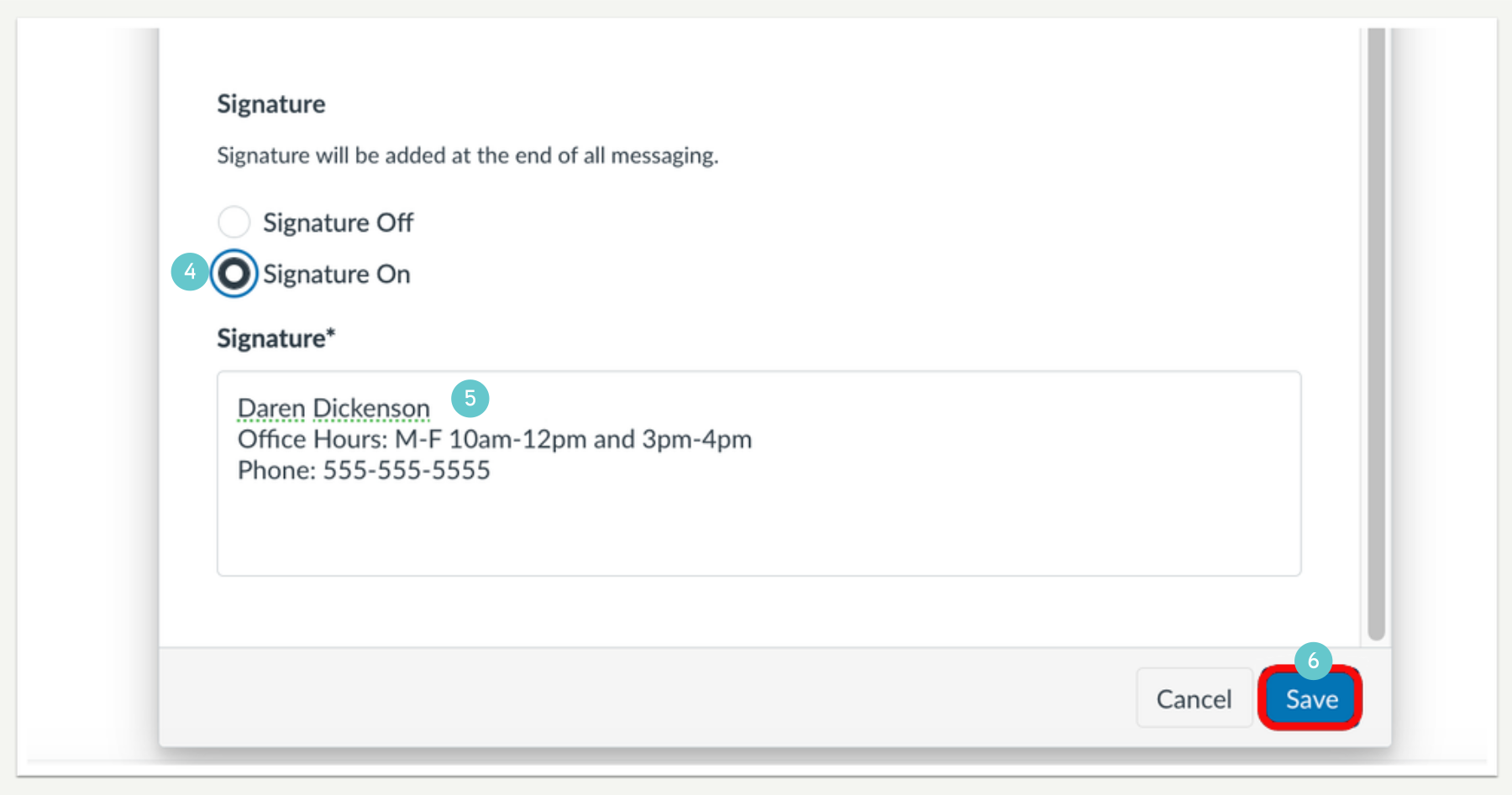
- To create a signature, select the Signature On radio button.
- Enter the desired signature in the Signature field.
- Then, click the Save button.
Compose Message Signature Display
- Compose Message Signature Display
- Once a signature is saved, it displays in the message body when composing a message.