

How to add a calendar event.
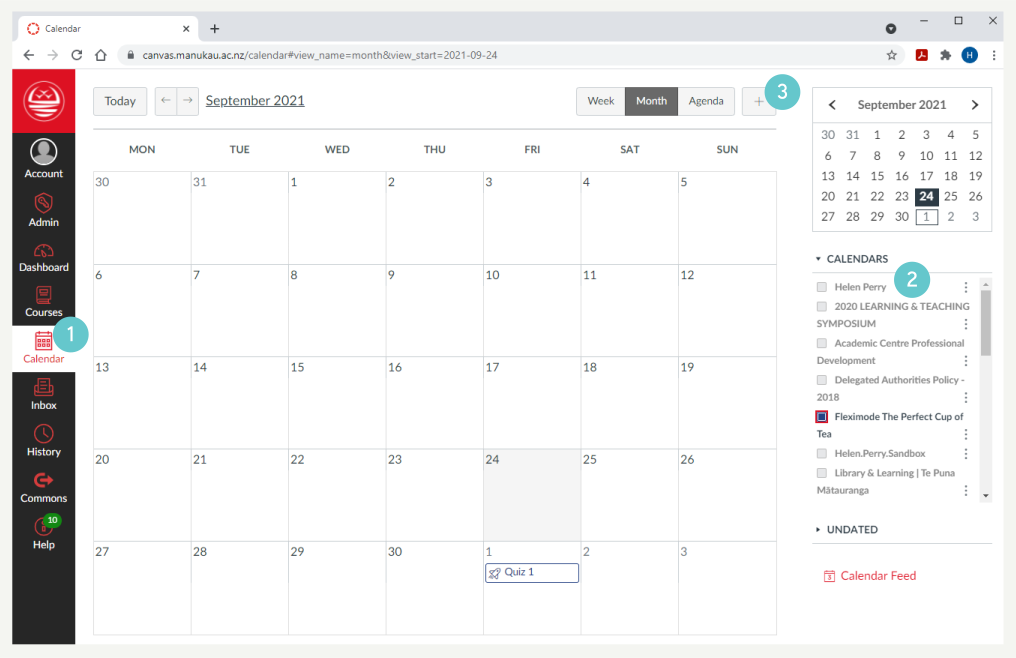
- Click the Calendar icon in the global navigation menu on the left to view your calendar.
All Calendar items for all courses will be shown in this view.
- Select the calendar to which you want to add the item. You can add personal items to your own personal calendar, or you can add items to course calendars.
- Click any date on the calendar to add an event, or, click the arrows next to the month name to navigate to a different month and select a date. If you don’t want to manually locate the date, you can click the Add icon.
- Enter a title for the event
- Enter a date if needed.
- Edit the start and end time for the event. To create an all-day event, leave the From fields blank so there is no start and end time for your event.
- If a location is required, enter a location for the event
- To add additional details to your event, click the More Options button. You can use the Rich Content Editor to add a description or resource links, add an address location.
- Click the Submit button.

Viewing your Canvas events in Outlook
If you (or your students) want to view Canvas events in an Outlook Calendar, you can create an Outlook Calendar just for Canvas that you can view alongside your usual everyday Calendar:
- Open Outlook. Click on the Calendar.
- Right click on Other Calendars in the left hand pane.
- Select Add Calendar then click From Internet…

- Go to Canvas and click on Calendar. Click Calendar Feed on the right of the page under the list of Calendars.

- Copy the link.
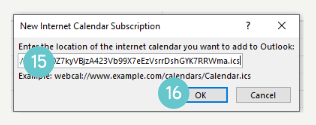
- Return to Outlook and paste the URL in the box.
- Click OK.
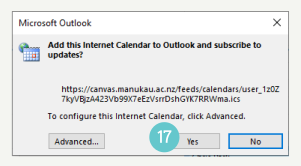
- Click Yes.
Hints and Tips
- Make sure you add items to the correct Calendar
- Show your students how to use Calendar
- Frequently remind your students to use their Calendar
- Create reminders for events, especially for your students.