
Adding Emoji’s To Canvas Page Content

People often ask, can I add Emoji’s to my page content in Canvas? The answer is yes, of course you can. All you need to do is to select the place on your canvas page where the emoji will be placed, this could be a heading or within a body of text and let your keyboard do the rest.
- Select the place on your canvas page where the emoji will be placed, this could be a heading or within a body of text.
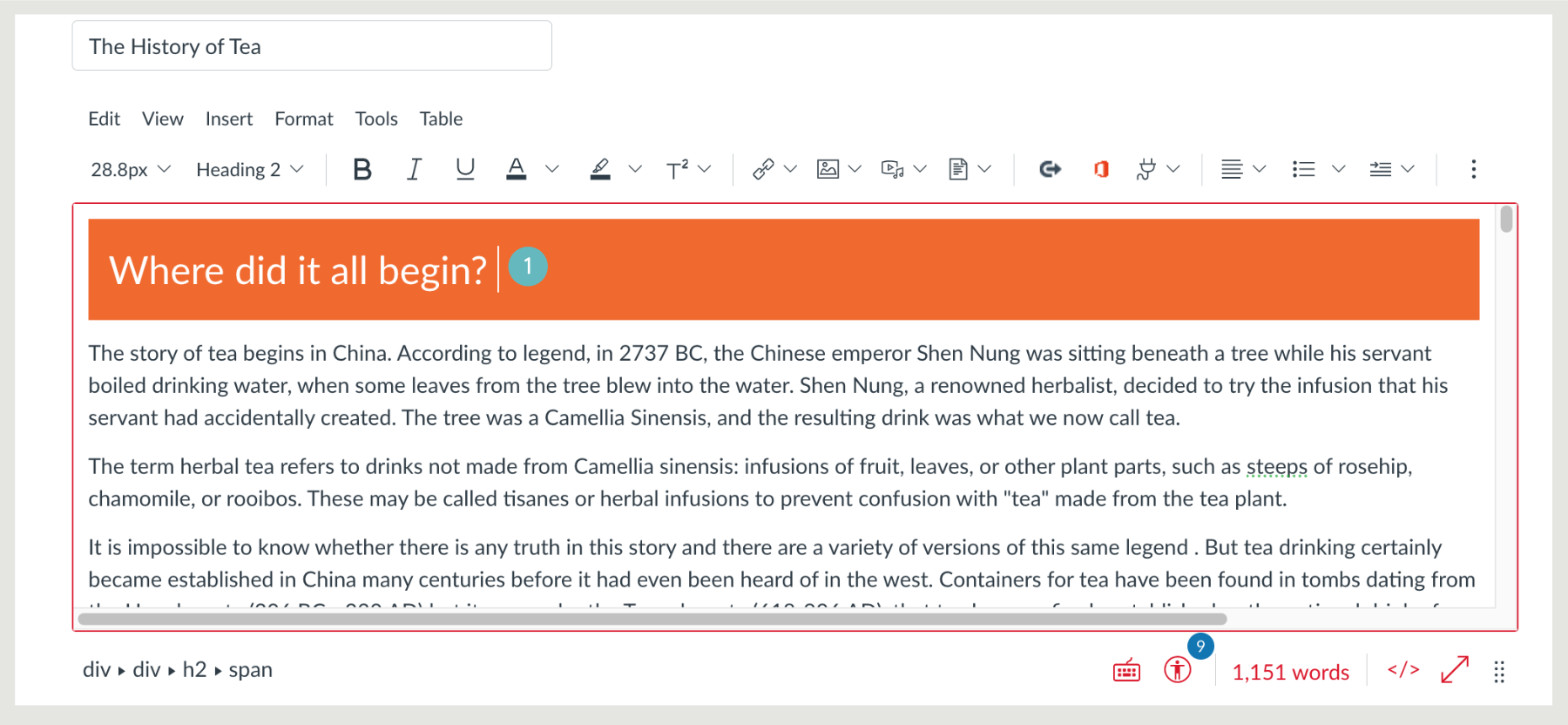
Note: If your computer has Windows 10, then the keyboard shortcut is
(Win) + . or (Win)
+ ;
That is, hold down the Windows key while pressing period or semicolon.
Do not hold the shift key down to get the greater than symbol >, just use Windows Key and either period or semicolon).
For Windows 11, the keyboard short cut is Win +. (period) to launch the emoji keyboard.
For Mac users can use Command+Control+Space
- Use the keyboard short cut open the Emoji window.
- Select the Emoji you feel is suitable.

- It will appear in the position you selected on your page.

- Add other emoji’s within text or headings as you wish.

Hints and Tips
- Emojis are both a decorative feature and a way to signal ‘tone’ or how you would wish the receiver to perceive your message or comment. As such think carefully and don’t overuse this feature as it will lose its impact.