

How to add space or padding around images on Canvas.
- Click Edit and switch to HTML Editor
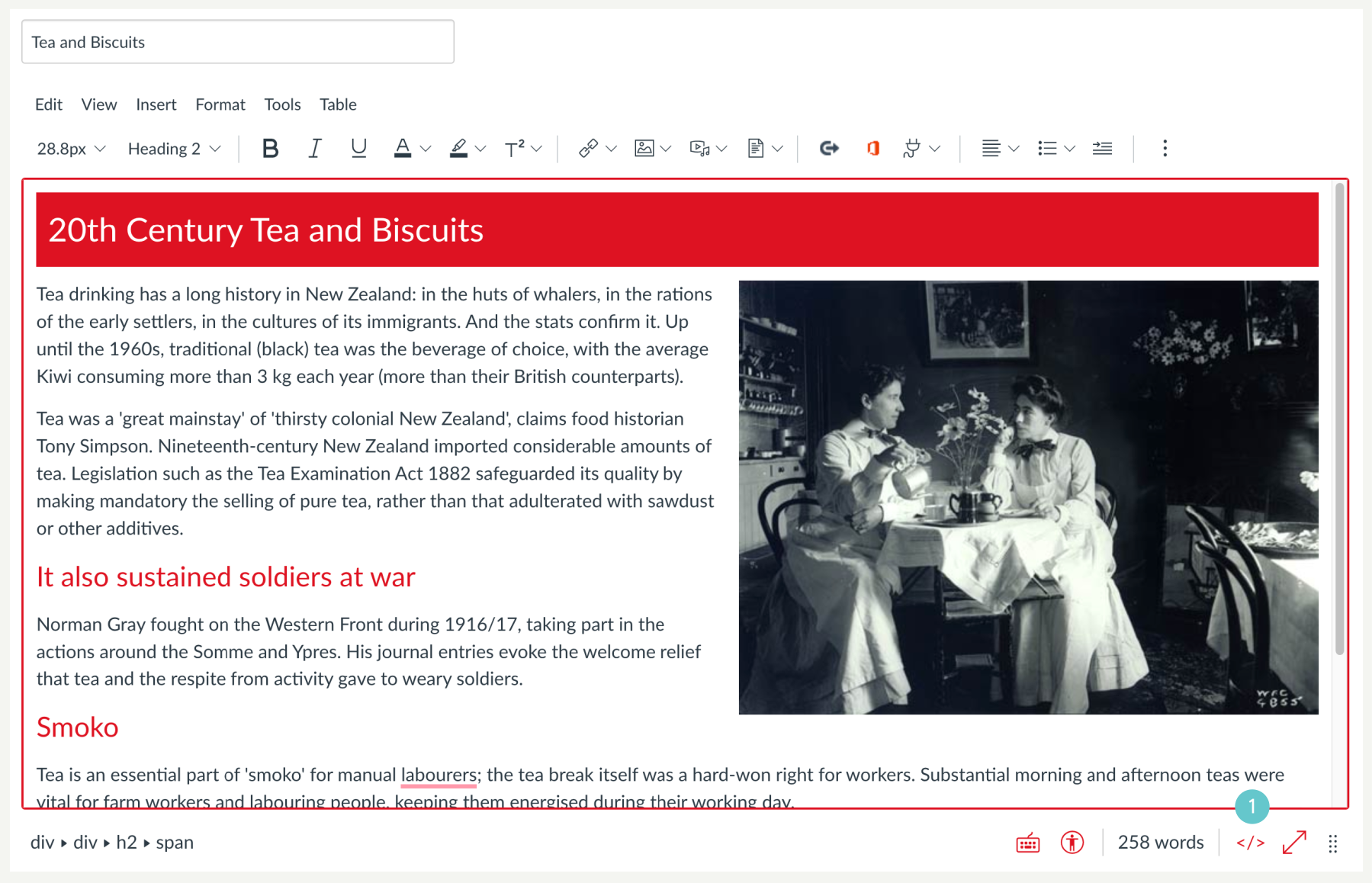
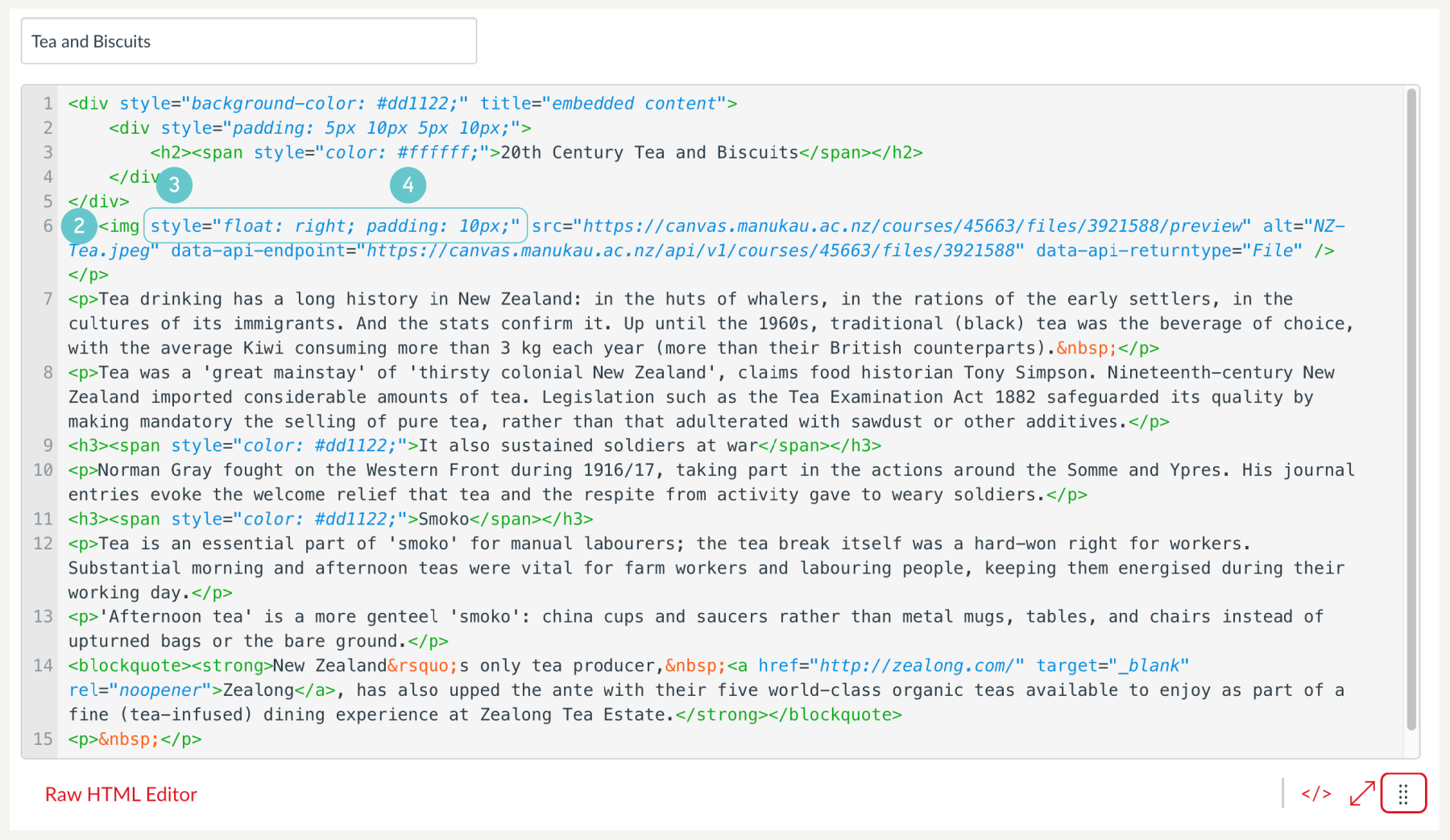
- Locate the HTML code for the image(s) you’d like to adjust. Use Control+F or Command+F (Mac) to search for <img to make it easier to find.
- Locate the image’s style attribute inside the img tab. If the image doesn’t have one, you can add one by typing style=”” after img.
- Within the quotation marks, add padding: 10px;. If there is another style attribute, separate them with semicolons (e.g. style= float: right; padding: 10px; “)
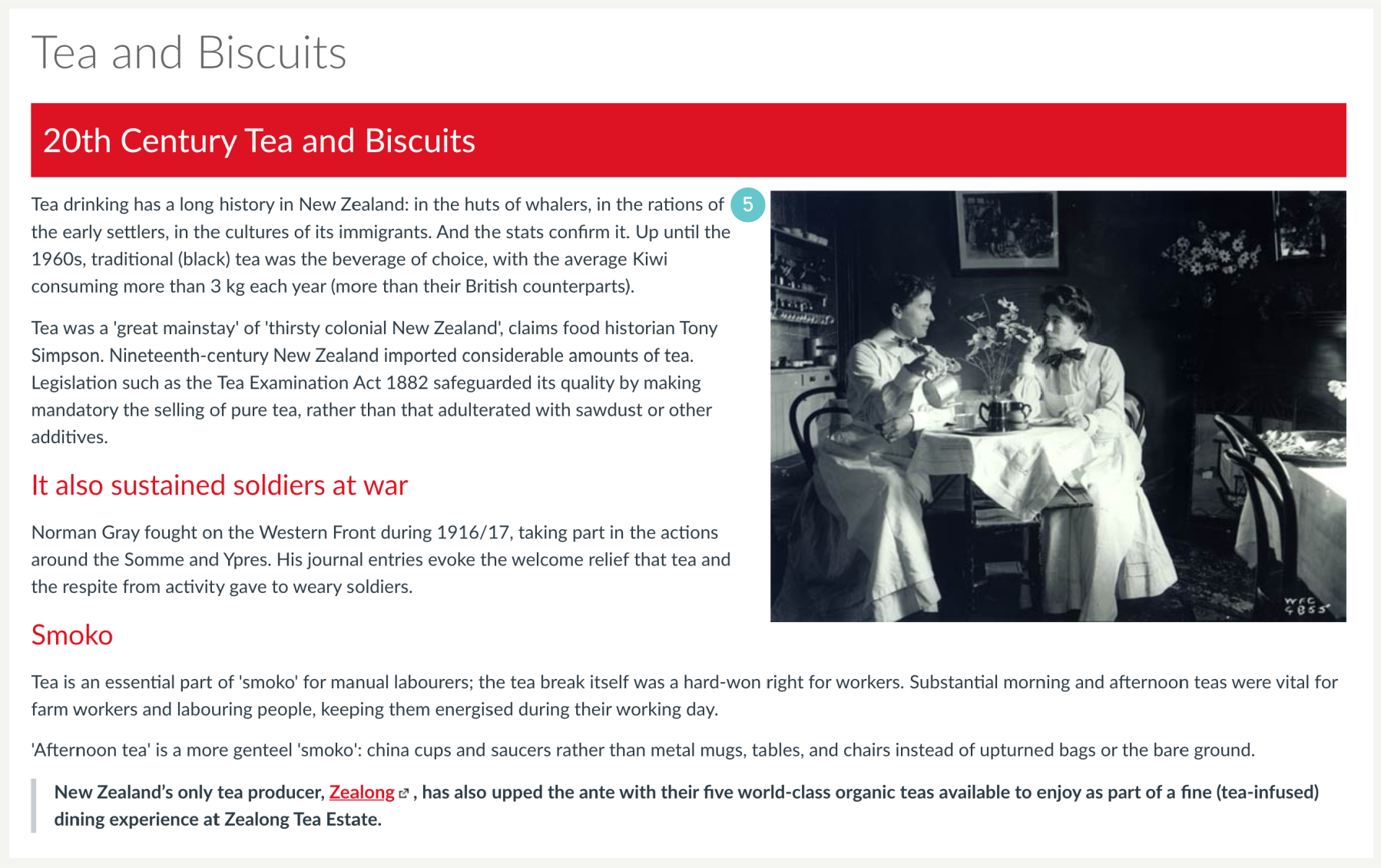
- Switch to the Rich Content Editor and select your image; you should be able to see a 10 pixel space (border) around the image.
Selective Padding
In the instructions above, a 10 pixel space was added to the image on all sides. However, you can add padding selectively by using padding-bottom, padding-left, padding-right, and padding-top and changing the size of the space (padding).
For example:
style=”padding-left: 10px; padding-bottom: 20px;”
style=”padding-right: 20px; padding left: 20px;”
style=”padding-top: 15px;”
Watch the 60 Second How To video which shows you how to add padding