
Stimulus content in New Quizzes allows you to provide students with information such as a case study, article, image, video, scenario, or data set before they answer related questions. This feature is useful when multiple questions are based on the same content, helping students easily refer back to the information as they complete the quiz. Follow the steps below to add and configure stimulus content in your quiz.
- Open your Canvas course.
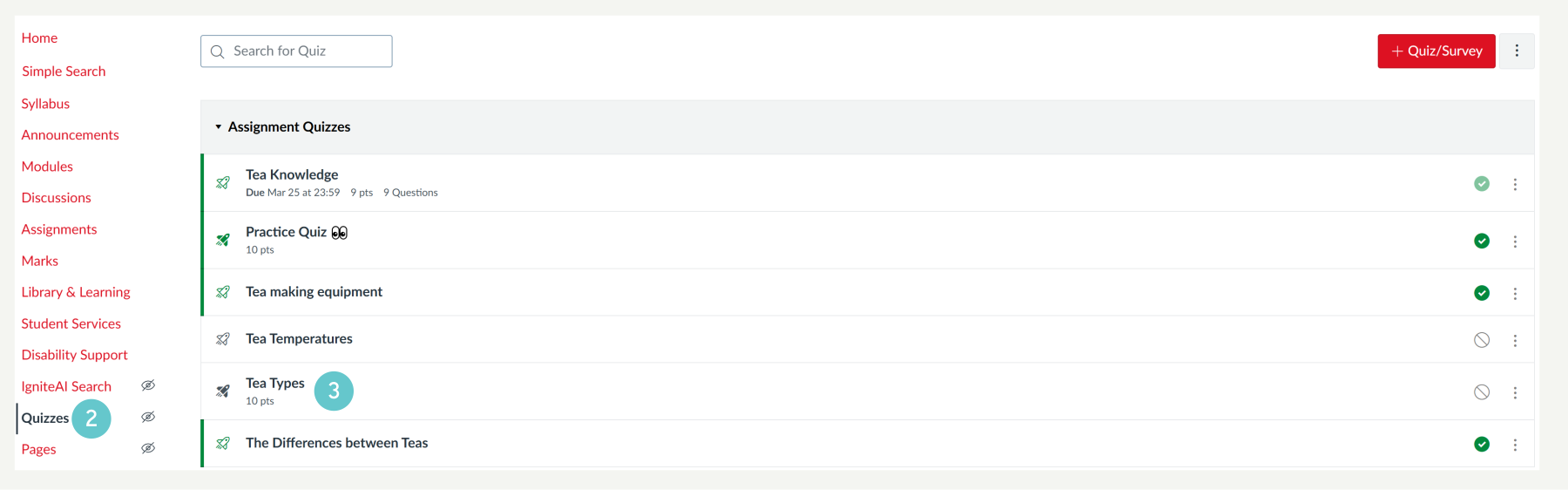
- Navigate to Quizzes.
- Open an existing New Quiz or create a new one.
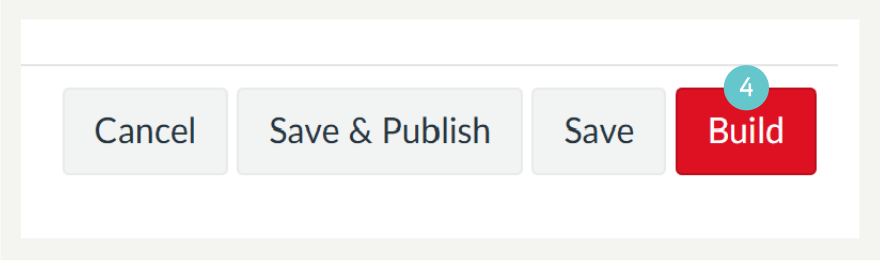
- Select Build to open the quiz editor.
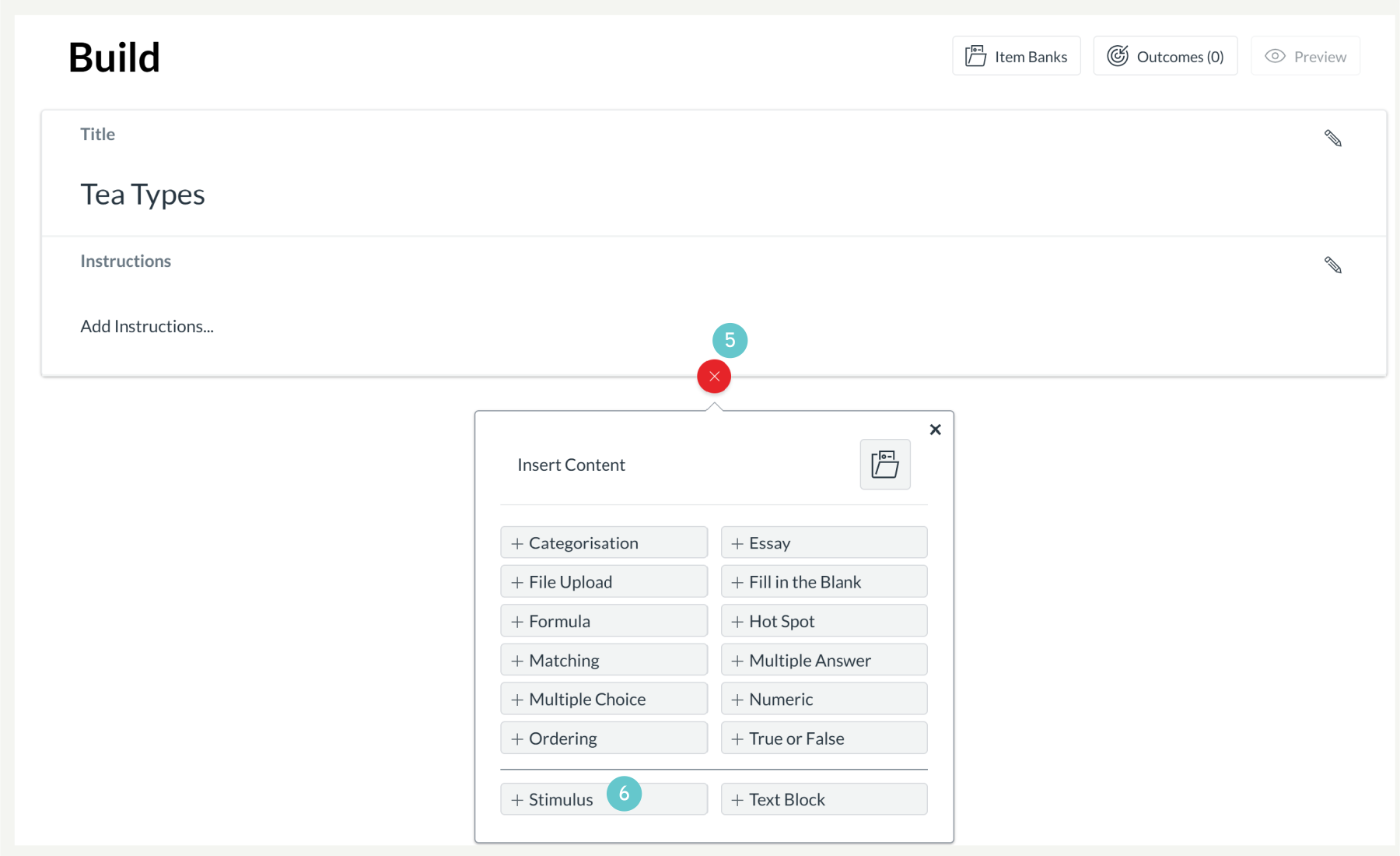
- Click the Add button where you want the stimulus to appear.
- Select Add Stimulus.
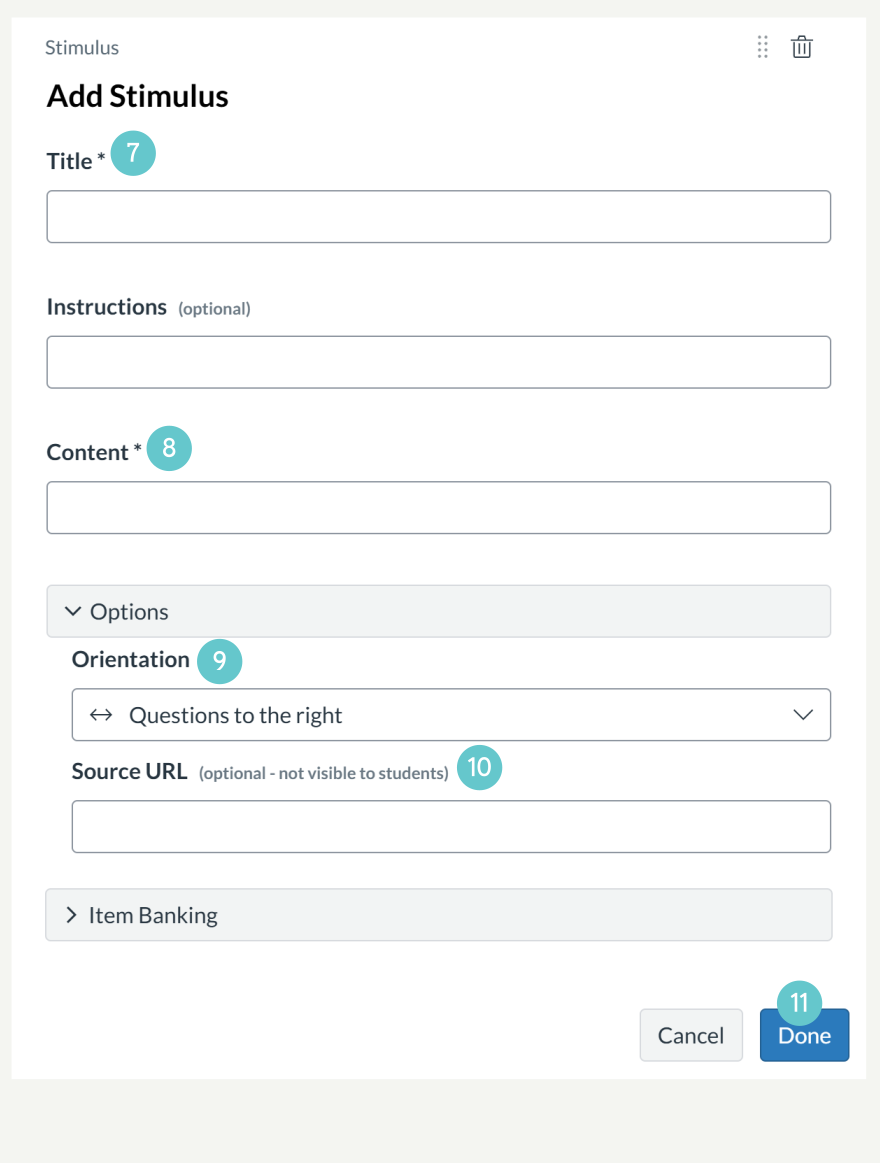
- Enter Stimulus Details
- Enter a title in the Title field.
- Add any instructions in the Instructions field
- Add the Stimulus Content: In the Rich Content Editor, add the material students will use to answer the questions. You can:
- Type or paste text.
- Insert images.
- Embed videos.
- Add links.
- Create tables.
- Use other Rich Content Editor tools to format the content.
- Configure Stimulus Options: Choose the question layout using the Orientation menu:
- Right – questions display beside the stimulus.
- Below – questions display underneath the stimulus.
- Add a Source URL if the content comes from an external source (Optional).
- Click Done.
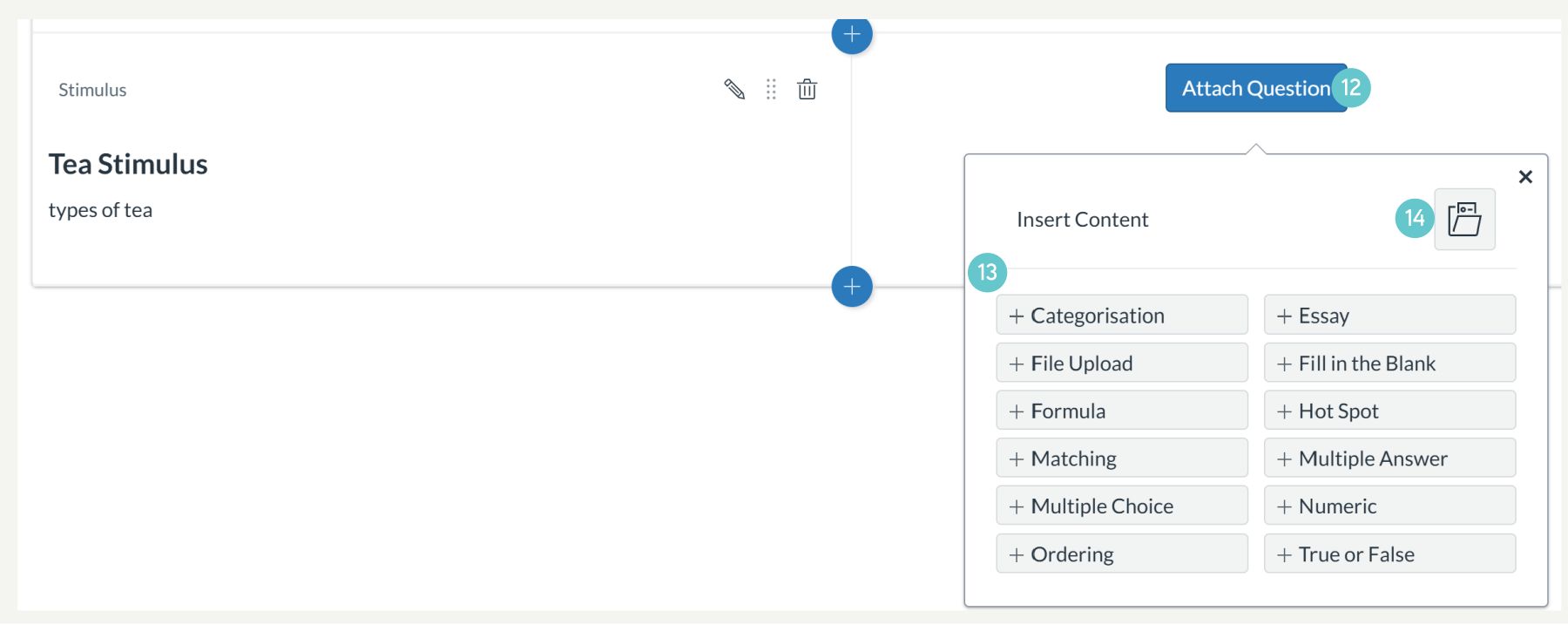
- Click Attach Question.
- Select the question type you want to use.
- Create the question or select one from an item bank.
- Repeat this process for any additional questions related to the stimulus.
Tip: A stimulus must have at least one attached question. If no question is attached, students will not see the stimulus.
- Check that the stimulus and attached questions appear correctly.
- Then Save & Publish your quiz.