

Explaining how to upload an existing assessment to Canvas.
All summative assessments should be published on Canvas under the Assignments tab. This gives learners access to all assessment information. Learners must submit their assessments through Canvas.
Why Use Canvas for Our Assessments?
Canvas is a quick and easy way for learners to be able to access and submit their assessments/assignments and/or course work. Learners are able to review, prepare and plan for their course assessments ahead of time and when learners are more prepared, they are more successful. Assessments can also be quickly and effectively marked using SpeedGrader.
Quick Important Tips
- Make sure that the assessments you post on Canvas have been pre-moderated (i.e., passed pre-moderation).
- Make sure you ONLY use the ‘Assignments’ tab on Canvas to publish your assessments.
- Make sure you show students where the assessments are published on Canvas (i.e., under the ‘Assignments’ tab), have them review the assessment(s) and have an open discussion about the assessment(s) requirements and expectations.
Example
Below is a copy of a pre-moderated assessment embedded in a Canvas assignments page. Embed the assessment on the assignments page – here’s why:
- Chances are, you wrote your original assessment in Word and then gave it to your moderator to pre-moderate. You don’t want to recreate something you’ve already made.
- Word has nice formatting features. You might have laid out your assessment ‘just so’, especially if there are complicated diagrams
- In future you might want to update the assessment tool (before you make it available to students), and remembering to update words on the Canvas page and the Word document is hard.
- An embedded document is previews on the page (the student sees it in nice, neat Word format)
- An embedded document is downloadable (some students like to download a Word copy of the file)
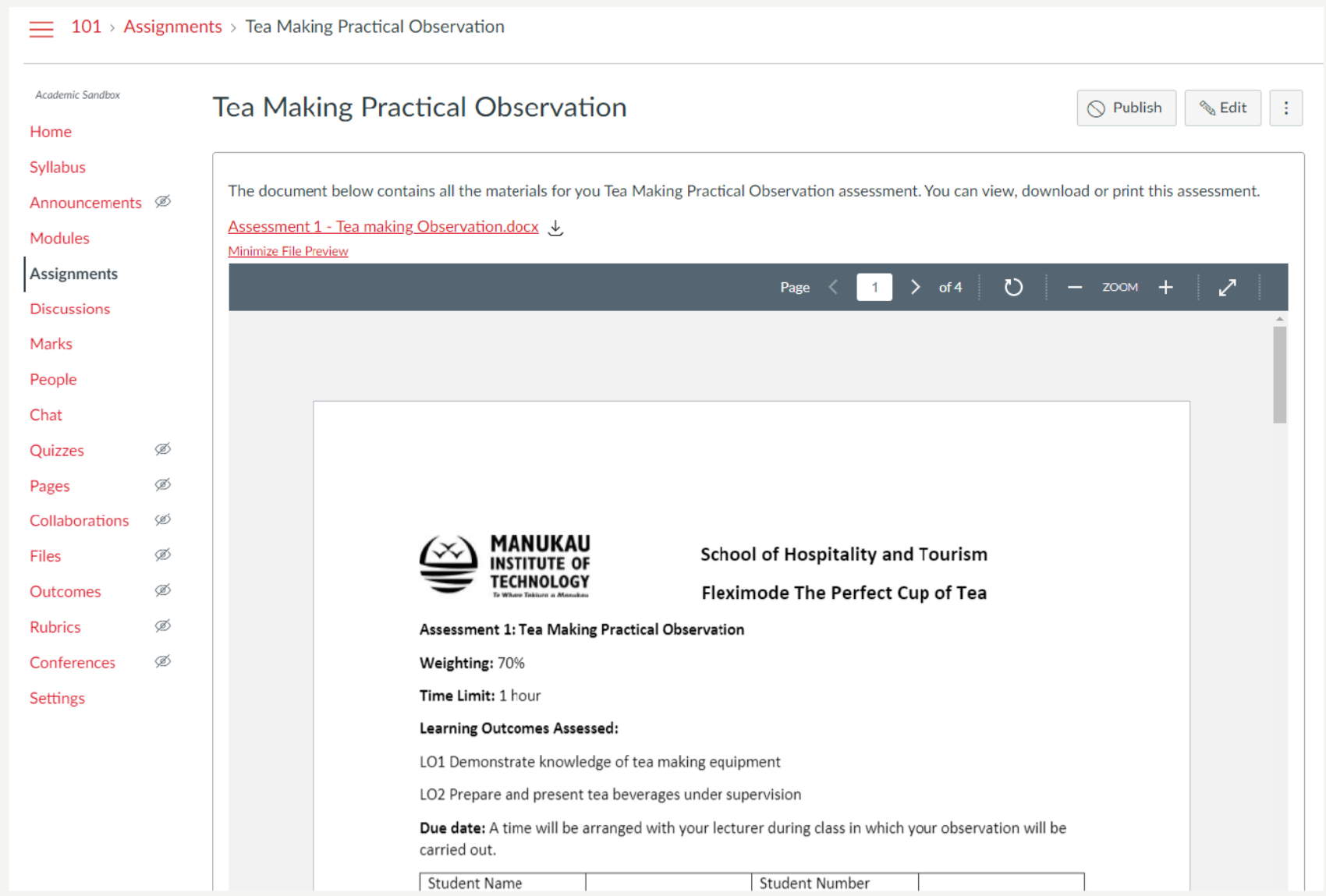
All assessment details must be in this document (or on the Canvas page with the document). Canvas must contain all assessment information the student needs. You cannot only link a Word document to the Assignments page (you must embed the document so that it previews on the page).
An pre-moderated assessment contains some or all of the following:
- Assessment task
- Instructions to students
- Assessment matrix
- Assessment schedules/judgment statements/rubric
- Model answers
Make sure that you only embed appropriate information. If a rubric was in the Word document, remove it, because you will instead add a rubric directly to Canvas so that you can use SpeedGrader.
You may want to put the assessment conditions/instructions to students directly on the Canvas page.
You can remove information from a Word document if it is elsewhere in the Assignments section of your course, e.g. programme title, course name, due date etc.
Hints and Tips
- Make sure that only pre-moderated assessments are published to students.
- Make sure you embed and preview the embedded file.
- Make sure that all instructions to students are on the assignments page in Canvas. Don’t update your students with ‘new’ information using e.g. Announcements.
- Check that any repeated information is accurate, e.g. an updated due date in one place, is updated everywhere.