

You can create a link that allows people to contact you in Teams directly such as ‘Chat with me in Teams’. Clicking on the link will open the Microsoft Teams app and navigate the student directly to a private chat with you.
- Go to the page in your Canvas course you want the link to sit in.
- Add in your “Chat with me in teams”

- Highlight the text
- Select the links add in option at the top
- Select external link

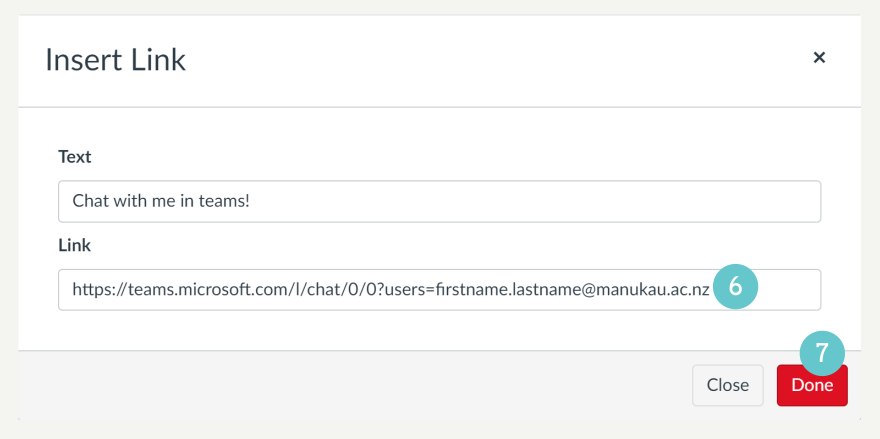
- Add in your link to the Teams chat
- To produce your Teams chat hyperlink you’ll need to insert your email address into the format outlined below:
https://teams.microsoft.com/l/chat/0/0?users=YOUREMAILADDRESSGOESHERE - For example, if your email address were firstname.lastname@manukau.ac.nz then your link would be:
https://teams.microsoft.com/l/chat/0/0?users=firstname.lastname@manukau.ac.nz
- To produce your Teams chat hyperlink you’ll need to insert your email address into the format outlined below:
- Click Done
- Click Save on your Canvas course
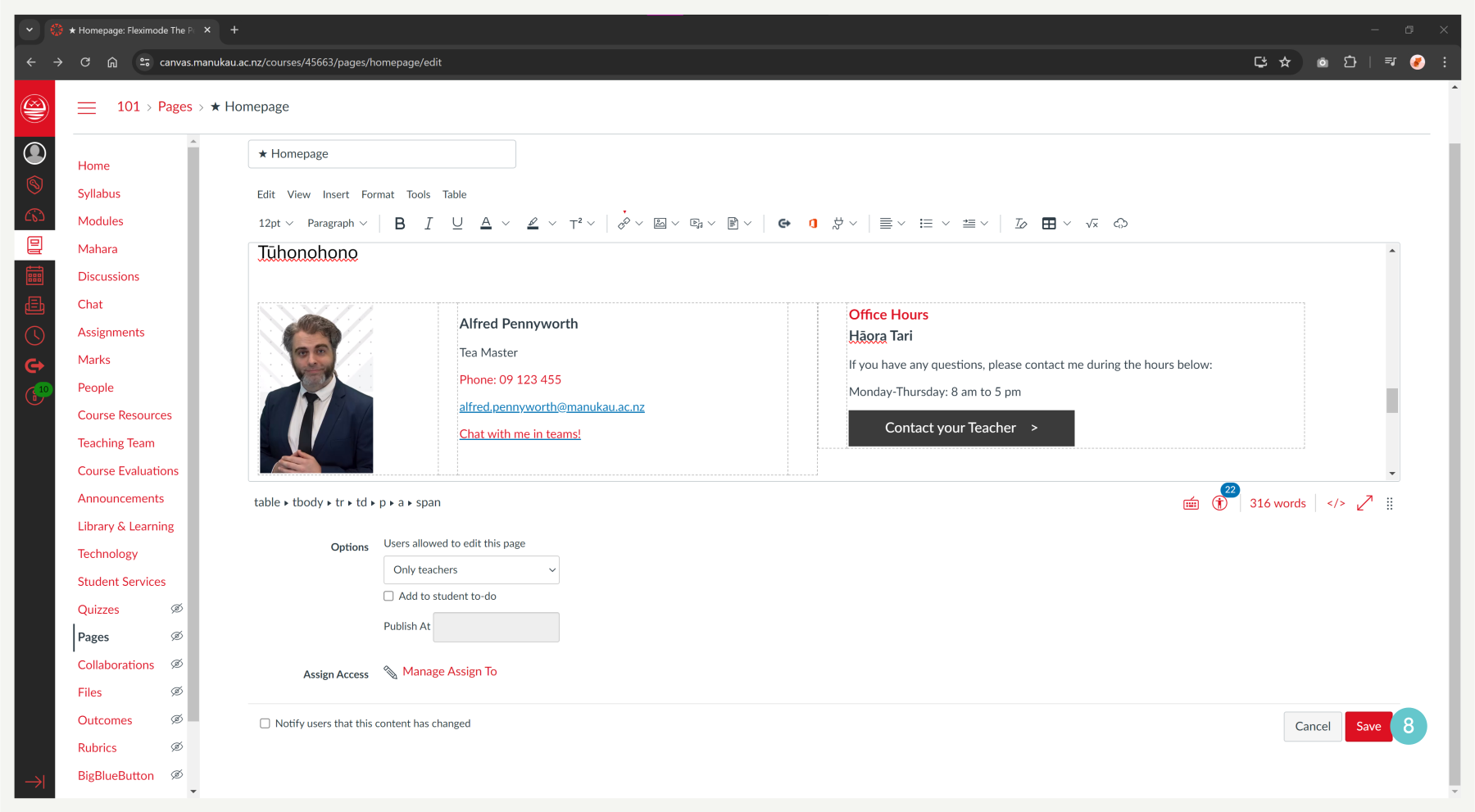
Your link will now open Teams in a new window which will let students chat directly with you.