

How to create a poll and run it automatically at a specific point in a video.
Videos are a great way to get course content across to your students. You can record tutorial sessions and publish the videos to Canvas, or you can create little short videos that you want students to watch instead of having to deliver synchronous learning to your students.
Imagine the following: You have a video that you want students to watch, e.g. you’ve recorded yourself in a quick ten minute video that you want students to watch before the next live session that you have with them. You want to make sure that students have watched and understand the video.
Create a poll (multiple-choice questions) and insert that poll into the video after key points of learning. You can see which students have answered the poll, and what their answers were.
Before you start
Make sure that your video is in Stream. You can only do this with your videos, you can’t do this to a YouTube video. If you’ve recorded a video and have it in a different medium, upload that video to Stream before you start.
You can Trim your video in Stream too, trim off the beginning or end if you need.
You also should check the sharing settings of your video so that all your students will be able to play the video.
Create your poll
You will need to create your poll/quiz/multiple choice questions before you start.
- Open Microsoft Forms.

- Click on New Quiz.
- Create your questions. If you don’t know how to create a quiz using Forms, click here to find out more.
- Click the Share button in the top right when you are happy with your questions.

- Click Copy next to the link under Send and collect responses.
Add the quiz to your video
- Open Microsoft Stream.
- Select the video for which you are creating a poll/quiz.
- Click on Add form under Interactivity on the right.
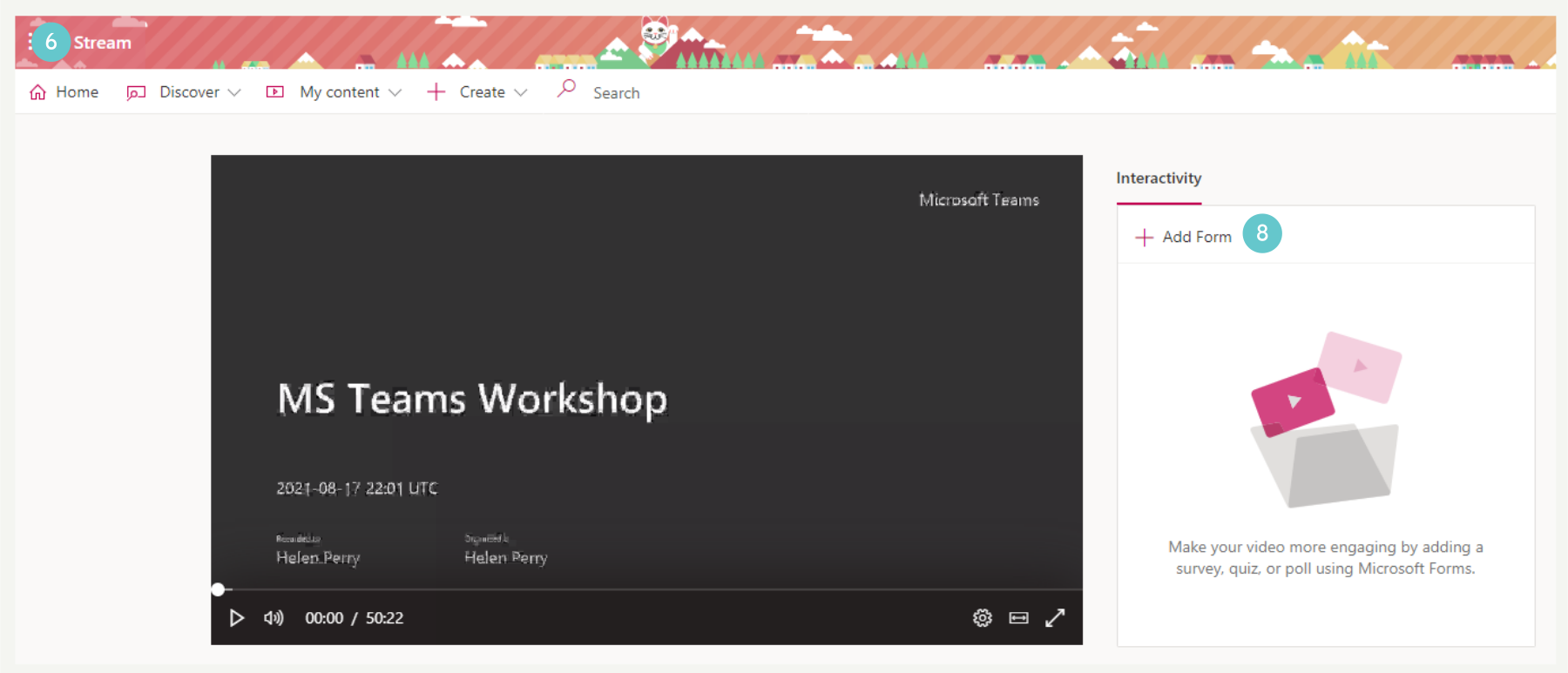
- Paste the link to the Form that you just copied out of Forms into the For URL box.
- Name your form (it can be any name, it doesn’t have to match the name of the quiz in forms)
- Drag the slider on the video to enter the time at which you want the quiz to run.
- Click Add to timeline.

You can create multiple polls/quizzes and add them to various points in a video.
Embed the video into Canvas/share it with students as you usually would.
Viewing the results
You can view results of this poll/quiz as you normally would using Microsoft Forms.
- Open Microsoft Forms
- Select the quiz
- Click Responses.
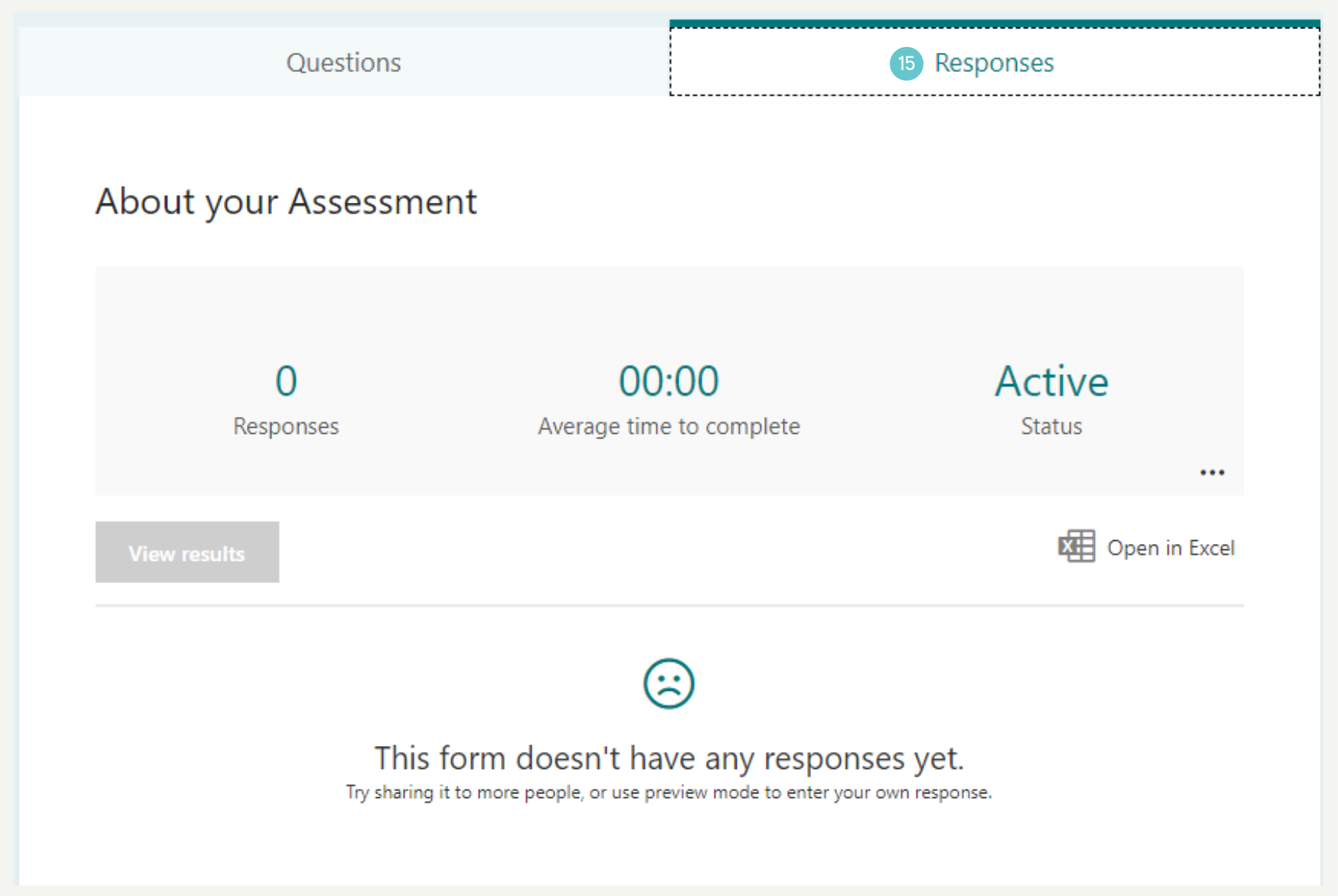
You will be able to see how many/which students have/haven’t’ responded, and you can also check their responses. This will help you to plan your next session with your students.
Hints and Tips
- We reCreate the quiz/poll using Microsoft Forms before you start
- Make sure your video is ready before you start (edit/trim as required first)
- Create poll questions related to learning
- If needed you can view results of the quiz in a spreadsheet if you want to analyse people’s responses in more detail.
- You can create multiple quizzes/polls in a single video.