

An introduction on how to create a Teams meeting link within a Canvas page and automatically add students
You can create a Microsoft Teams meeting link (online class link) within your Canvas page and automatically add your students to it. You can place it on any page, or as part of an Announcement, Calendar or Discussion Board, etc.
In this guide, we will create this link on a Canvas course page. You need to follow the steps below.
- Go to the page you want to add the MS Teams link and click on the Edit button.
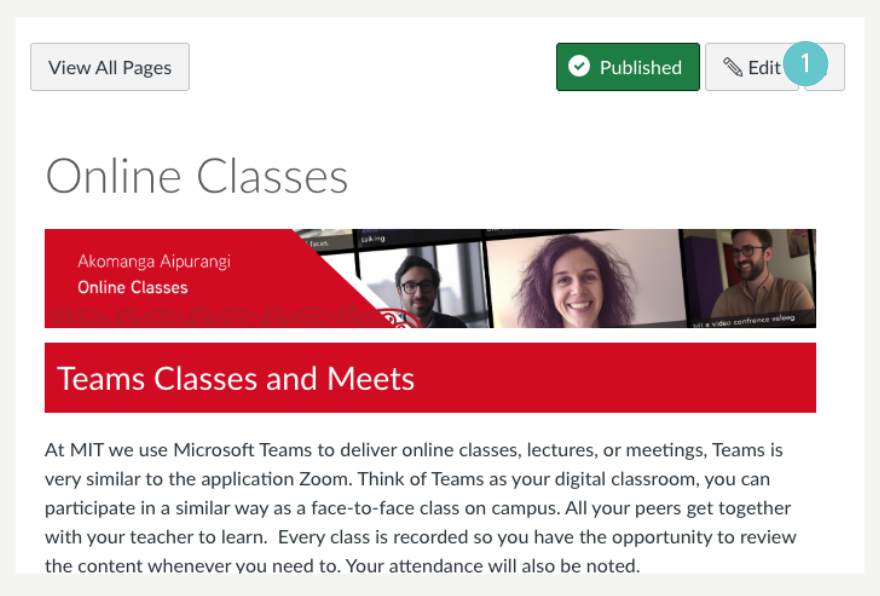
- Create a blank line by placing your cursor where you want it.
- Click on the Apps icon (looks like a power plug) from the editing tool pallet. If you cannot see it, click the three dots (“…”) to show it.
- Click on Microsoft Teams Meetings from the dropdown menu. If you cannot see it, click View All to find it.

- In the Microsoft Teams Meetings pop-up window, click the Sign in button. This will log you into Teams from within Canvas.

- Click “Create meeting link” to create a new meeting.
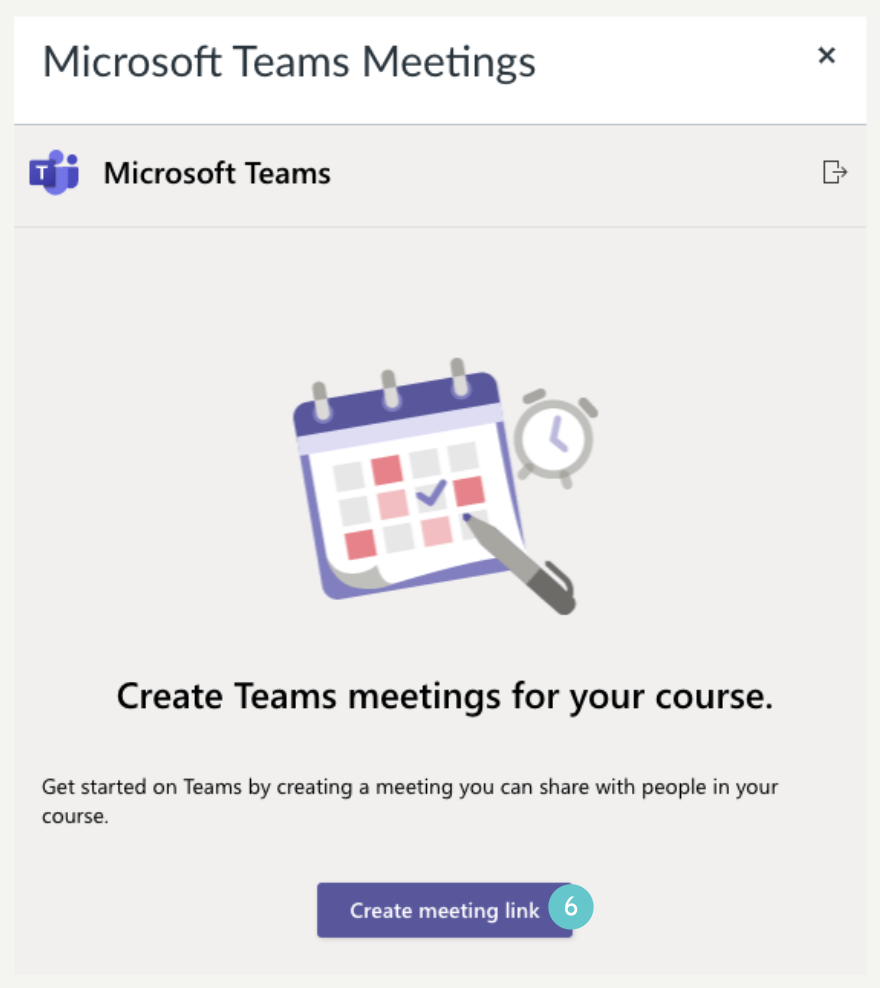
- Enter the meeting title; ignore the dates and times, as you can use and re-use this meeting at any time.
- Then click the “Create” button.

- Then, click the “Copy” button at the bottom of this window.
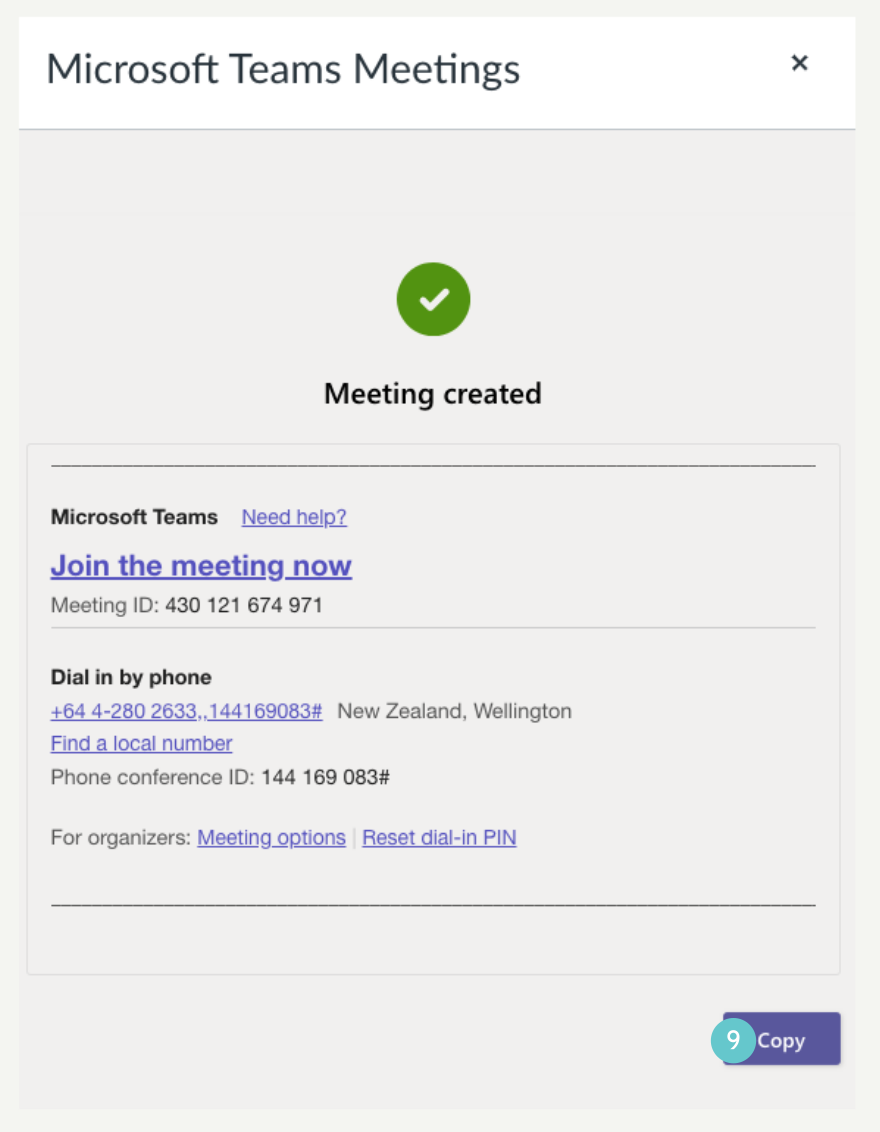
- A meeting link will be added to your page and the Microsoft Teams Meetings pop-up box will close.
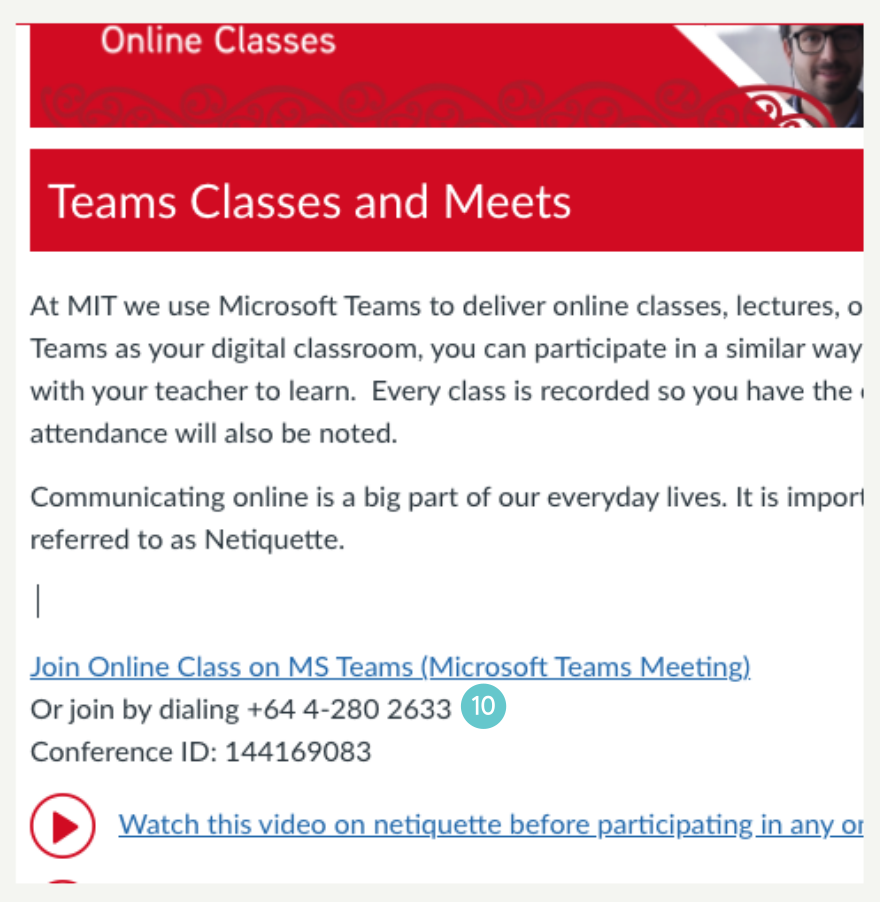
- Then, you can edit the wording of the newly created meeting link and even add an icon to it by copying and pasting it.
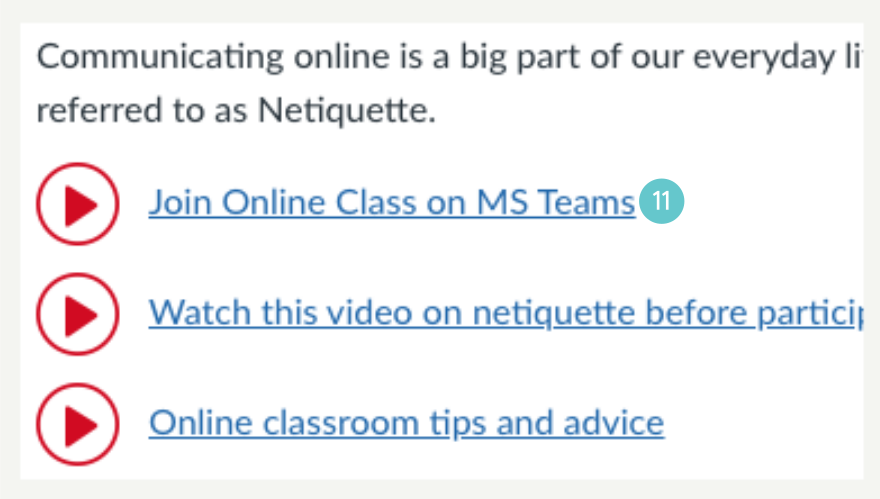
Steps 12, 13, 14 and 15 are optional. You can jump to step 16 to skip them.
- You can copy this link and paste it onto an existing meeting link button if there is one.

- Select the meeting link text to change the font colour.
- Click on the “A” icon from the editing tool pallet.
- Pick up the white colour.

Now you’ve got your new Teams button.

- Click on the Save button at the bottom right of the page to finish this task.

This meeting link can be used repeatedly at any time within this course. You can copy and paste it anywhere in your course, such as in the calendar, discussions, or assignments. You can also email this link to external attendees. Your students in this course have already been added to this meeting automatically.