

How to create an Assignment Group.
The process for putting the assessments that are in the PAD on Canvas is to:
- Create an assignment group for each assessment listed in the PAD
- Create assignments as necessary within each group
Create the assignment groups before you create individual assignments. Assignment Groups ensure correct weighting of marks.
To create an assignment group:
- Find out the weighting of each assessment from the course descriptor in the PAD. You will create an Assignment Group for each assessment in the PAD, e.g. if the course descriptor contains Observation 70% and Reflection 30%, you will need to create two Assignment Groups, one for each of those assessments.
- Go to the Assignments page in your Canvas course.
- Click the +Group button to create a new Assignment Group

- Enter a name for the group, e.g. Presentation then click Save.
- Create the other groups that you need based on your PAD course descriptor.
- Click on the three dots in the top right of the page. Click Assignment Groups Weight.
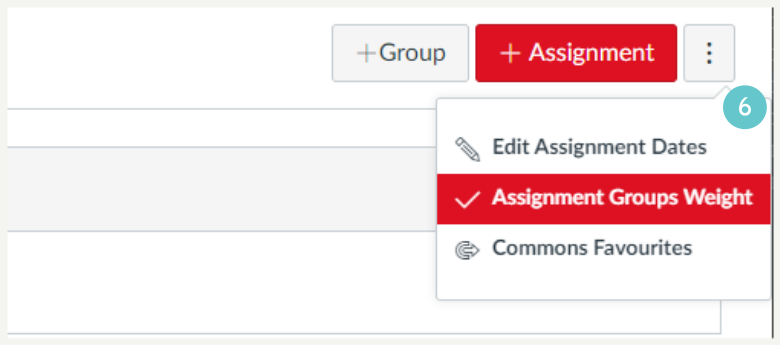
- Tick Weight final mark based on assignment groups. This will expand a list to show you the groups you have just made.
- Enter percentages next to the groups that reflect the percentages in the PAD course descriptor, e.g. Observation 70, Reflection 30. Make sure your groups total to 100%. If you want to create a Group to contain formative assessments (to keep then together for neatness), create that group, but make sure it is weighted at 0%.
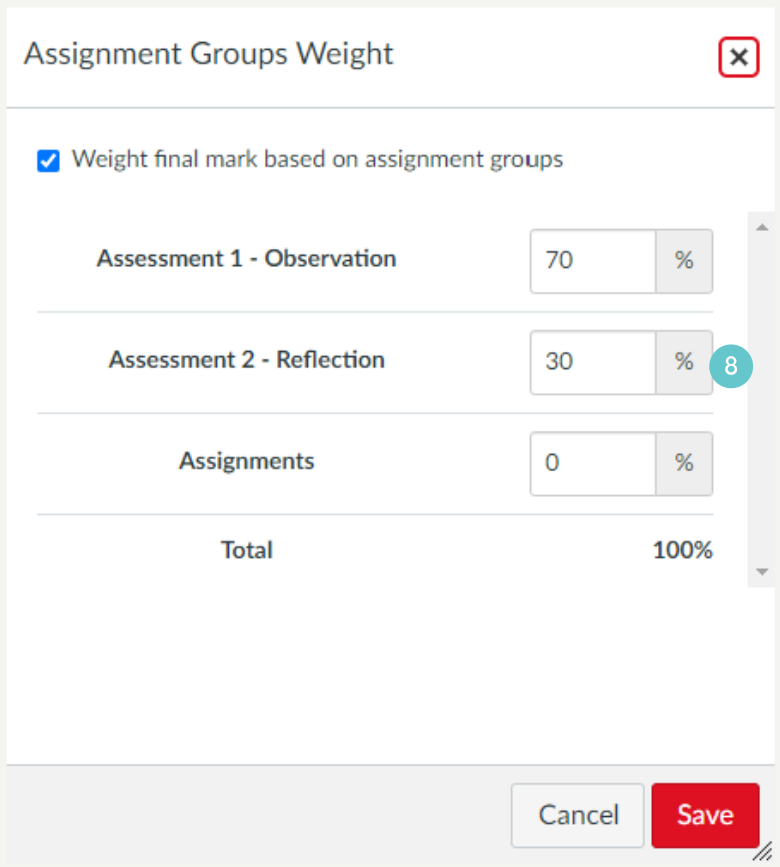
- Click Save. Your assessment groups now have weightings in the top right.
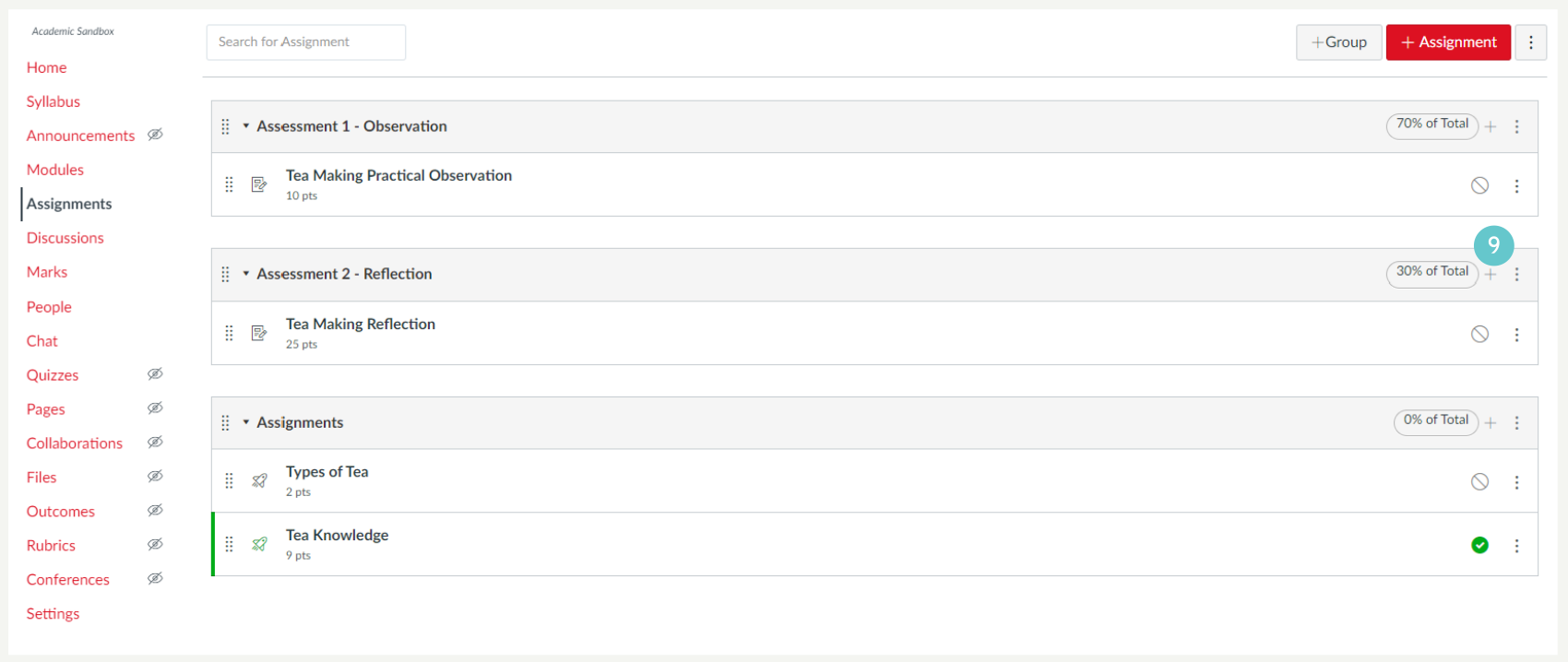
You can now create Assignments within those groups which are the actual assessments. Now that you have group weightings, you can set assignments to any number of marks and the Group weightings will ensure marks are calculated correctly.
Hints and Tips
- Weightings are only visible on Assignment Groups after you’ve made at least one Group weighted.