

How to create and launch a poll in Teams during a meeting.
You will need to have already created a meeting in Teams to create a poll in your meeting. Create a Teams meeting first.
You can now add polling as an option to your Teams meeting:
- Open your meeting within Teams (not Outlook)
- Click the + symbol to the right of the menu at the top.

- Click Forms. If Forms is not an option, search for Forms in the search bar on the right of the pop-up window.
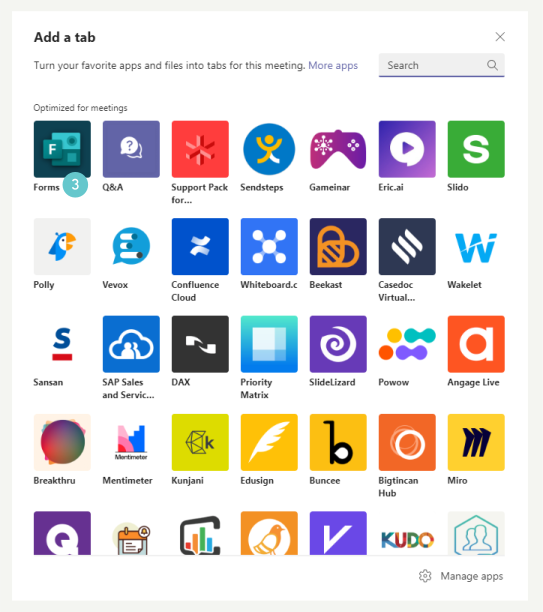
- Click Add.
- Click Save.
Create your poll question(s)
You can now create new poll question(s). Within Teams there are three sorts of polls that you can add to your meeting.
- Choose one:
- Multiple Choice Poll
- Multiple Choice Quiz
- Word Cloud Poll
You can also pick questions from the Poll suggestions if they are suitable.
The instruction below assume you have clicked Multiple Choice Poll.
- Enter your question and answer options in the usual way in to the question. If you want to know more about Microsoft Forms go to this page in the Knowledge Base.
- Select multiple answers being correct if you wish.
Select whether you want to:
- Share results automatically after voting
- Keep responses anonymous
- Allow others to co-author
- Click Save when you are happy with your question.

- Create any extra questions you want.
- Edit/delete any questions after you’ve written them.
- If you want to launch your questions before/after the meeting instead of during the meeting, you can click Launch any time you like.
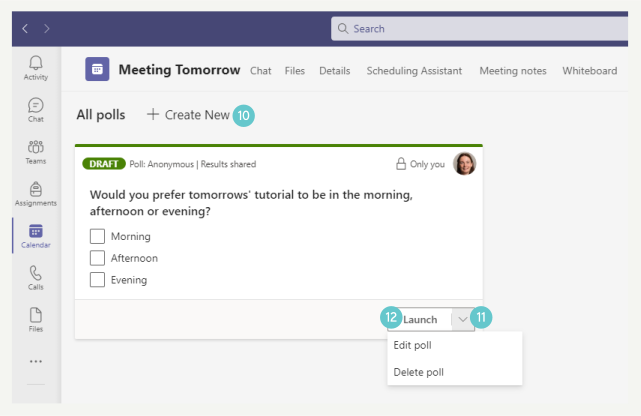
Launching a Poll during a meeting
During the meeting there is now an extra icon along the toolbar. Click it to open the Polls pane.
- You can launch the poll whenever you like during the meeting. Click Launch. You can also edit/delete the poll during the meeting too if you quickly want to change it.

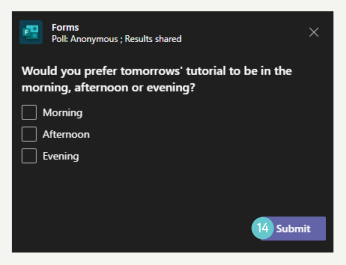
Every participant in the meeting is sent to poll question and its answer options.
- They will need to choose an answer/multiple answers if you gave the option, then click Submit.
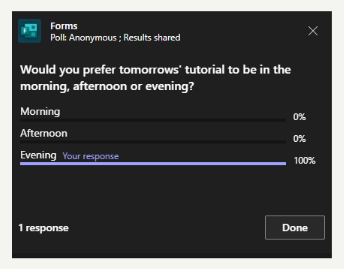
If you chose to allow participants to see the results, this is what they will see automatically. Then click Done when they’ve looked at the results.:
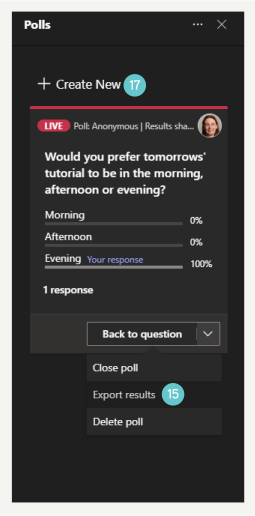
- You can export results to Excel. This is really useful if you have a very large class and you’d like to analyze the results.
- You can also close the poll if not all participants have responded and you’d simply like to move on.
If you want to create a Poll quickly during the meeting you can, but this will take concentration away from your meeting.
- Click Create New + in the Polls pane and follow the process as described above. The poll will be created and added to the Polls pane.
Hints and Tips
- Create your polls before your meeting
- Be aware of showing poll results to your audience.
- You can use polls to check understanding of a topic you’ve just taught.
- You can use polls to gauge popularity of something.
- Choose the type of poll question carefully.
- Poll questions can have a maximum of six multi-choice responses.