

How to create Modules in a Canvas course.
Modules allow you to organise content to help control the flow of the course. They are often organised by topic or time, e.g. weeks.
- Each module can contain pages, files, discussions, assignments, quizzes, and other learning materials.
- Modules and module elements can be added to the course from existing content you can create new modules and new elements as needed.
- Modules can be easily organised using the drag and drop feature.
- Elements within the modules can also be reorganised by dragging and dropping too.
- The MIT Canvas Standards template has some Modules already created for you, but depending on the size of your course you may need more.
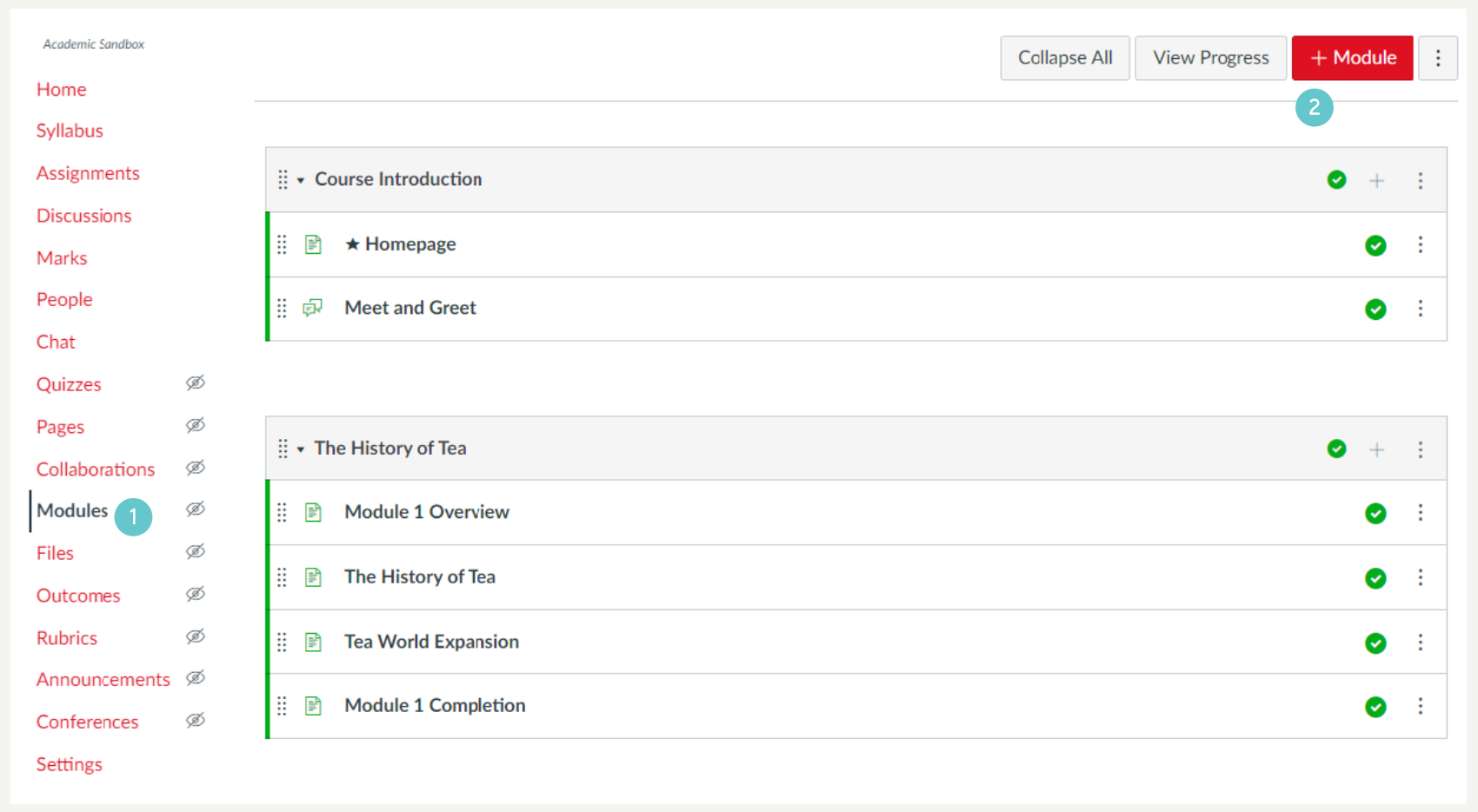
- Click on Modules in the course navigation menu.
- Click on + Module to create a new module.
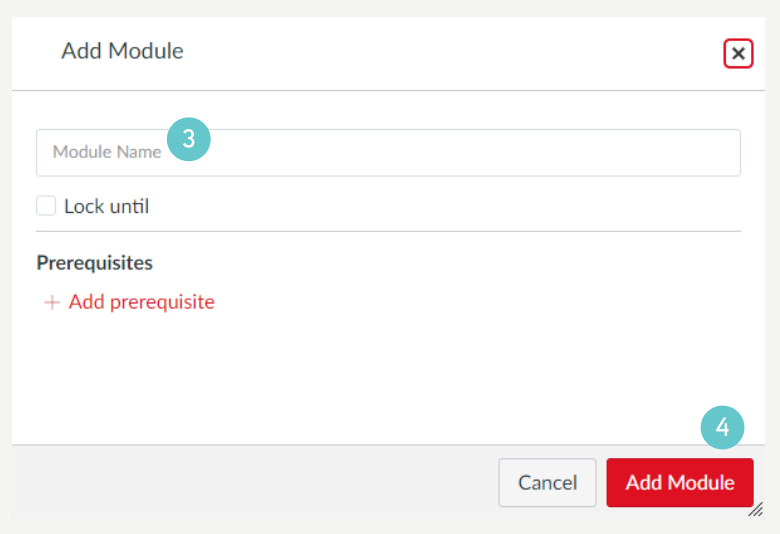
- Type a name for your module in the pop-up box, e.g. Week 1 or a topic name.
- Click Add Module.
The module will be added after any other modules already in your course. You can drag this module to move it up or down the list.
- Hold your mouse on the grid of dots on the left of the Module name and drag it up or down. Let go when it’s in the right place.

You can add a variety of items into any module, e.g. pages, quizzes or discussion boards.
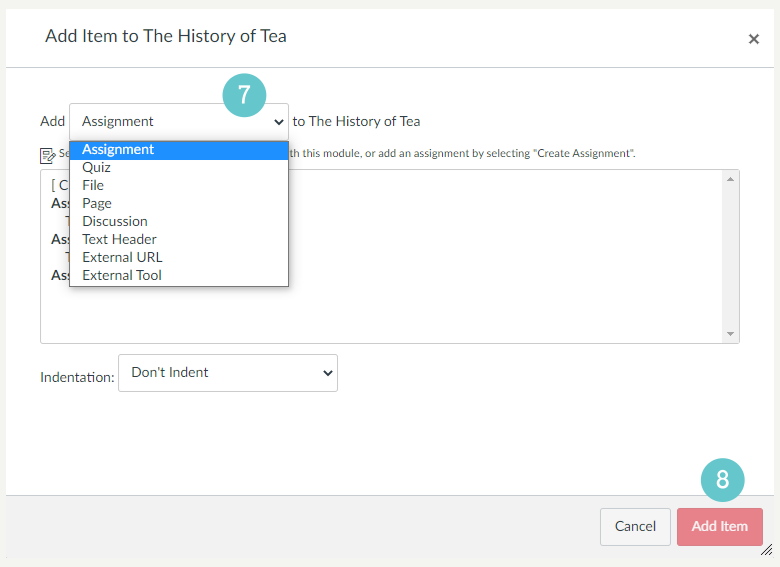
- Click on the + symbol on the right of the module name.

Your choices of item are:
- Assignment
- Quiz
- File
- Page
- Discussion
- Text header
- External URL
- External Tool
It is easiest to add Quizzes and Discussions to a module if they already exist. Create them on the Quizzes and Discussion pages, then they are ready for you to select from the list.
- To add an item, choose the item you want to add.
- Click Add Item.
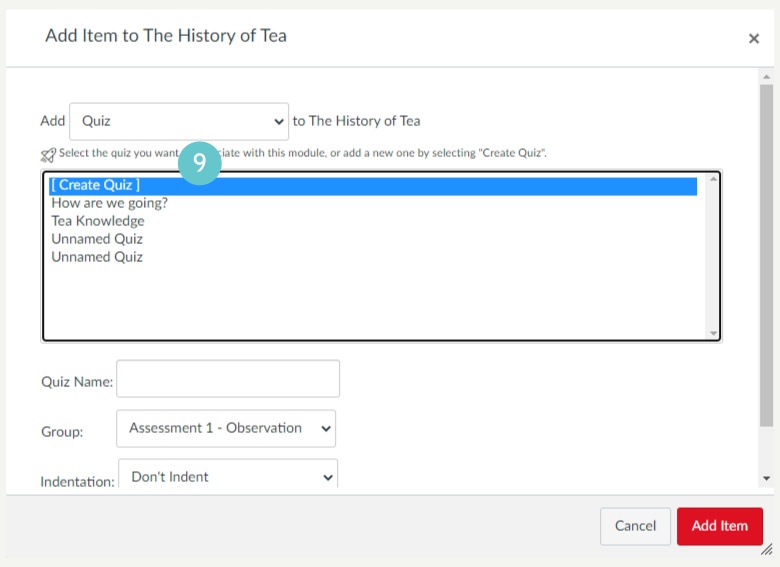
- If you want to create a placeholder for an item you will make in the future, e.g. a formative quiz, choose [Create Quiz], then click Add Item. This will create an item in the Quizzes page that you can edit.
- Most items in the list are Canvas elements (Quiz, Discussion etc). External URL will embed a website into your Canvas page. Not all websites embed properly, and when you add this item, it may only function if you load the page in a new tab.
Organising a Module
Your module’s first page needs to introduce the module to the students, like the chapter introduction of a textbook. The last page of your module needs to summarise it for them. This could include learning outcomes/objectives met in the module.
- Create content on pages, and create other items such as formative Quizzes and Discussions. Add all the items to the module, then you can drag and drop them to rearrange the order in which students see the content.
Hints and Tips
- Make them one by one.
- Create pages within modules. Do not just link to files.
- Create elements such as Quizzes and Discussions before you want to organise them into a module.
- Make sure that summative assessments are in the Assignments pages. They must not only be pages in your modules. But you can link to the Assessment in the module so that students know which learning leads up to that assessment.
- You can create a module and fill it with content, but not publish it yet, if you don’t want students to see it at the start of the course. See Publishing content.