

Creating Student Groups in Canvas.
Student groups are a useful way to organise students for things like group projects or assessments. Every student group gets its own calendar, discussion board, and collaboration tools so students can organise themselves and work together more effectively.
You can randomly assign students to groups of a specific size or manually create and organise the groups. Once your groups are created, you can set assignments to be “group submission” assignments, which means each group will have one submission for all users of that group.
- Click People in the Navigation Menu.
- Click + Group Set.
- Enter a name for the group set. The group set isn’t the name of an individual group – it’s the name for the collection of student groups. You would normally need to group your whole class, so this name isn’t usually important.
- Self Sign-Up: Choose whether you want students to choose which group they want to be in, or whether you are going to assign students. Be careful! If this option is ticked then students can move around between groups after they’ve initially chosen a group.
- If you want Canvas to assign students to groups, choose how many groups there are going to be, or how many students should be in a group,
- If you want to choose which students are in which group, select I’ll create groups later.
- Choose whether or not to assign group leaders. A group leader could be a person that you choose to communicate with on behalf of the group, or a person who you delegate responsibility to e.g. upload any files.
- Click Save.
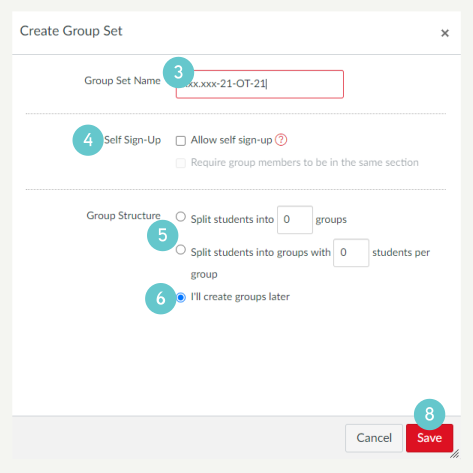
You now have a group set and the ability to create groups (Or a number of groups under the Group Set if you allowed Canvas to auto-assign students). To manually create groups:
- Click + Group to add a group to the group set.
- Enter a group Name, and if needed, the maximum number of students in a group. E.g. if you want students to work as a pair, change to 2.
- Click Save.
- Repeat this step for as many groups as you need.
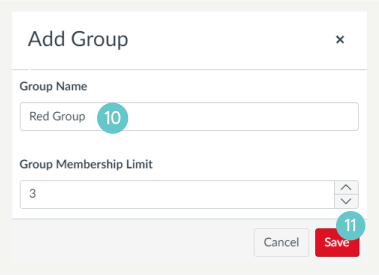
To add students to groups
- Use the drop down to the right of your students’ names to assign the student to a group, or drag and drop the students’ names to a group.
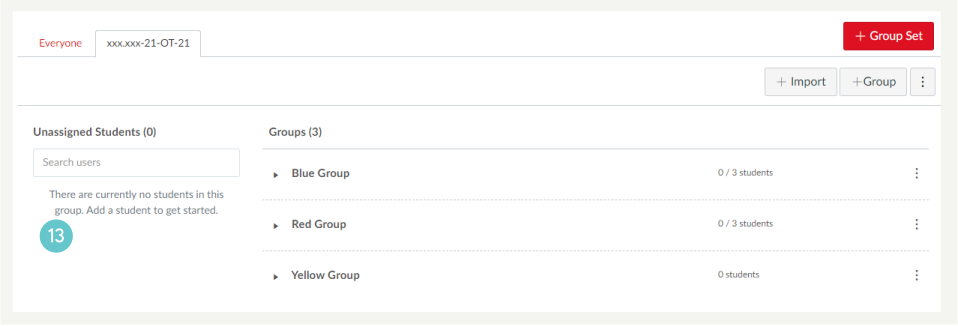
If you allowed Canvas to auto-assign students to groups you can move them between groups at this stage if you realise there are students who you want or don’t want in certain groups.
Hints and Tips
- Decide before you start how many groups you need, how many student should be in a group and whether you want Canvas to assign students to groups automatically. Think about the ability of students in your class when doing this.
- Consider the types of assessment when using student groups. All students must be able to show evidence of meeting every LO in the course.
- You can create multiple group sets. You could put students into different groups for different assessments. Assessment 1 could be one Group Set, and Assessment 2 be another.
- You can see at a glance how many students are in each group and what the maximum number in that group should be.