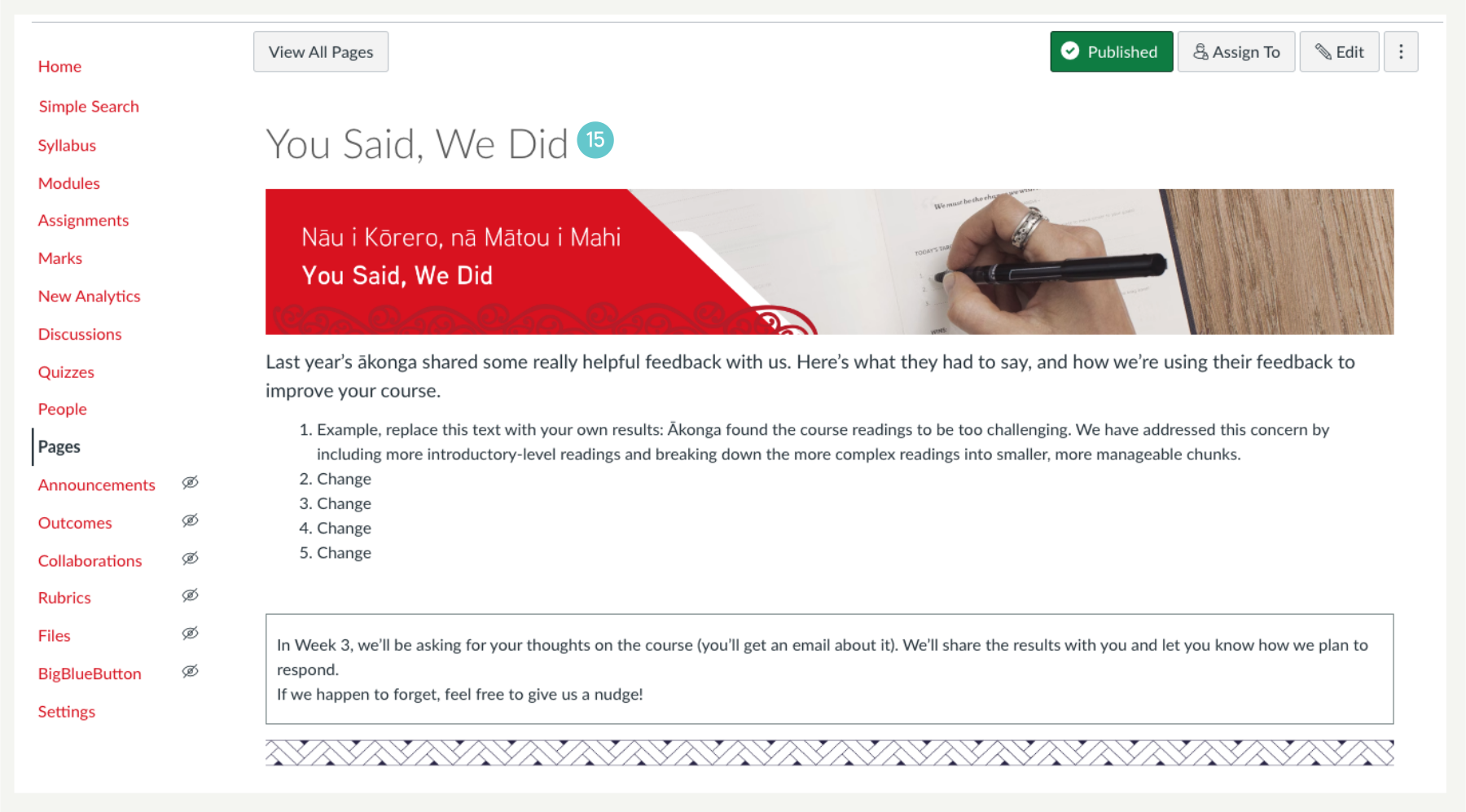
Commons is a learning object repository located in the lefthand Menu on your Canvas window that enables Canvas users to find or locate specific resources in Commons. In this case, we will download a Canvas page called “You Said, We Did”, and make it available to staff and learners assigned to a course.
Let’s get started
- Navigate to the lefthand Menu.
- Click on the Commons icon/button.
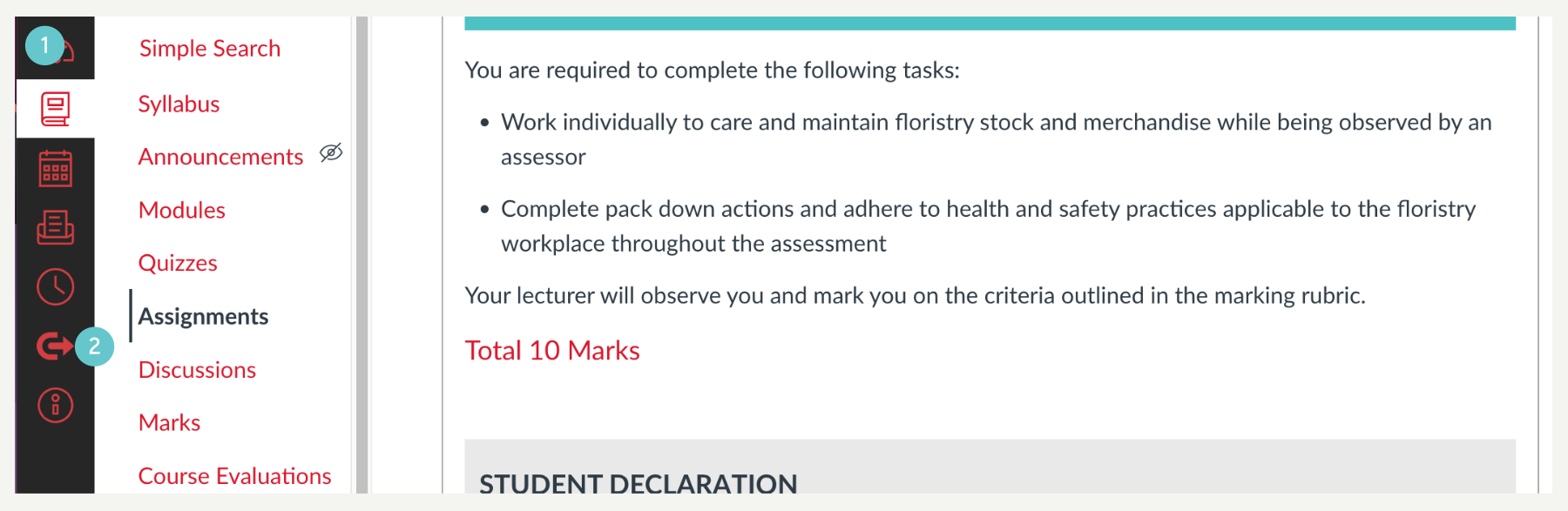
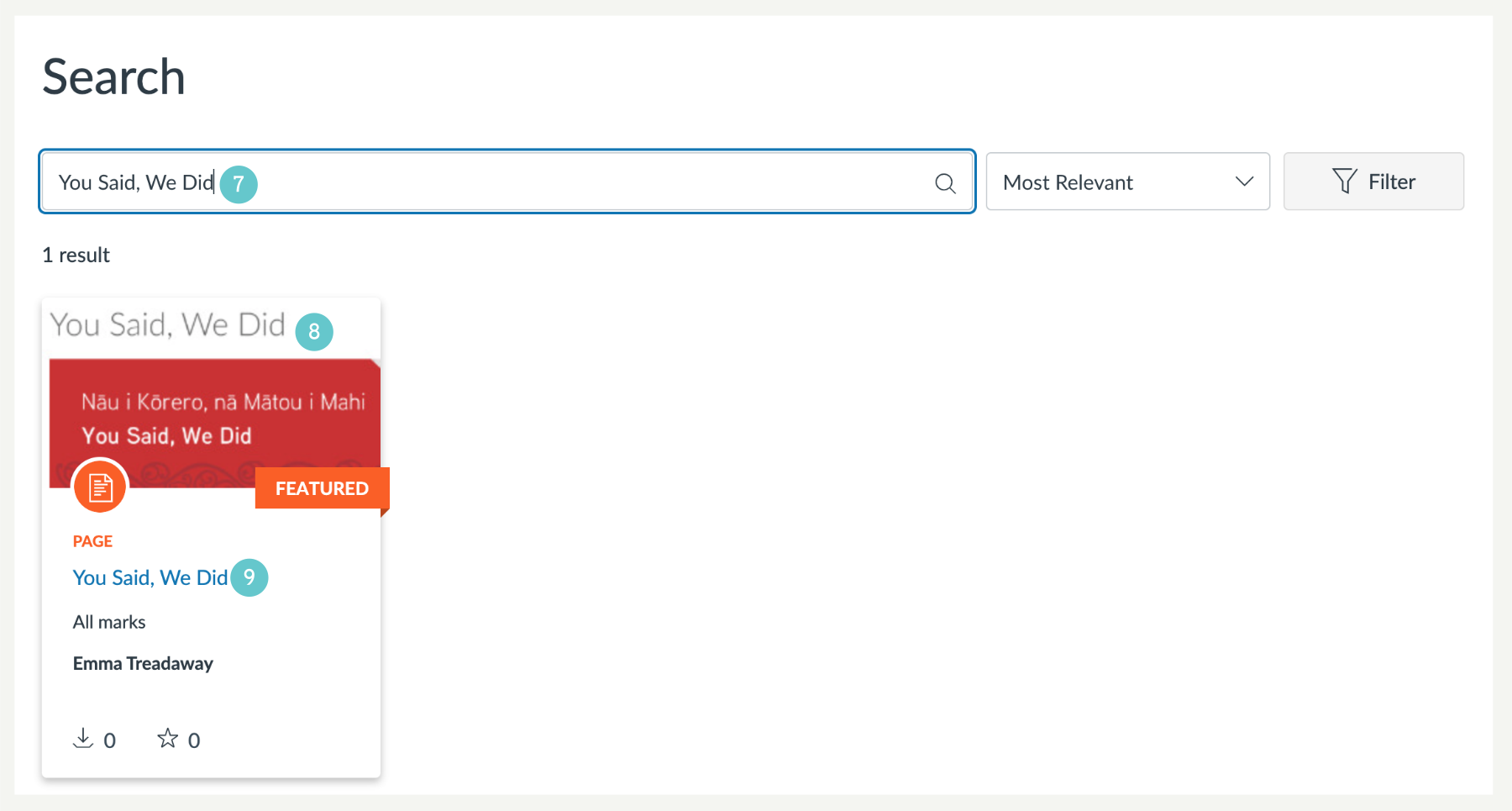
- At the top of the page, you will find a Search window, if you know the page’s name or other content you are looking for, type into the Search by title, name, institution or tag box.
- Alternatively, click on the filter button to the right, this is probably quicker.
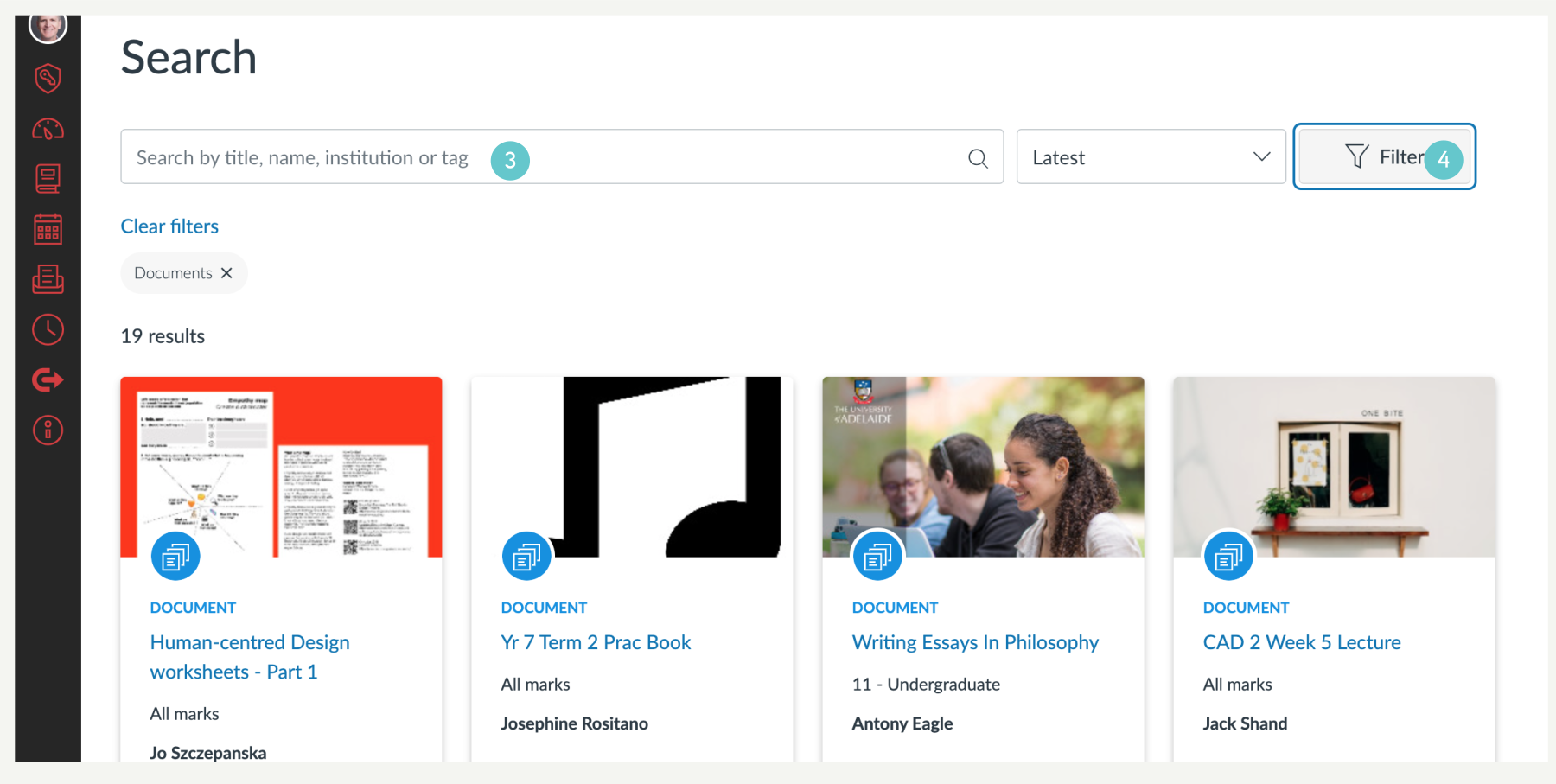
- Click on the Filter button to see several choices in Filter Results.
- Select PAGES to narrow your search.
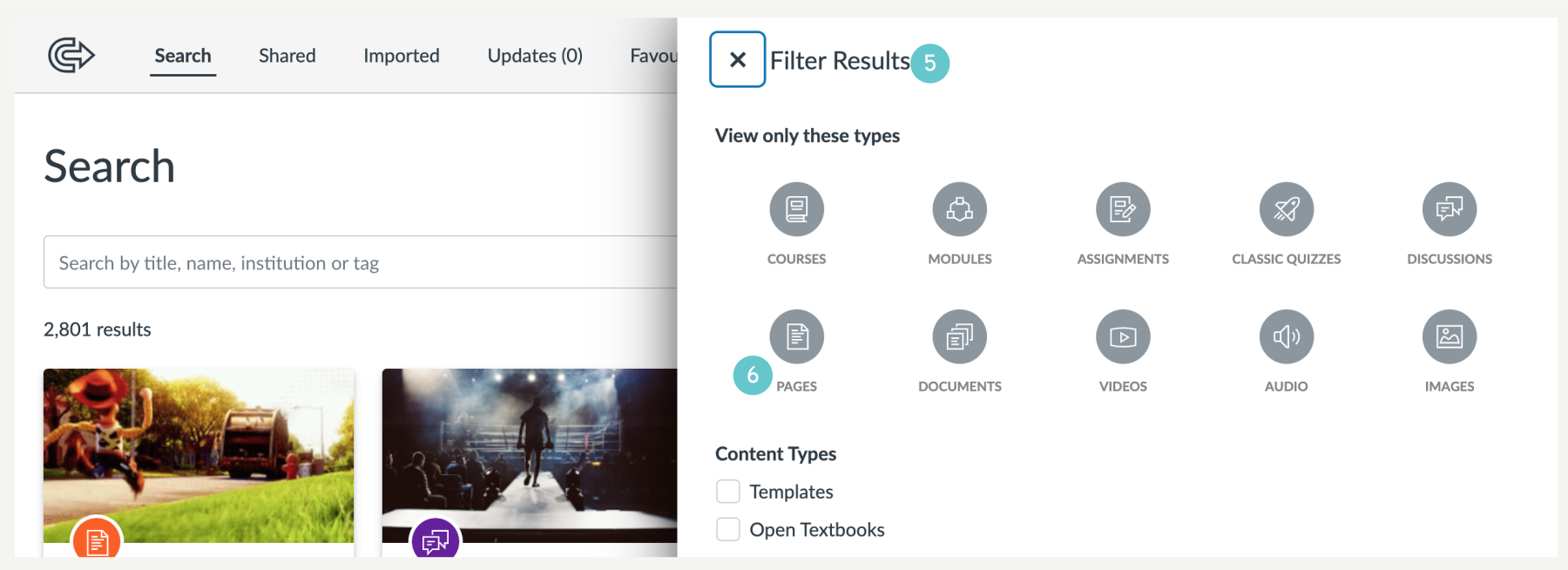
- If you know the page name, type it in the box.
- Find what you are looking for, click on it and a tile appears.
- Click on the Blue tile name to open it.
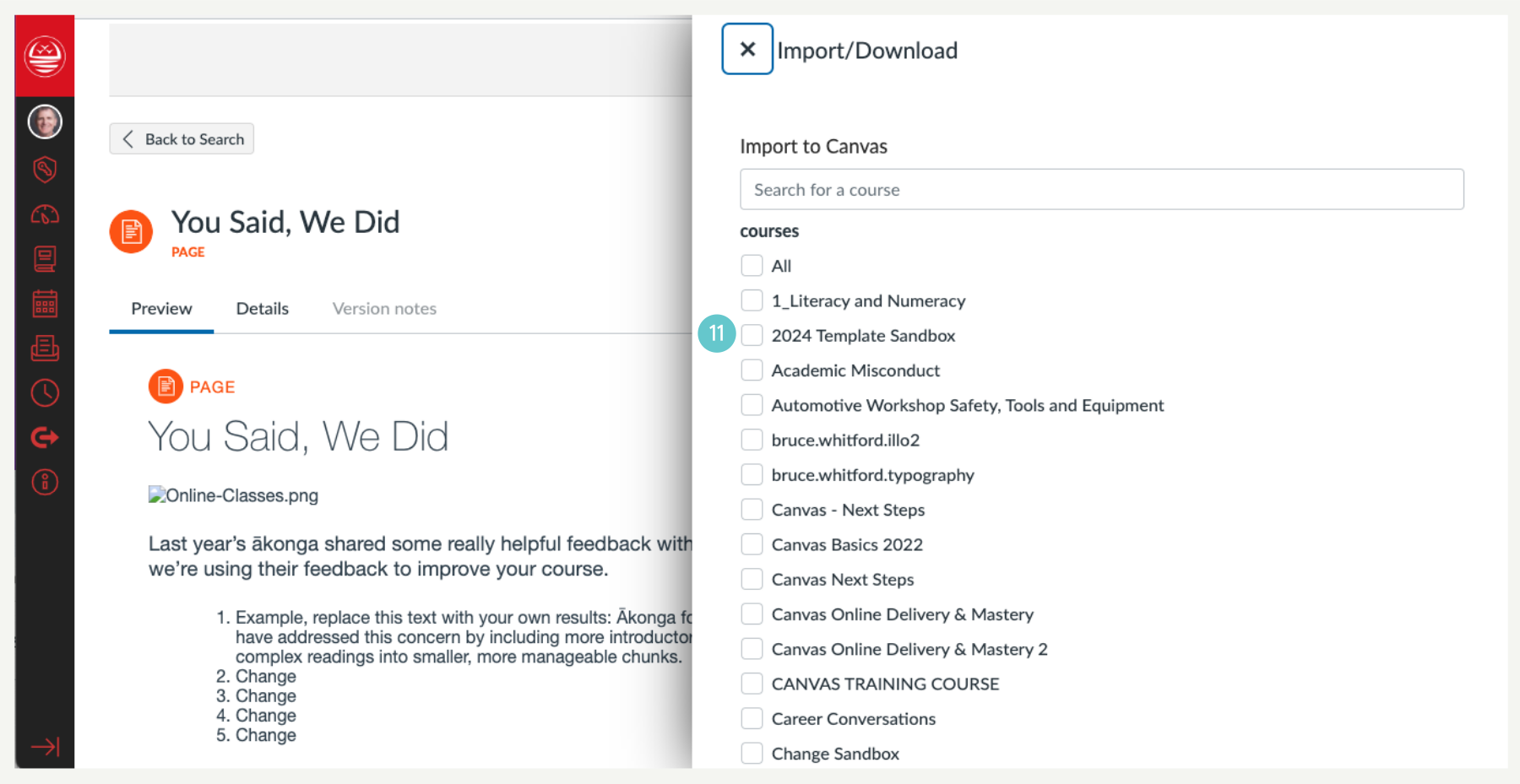
- Click on the Import/Download button.

- A list of your courses will appear on the right, click the tick box beside the course you want to import into.
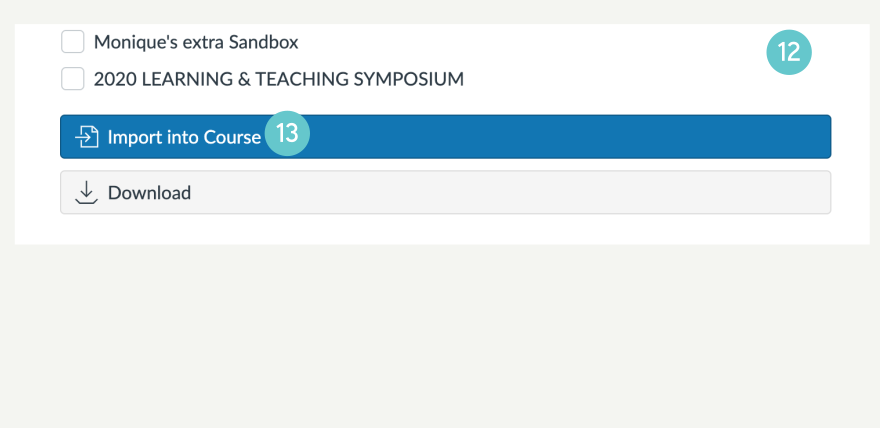
- After making your selection, continue to scroll down to the bottom of the window until you reach the Import into Course/Download area.
- Select Import into Course.
- Go to the course you selected and find the imported page in Pages.

- The page will look like this: