

Editing a Rubric in the Assessment window: Canvas will allow you to make a copy of the Rubric and subsequently edit the new copy.
How do I copy a Rubric?
- In the Assessment Rubric (found below the Assessment content window) Click Find a Rubric
- Select the Copy icon [Copy Rubric] for the rubric you would like to copy.
- Enter a new Rubric Title. The default title will be the name of the original rubric with “Copy” appended.
- Select Save.
Warning: Rubrics cannot be modified once they have been used in more than one place. This limitation is put in place by Canvas themselves.

Editing a Rubric
- Click the Edit Rubric button
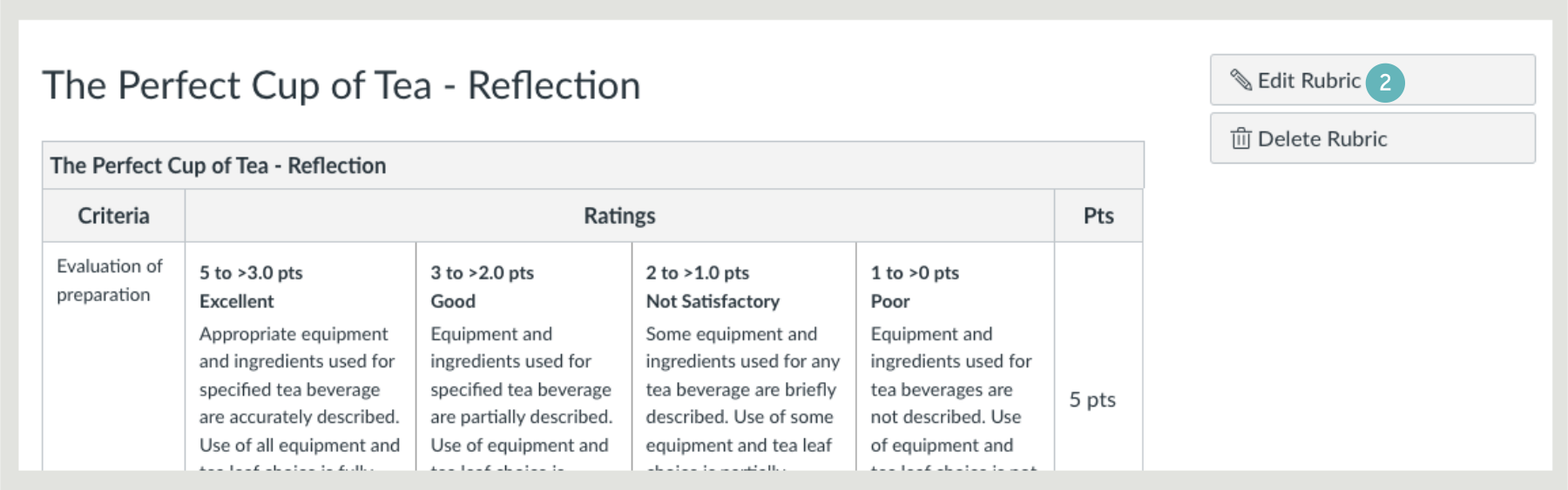
- To rename a Rubric, type in the Title field.
- To edit a rubric criterion description or long description, click the criterion Edit icon.
- You can also edit Criterion ratings.
- Add ratings.
- And edit points.
- To delete a criterion from the rubric, click the criterion Delete icon.

Hints and Tips
- Advice: Do not attach “draft Rubrics” to assignments. Your Rubric should be complete and accurate before attaching it to multiple assignments.
- How would I reset entered values or scores in a Rubric in Speedgrader in Canvas?
- While you are in Speedgrader, open the rubric up (click “view rubric”) and delete the values in the score portions. This should return them back to the dash line “-” indicating no score and then you can submit that so you are back to a blank or empty box starting point.