

How to add, remove and rearrange items on the Canvas Course Navigation (menu)
The course menu inside any course can be arranged to suit your students’ needs. You can enable or disable any item menu or change the order they appear.
Below are instructions on how to enable an item. However, the instructions can be used to disable an item too.
- Click on Settings, at the bottom of the course menu.
- Go to the Navigation tab

Method One (enabling an item)
- Click on the three dots to the right of the item and select Enable from the drop-down menu. The item will be added to the bottom of the Course Navigation list above.
- Drag the item to the desired position on the Course Navigation.
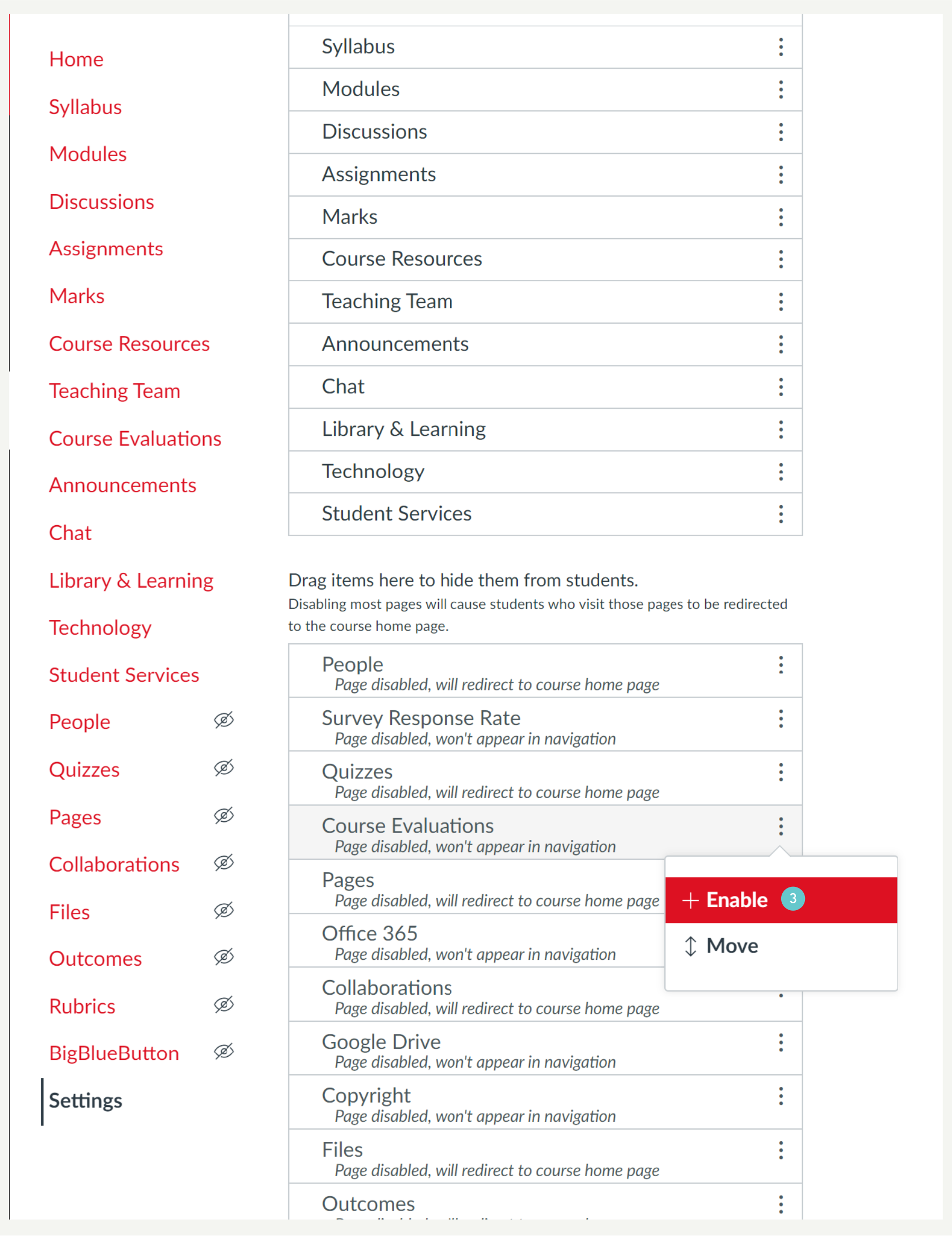
Method Two (enabling an item)
- Click on the three dots and select Enable from the drop-down menu (as above).
- Click on the three dots on the same item and select Move from the drop-down menu.
- Use the options on the Move Navigation Item pop-up box (right) to move the item to the desired position in the Course Navigation.
- Click the Move button.

Method Three (enabling an item)
- Click on the item and drag it to the desired position.
Hints and Tips
- Methods 1 to 3 can be used in the reverse to disable any item/s.
- Use methods 1 to 3 to change the order of the Course Navigation items.
- We recommend keeping a consistent order of items for the Course Navigation. Use the MIT Canvas Standards Template (MCS) as a guide.