

An explanation of what embedding and linking files in Canvas are, and when you might want to use either of these things.
Adding linked files in Canvas
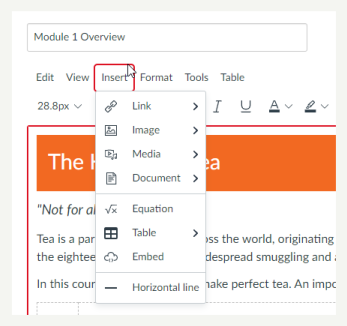
A file in Canvas can be linked, or embedded.
If you link a file:
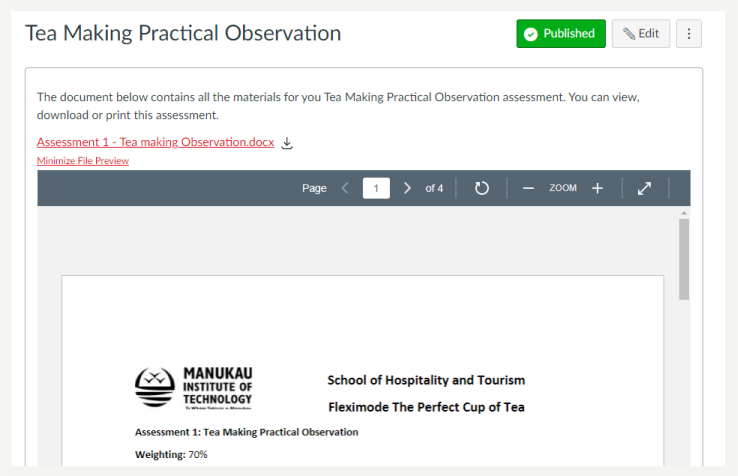
An uploaded file on Canvas will upload exactly as it was at the point in time you uploaded it. You can then create a link to that file on a Page, Announcement, Discussion, or Chat. You can choose to preview this file, or just show the hyperlink. The file appears as either a hyperlink, or a preview of the file. If you need to make changes to the file, you will need to make them on the original file, outside of Canvas, and re-upload the file and relink the file.
If you embed a file:
The file remains where it was created ie SharePoint, and you create a ‘link’ to that file. The original file can be altered, and these alterations flow through to the embedded version of the file on your Canvas Page. You can choose to preview this file, or just show the hyperlink. The file appears as either a hyperlink, or a preview of the file.
Which one do I use?
An embedded file is updatable. Imagine you embedded a file, knowing that you want to change some of the contents in the future. You would be able to change the original copy and your Canvas course updates automatically.
A linked file is not updateable. You want the file that students see to always be exactly as you uploaded it.
Always embed large files (e.g. videos). Canvas courses have a maximum size, and large files will soon use up your space.
Always embed files that ‘aren’t yours’, e.g. YouTube files. Remember to acknowledge your source and make sure you have permission to use the file.
Preview a file
You can preview either a linked or an embedded file. Previewing a file is good. It stops the students from just seeing a list of links on a Page. It’s good instructional design. Be careful about the size of the preview window. For uploaded files (linked files), Canvas pre-determines the size of the preview window. For embedded files, you often get to choose. Chose an embed size that’s big enough to read (width over 1000 pixels is good).
Hints and Tips
- Always embed videos.
- Teams meetings can be recorded and saved to Stream. You can then embed these videos into your course. Make sure that if you record a session with students, you are mindful of data privacy (students on another cohort shouldn’t know who was in a previous cohort).
- Preview a file whenever possible. It makes your Canvas course more user friendly.
- For documents such as Word/Excel, think about whether you want the file to be easily updateable. And if you do decide to embed the file, where would you store it? (Store on SharePoint, not your own personal OneDrive).