

You can export your portfolio to keep your files and Mahara-created content offline. You can create an export at any time and as often as you wish.
Download as an HTML file (when the zip file is extracted) on your PC, to get a read-only version that maybe viewed through your web browser. MIT Mahara users are unable to export files as pdf’s as we do not have the permission or plugin to do this.
The HTML export: The zip file contains a website with your portfolio data. You cannot import this into Mahara or another portfolio system again, but it is readable in a standard web browser and you do not need a Mahara in order to view it. To view this website, extract the zip file and click on the index.html file [1] that is in the folder.
Other folders in the download (export_info) [2] contain all your images and documents, as you can see below.

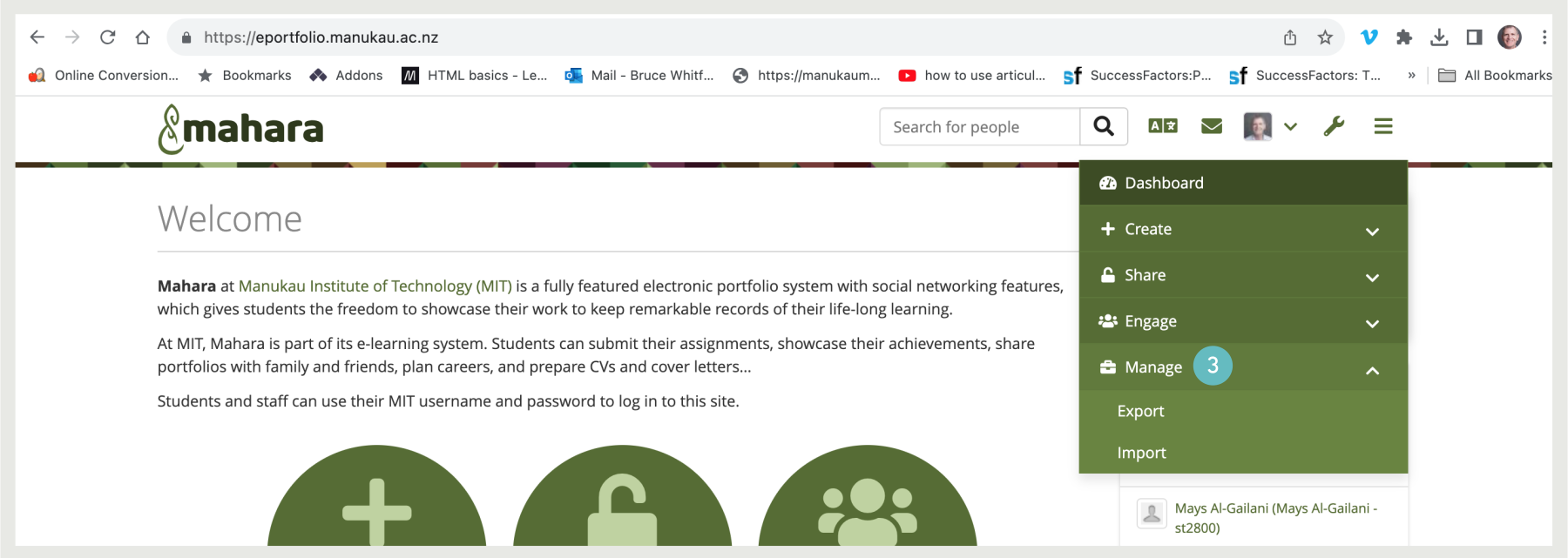
To export your portfolio on Manage → Export:
- Choose what you want to export:
- All my data: Every artefact and portfolio that is stored in your account in Main menu → Create and in your profile in Account menu → Profile. Excluded are any of your group contributions.
- Just some of my pages: You can choose which pages and the artefacts that are contained within them you want to export
- Just some of my collections: You can select which collections and the artefacts that are contained within them you want to export.
- Your pages and collections are listed alphabetically.
- If you have chosen to export just some pages or collections, you can select them here by ticking the individual checkboxes to mark them for inclusion.
- Use the buttons Select all or Reverse selection to quickly choose the portfolio pages or collections to include in your export.
- Click the Click to preview link to preview a page (or collection) before you select it.
- Decide whether you want to Include comments in your export. They are then visible in the HTML export. In order to do so, set the switch to ‘Yes’.
- Include private comments: Switch this option to ‘Yes’ if you want to include any private comments in the export. Use this option when you share your portfolio archive with other people who should not be able to see comments meant for your eyes only though.
- Click the Generate export button to start the export process.
Note: You can always make two separate exports: One with and one without private comments to be more flexible later on with whom you want to share the archive.

Depending on the size of your portfolio, the export may take a little time. Once everything has been processed, a file will either be downloaded automatically to your computer or you can decide to save it. That depends on your browser settings. The file created is a zip file.

Note: If your export gets stuck in the process and the progress bar does not move along at all, your server settings may prevent long operations to avoid slowing down the entire system. You will need to contact your site administrator, e.g. via the ‘Contact us’ form in the footer of the page.
If your site administrator enabled the feature to queue exports, you will receive a notification when the export has finished. Then you have 24 hours until the link to the archive expires. If you do not download your export within that time frame, you will need to export your content again.
Note: PDF export: If your site allows PDF exports, then the export file will contain the respective PDFs as well. They contain links to embedded media, which are exported as well so that it is not just the PDF, but also the artefacts that are contained in the portfolios.
The PDF export differs from the ‘Print’ option because it can export an entire collection or an entire account, and it exports also all artefacts. When a portfolio page is printed, a ‘flat’ PDF file can be created that is just the print output. However, if videos, audio, or any other files are included on the page, they become inaccessible whereas in the PDF export file they are available.