
Have you ever had students skip important content and go straight to the assessment? Module requirements can help. They let you guide students through your course in the order you choose, making it clear what they need to complete before moving on.
Why use module requirements?
Module requirements can help students:
- Stay on track with their learning.
- Complete important activities before moving on.
- See their progress through the course.
- Understand what is expected of them.
How to add module requirements
- Open your module: Go to Modules in your Canvas course.
- Select the ⋮ (three dots) beside the module name
- Then choose Edit.

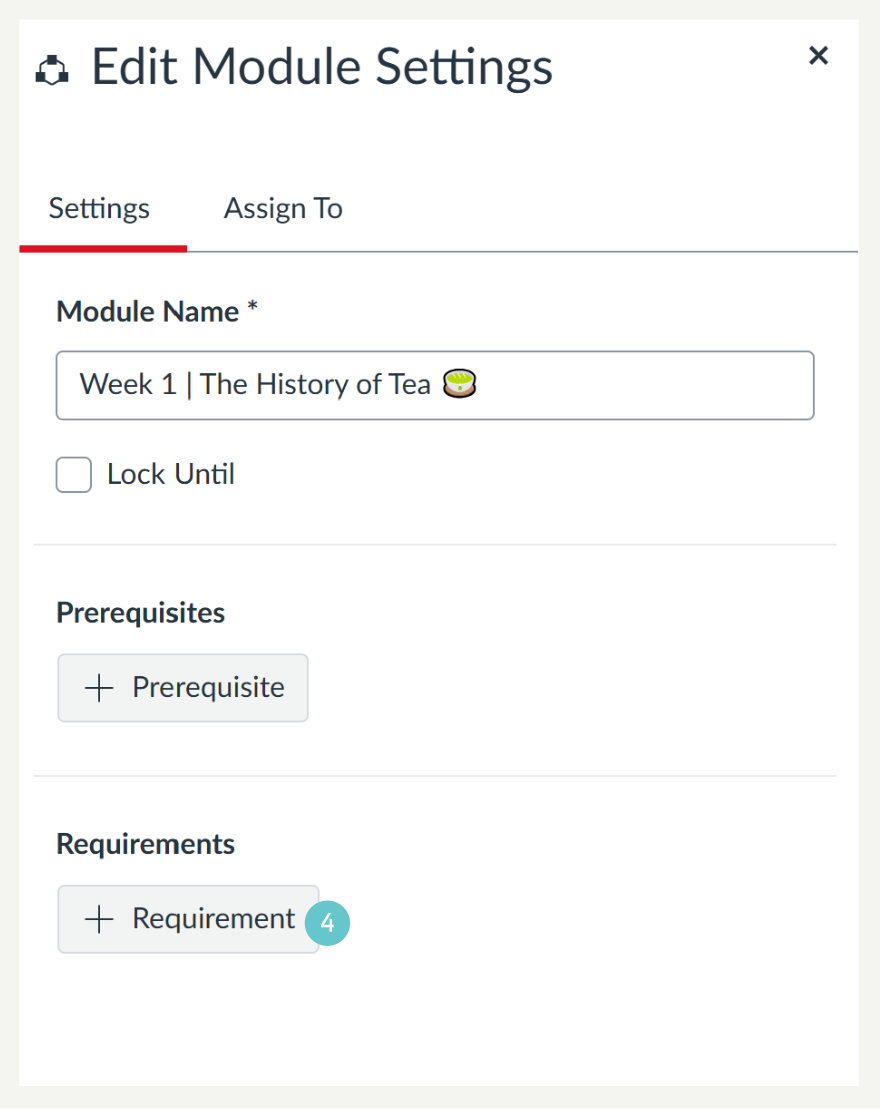
- Click + requirements
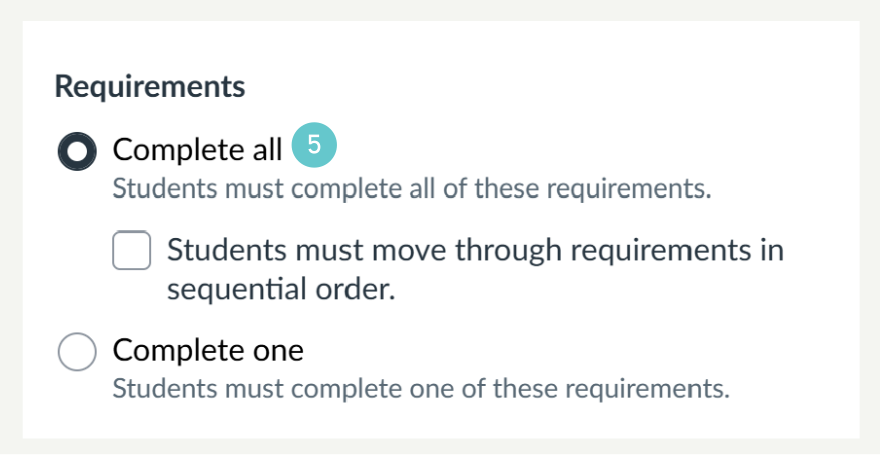
- Tick Complete all or Complete One.
- If you need to you can select “Students must move through requirements in sequential order”
- By default, the first item in the module is set as the required item. To choose a different item, use the Item drop-down menu.
- To choose how students complete the selected item, use the Completion Requirement drop-down menu. The available options depend on the type of module item.For each item in the module, choose a requirement such as:
- View the item
- Mark as done
- Contribute to a discussion
- Submit the assignment
- Score at least… (for quizzes)
- Click Save when you are done

Students will now see their progress as they complete each item.
Take it one step further with prerequisites
Once you’ve added requirements, you can control when students access the next module.
- Edit the next module.
- Select + Prerequisites

- Under Prerequisites, select the previous module.
- Save your changes.

Students will need to complete the first module before the next one becomes available