

How to hide marks from students.
By default, Canvas assignment grades will be visible to students as soon as they are entered by teachers. Even some hidden marks may also be available to the students. To avoid this, you need to set Grade Posting Policy from Automatically Post Grades to Manually Post Grades for your course and assignments.
There are two Grade Posting Policy settings, course level and assignment level. To change the course level default setting to Manually Post Grades, follow the steps below.
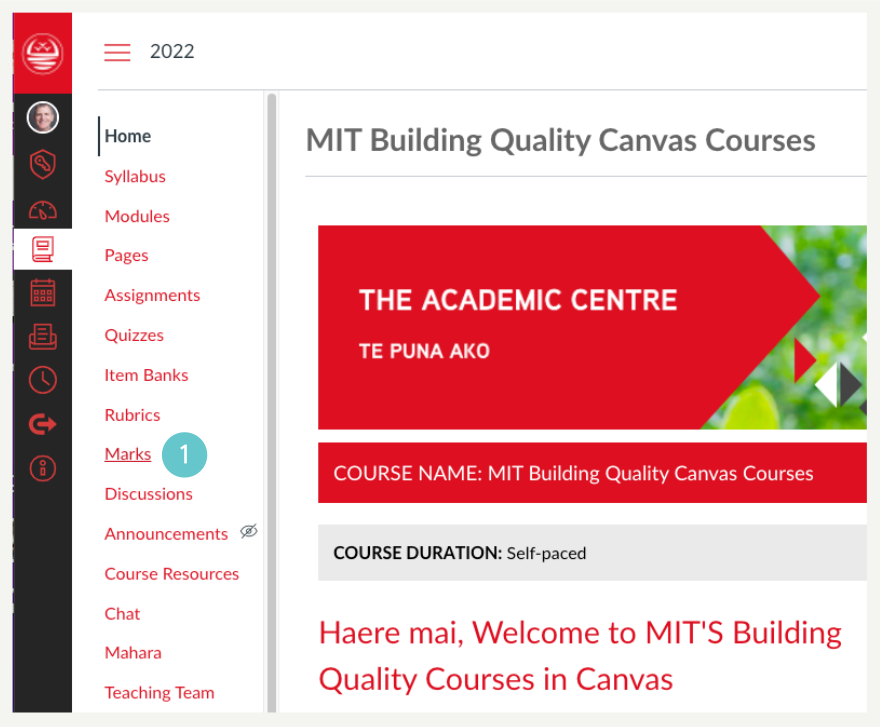
- Click on Marks from the course navigation menu
- Click on the cog icon at the top-right of the page.

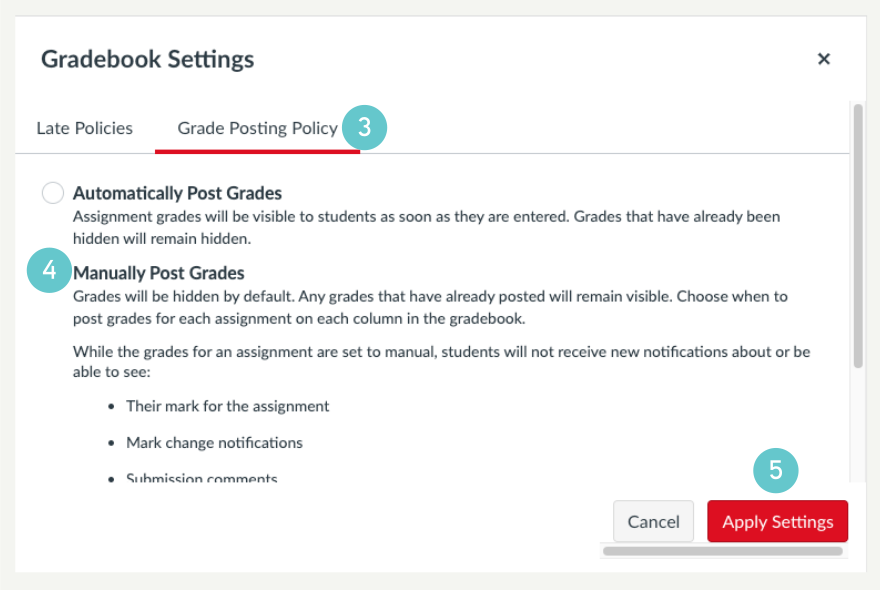
- Click on Grade Posting Policy tab.
- Click on Manually Post Grades radio button.
- Then click on the Apply Settings button to save the settings.
You also need to check the assignment level setting of Grade Posting Policy for each assignment. These settings can be overwritten by the course level settings. Each time you change the course level Grade Posting Policy setting, it will overwrite these assignment level settings!
- Click on Marks from the course navigation menu.

- Locate the assignment you want to check its Grade Posting Policy. Then click on the three dots beside it.
- Select Grade Posting Policy from the drop-down menu.
- Click on Manually radio button.
- Then click on the Save button to save the settings.


- Select Grade Posting Policy from the drop-down menu of the assessment again.
- Select Marked if you wish to share the results with students.
- Select Post.
