

When importing course content with the Course Import Tool, you can choose to select specific content as part of the import. This option allows you to select specific content areas such as assignments, settings, and files without importing the entire course.
Notes:
- Importing a course more than once may have unintended consequences. If you import content into a new course, edit the content in the new course, and later import the previous content again, the imported content will override the existing content.
- If you change your mind after the import has started and you want to import all course content, you can import all content by selecting each item for a content type.
- For information about the Course Import Tool’s limitations:
- Importing courses and course files count against course file quotas. However, copying existing Canvas courses and course files reference the original Canvas course file quota and do not count against course file quotas.
- If you import LTI content from a course, the external tool may need to be reconfigured in the course that receives the content in order for that content to be accessible.
- In Course Navigation, click the Settings link.
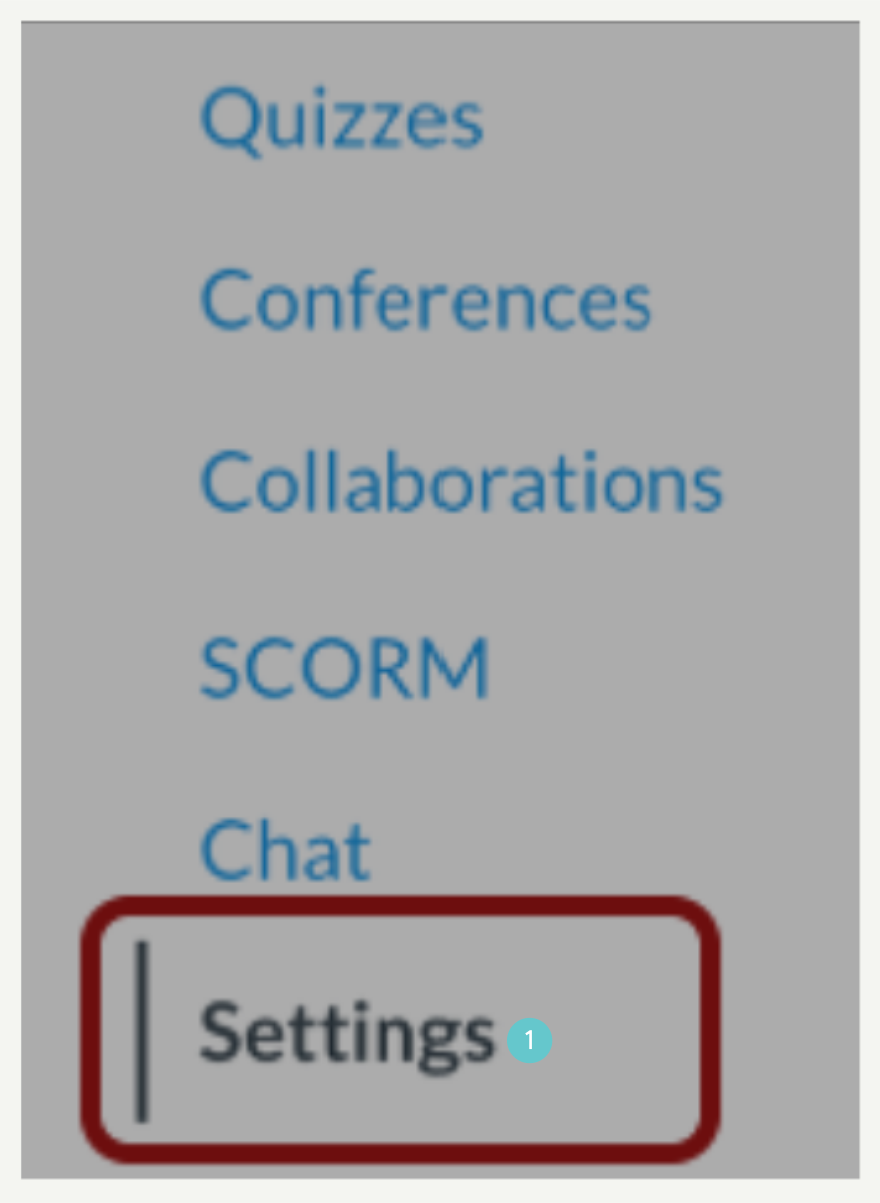
Import Content into Course
- Click the Import Course Content link.

Select Content Type
- In the Content Type drop-down menu, select the content type you want to import.
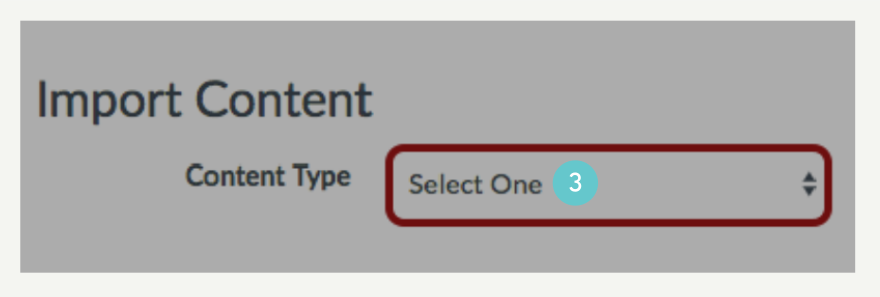
Select Specific Content
- In the Content section, click the Select specific content radio button.

View Content Import Warning Message
- View Content Import Warning Message. When importing content, a message displays explaining that importing the same course content or export package more than once overwrites any existing content in the course.

Import Course
- Click the Import button [1].
- A progress indicator displays the upload status by percentage [2].

Select Content
- In the Current Jobs section, click the Select Content button.

Select All Group Content
- Select either individual content items [1]
- or select a content group [2].
- Content groups show the number of items within the group. To view content within a group, click the group’s expand icon [3].
- To import all content for a content type, click the checkbox next to the content name [4]. If the content type is a group, Canvas automatically selects all items within the group.

Select Specific Group Content
- To import only a few items from a content group, expand the group and select the specific items to be imported [1].
- Canvas places a dash in the content group checkbox [2], indicating not all items are selected within the group.

Select Thin Common Cartridge Content
- If you imported a Thin Common Cartridge file (Common Cartridge import), this file type is imported directly as module content. The structure can be expanded to view a nested layout that simulates the content structure.
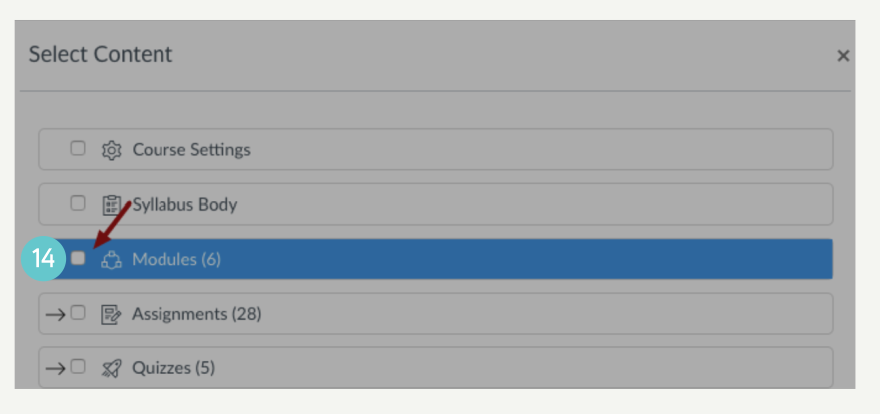
Select Content
- Click the Select Content button.

View Current Jobs
- The report displays a menu bar with the time remaining to complete the import. View the content from any completed imports by accessing any link in Course Navigation. The import may also display errors as part of the import status.
