The article explains how to turn on and check attendance reports for your Microsoft Teams meetings. It covers how to enable the feature before your meeting and then how to access and download the report afterward to see who attended and for how long.
Before Your Meeting
- In your Calendar click on the meeting you want to get the attendance for.
- Click here to expand the meeting details.

- Select Meeting options….

- Scroll down to Engagement
- Turn the Allow attendance report on.
- Select Save.

After the Meeting
- In Teams select the calendar icon to access your scheduled meetings.

- Click on the meeting you want the attendance for.
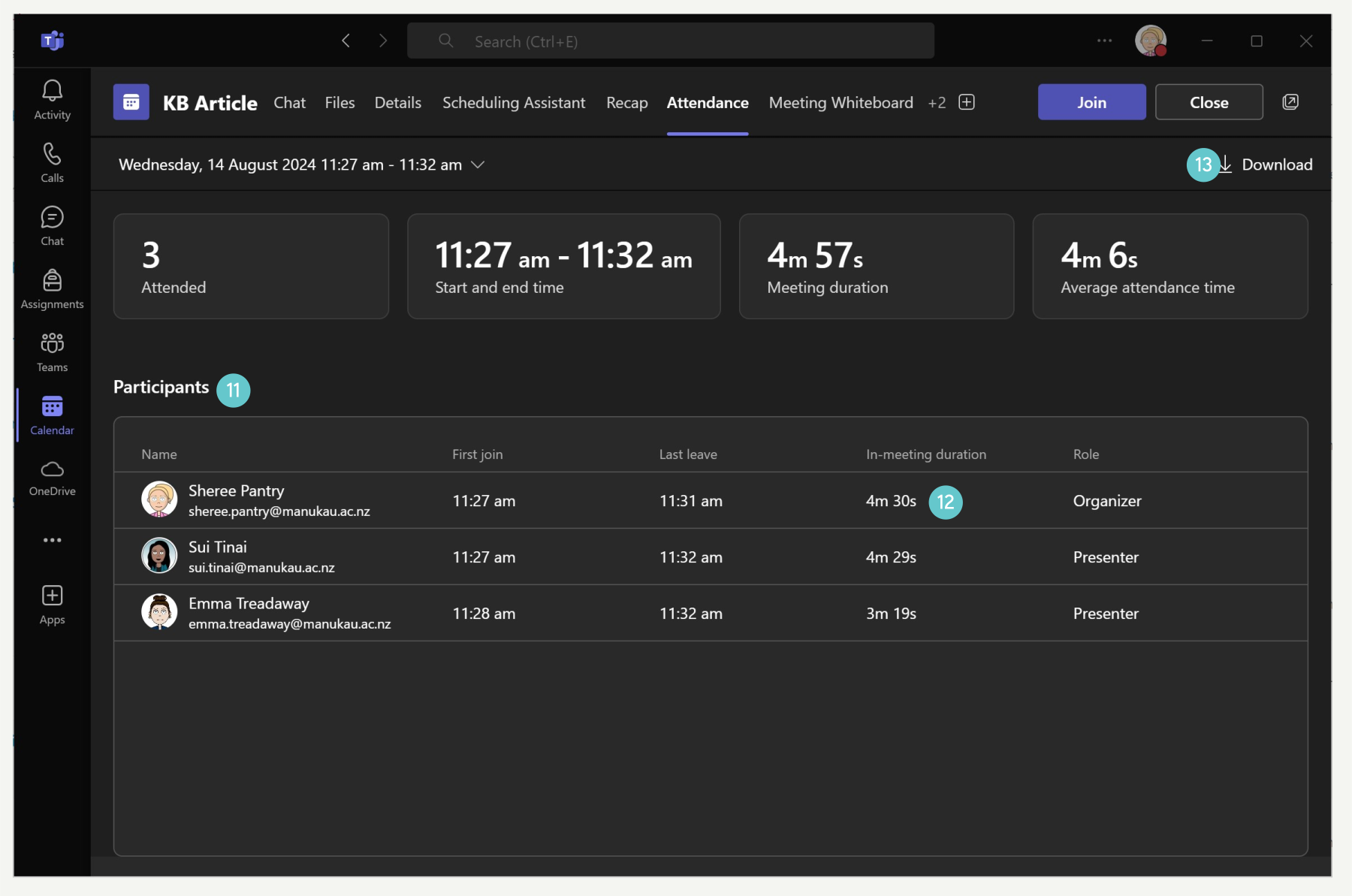
- Click here to open the meeting details.

- Click here to open the attendance report.

- The attendance report will display a list of participants who attended the meeting.
- You can see who was present and the duration of their attendance.
- Click here to download the report.