• Skip to main content
  • Skip to after header navigation
  • Skip to site footer
Knowledge Base

Knowledge Base

Practical help for digital teaching

Resources

  • Knowledge Base
  • Kick Start
  • Free Resources
  • AI in Education
  • Log In

25 February 2026

Everything Skills Articles

*Screenshots may differ to what you see, depending on whether you have a PC or Mac.

How to Add an Email Signature in Outlook


An email signature helps people know who you are and how to contact you. In Outlook, you can create a signature once and add it to every email automatically. This guide shows you how to add, edit, and use a signature in Outlook from Microsoft.
Note: This guide covers the common Outlook versions for Windows and the web. Your steps might differ slightly if you use Outlook on a Mac or older versions.

  1. Open Outlook.
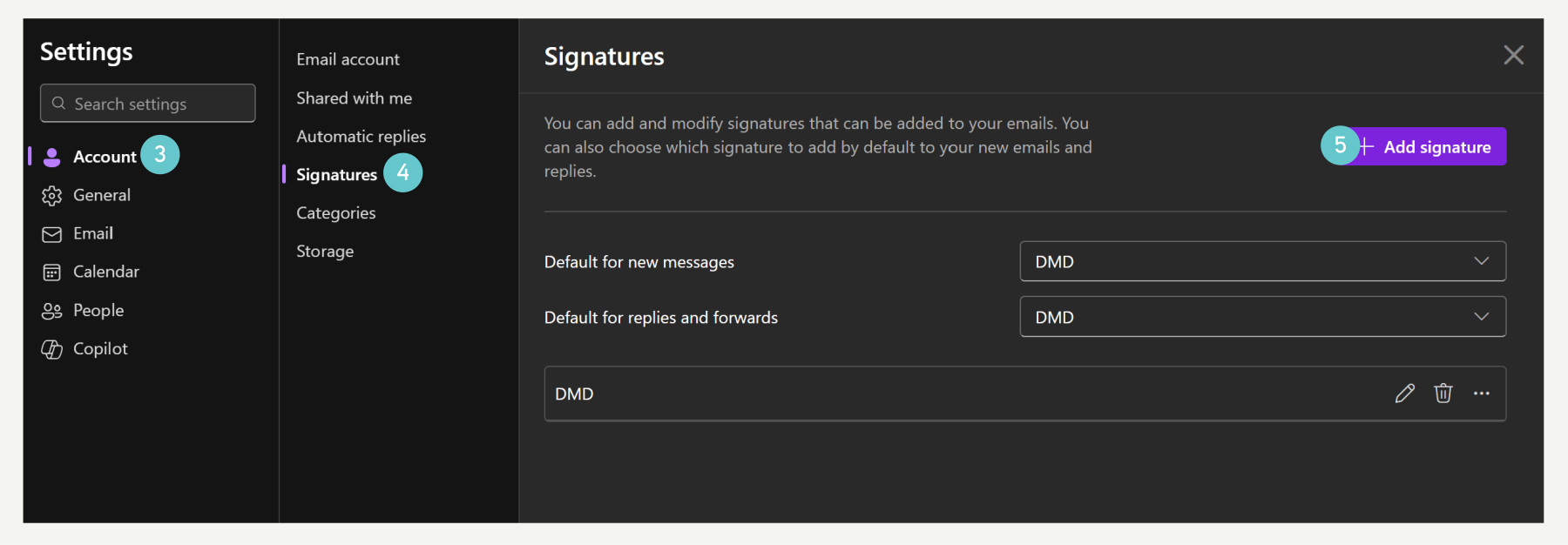
  2. Select the Settings icon.
  1. Select Accounts.
  2. Click Signatures.
  3. Click Add signature.
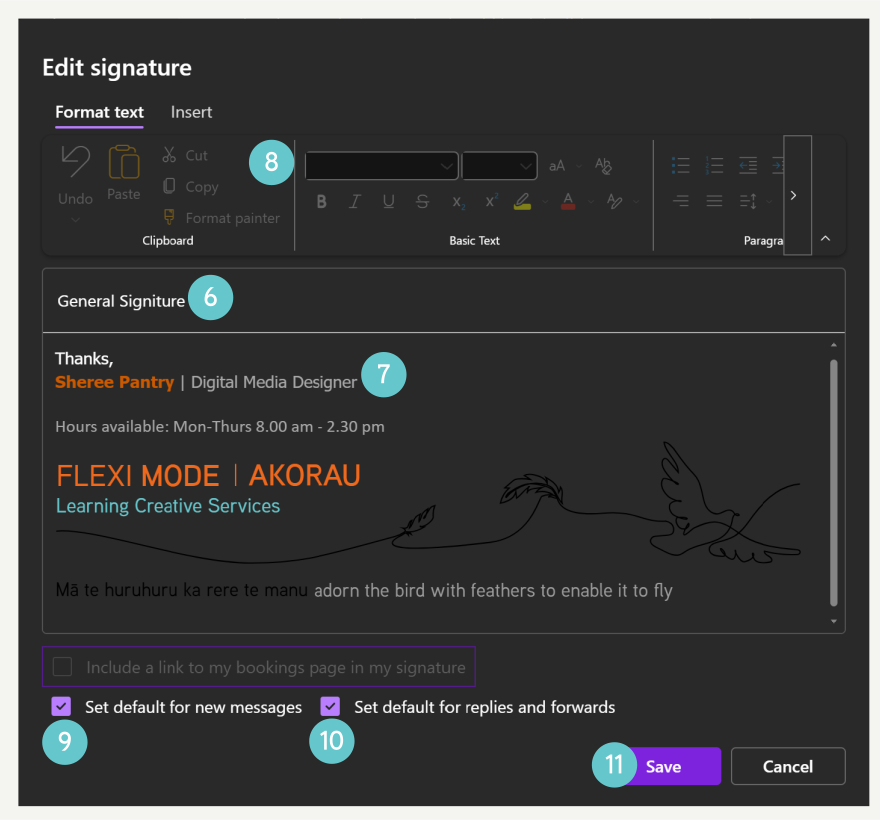
  1. Enter a name for your signature, such as Work or Personal.
  2. Type your name, job title, phone number, and any links you want to include.
  3. Use the formatting tools to change the font, size, or colour. You can also add an image or logo if needed.
  4. Select your new signature for New messages if you want it added automatically.
  5. Select it for Replies and forwards if you want it included in those emails too.
  6. Click Save

To Edit A Signiture

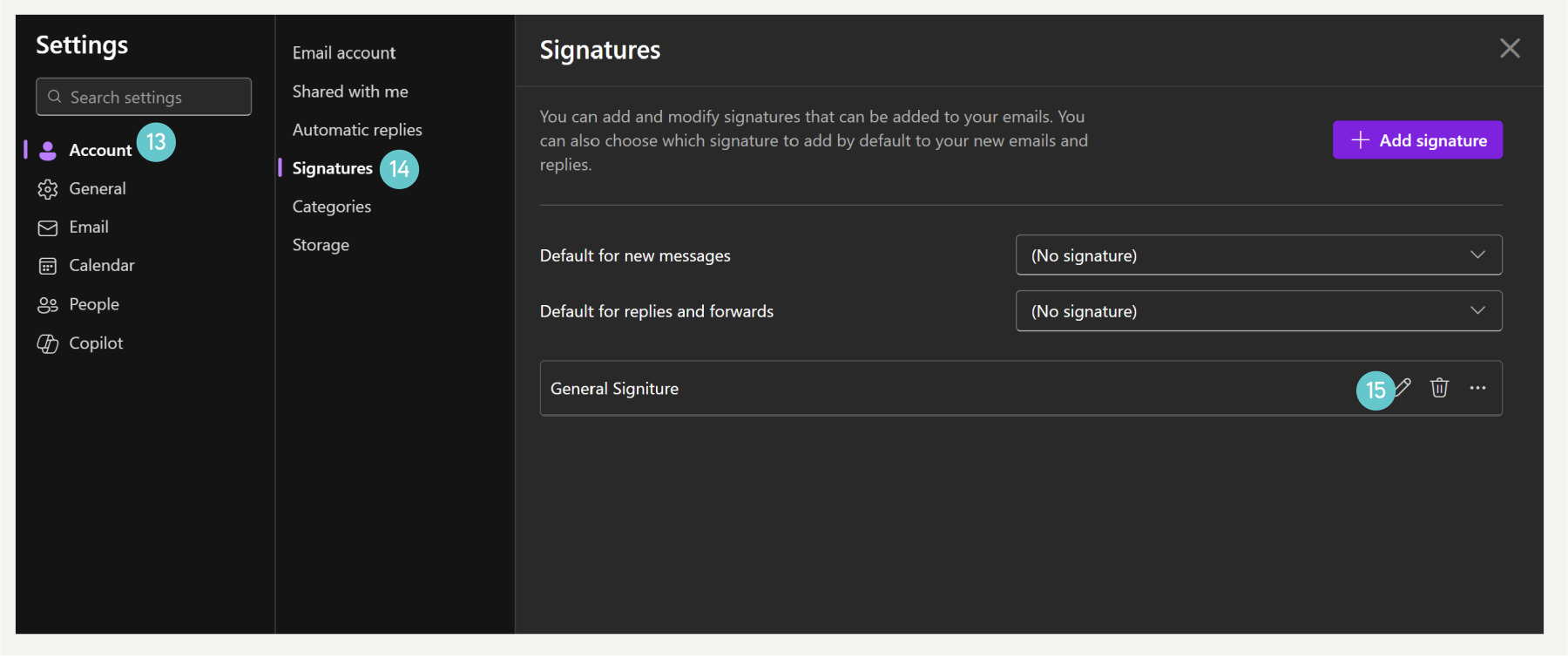
  1. Select the Settings icon.
  1. Select Accounts.
  2. Click Signatures.
  3. Click the pencil icon next to the signiture you want to edit.
  1. Make any neccassary changes
  2. Click Save

Sidebar

Knowledge Articles

Resource Categories

Signup to Mildly Interesting

Stay updated on the latest developments from our Academic Partners team, as well as insights from our Quality Team on updates and policies shaping the educational landscape. Don't miss out—sign up today to stay informed!

* indicates required
/* real people should not fill this in and expect good things - do not remove this or risk form bot signups */


Need More Help?

Copyright © 2026 · Manukau Institute of Technology · Crafted by Responsive

Your cart (items: 0)

Products in cart

Product Details Total
Subtotal $0
View my cart
Go to checkout

Your cart is currently empty!

Start shopping

Notifications