
The Canvas Calendar is your main hub for communicating essential dates like deadlines, class times, and important reminders to your students. This guide provides all the steps you need, from creating a basic one-time event to setting up complex recurring class schedules.
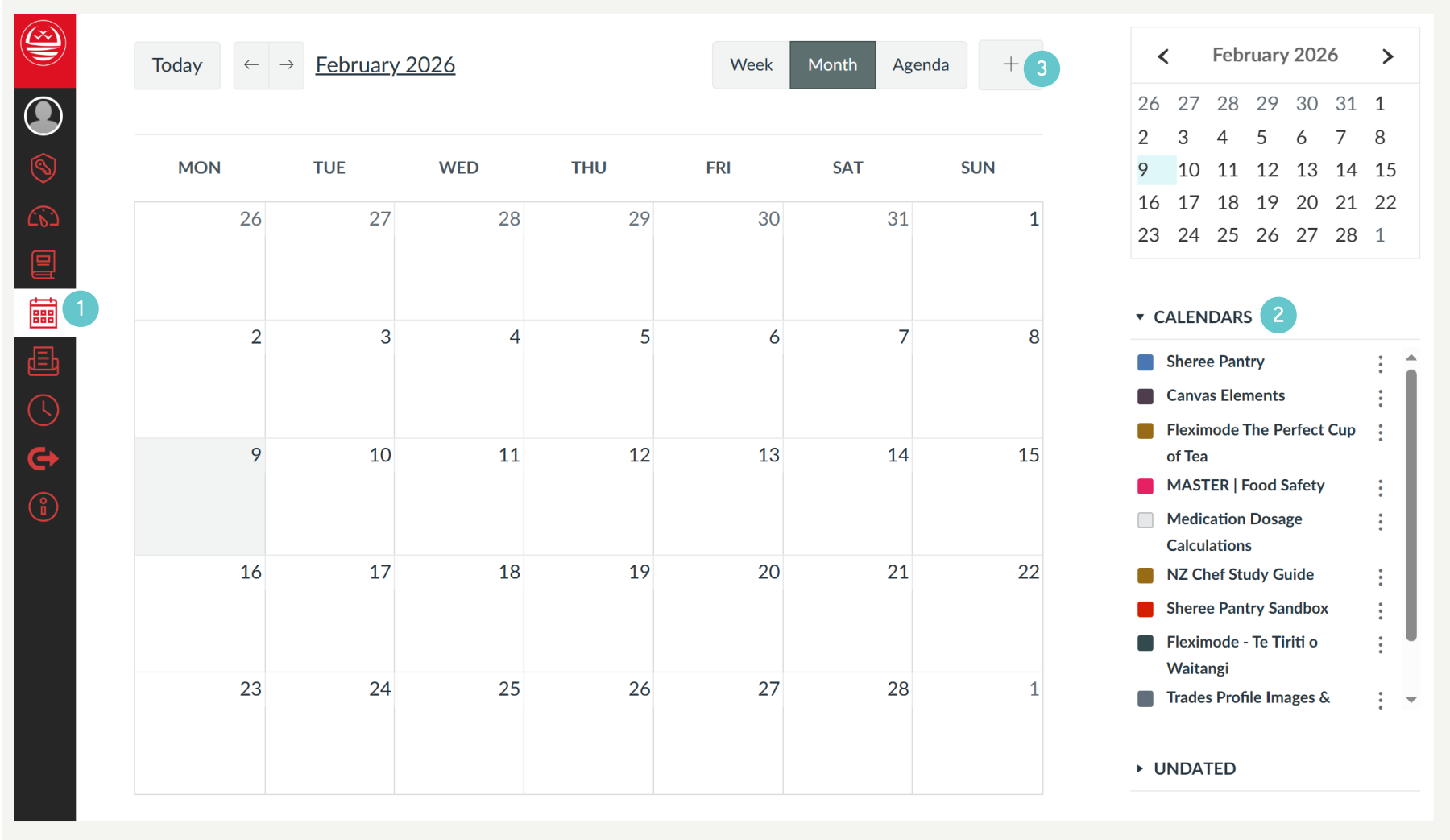
- Click the Calendar icon 🗓️ in the global navigation menu (the far-left column).
- Ensure the specific course calendar you want to add the event to is selected (the colour swatch is filled in).
- Click directly on the desired date on the calendar grid or click the Add icon (+) near the top, to open the Edit Event pop-up window.
Use the following steps to schedule both one-time events and repeating series.
- Basic Details: Give your event a clear Title and enter the correct Start and End Time. Ensure the correct Course Calendar is selected.
- One-Time Event: Leave the Frequency dropdown set to the default: “Does not repeat”. Move to Step 3.

- Recurring Event: Click the dropdown menu next to Frequency. Select a repeating pattern (e.g., Weekly on [Day]) or choose Custom… for more complex schedules (e.g., events on Tuesdays and Thursdays).

- End Date: If setting a custom recurrence, ensure you set a specific End date or a total number of occurrences so the events do not run past the end of the semester.

- Saving: Click Submit at the bottom of the window. The event(s) will immediately appear on the course calendar.

- Editing a Single Event: Click the specific event you want to change, click Edit, and select “This event” in the confirmation window.
- Editing the Series: Click any event and select Edit. Choose “This and all following events” to apply changes from that point forward – this pop-up only appears after you submit the changes.

Hints and Tips
- Set an End Date: When using a custom pattern, always set a realistic Ends date (or number of occurrences) so the events do not run indefinitely past the end of the semester.
- Colour Coding: Use the different colour codes assigned to your courses in the Calendar to quickly identify your events in a busy timeline.
- Student View: After creating a series, quickly check the course Student View to confirm the events appear correctly in their calendar.