
This question type is highly engaging and is perfect for assessing a student’s ability to sort, group, and classify information, such as grouping historical figures by era, identifying biological concepts by domain, or classifying different types of material.
Access the Builder and Add the Question
All question configuration occurs within the New Quizzes editor (the “Builder”).
- Access the Builder: Navigate to your New Quiz and click the Build button to enter the editor.
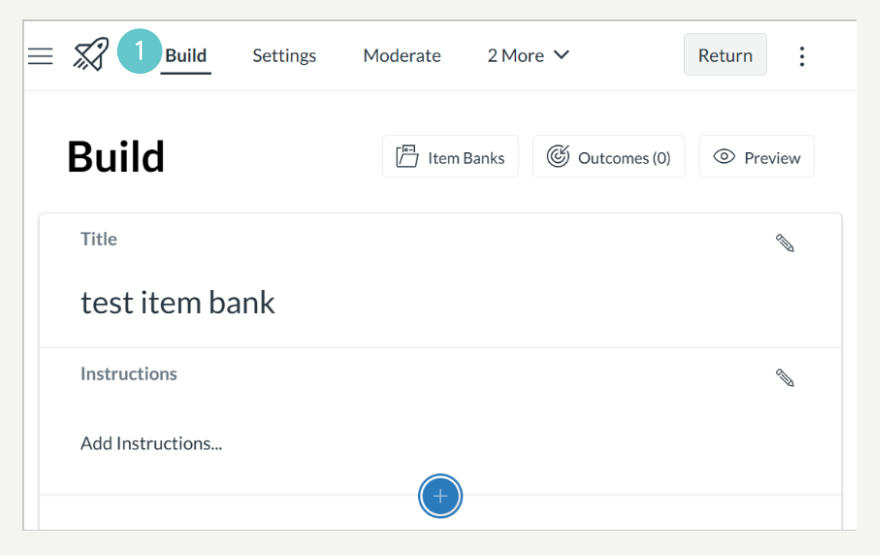
- Add New Question: Click the Blue + button and select the Categorisation icon.
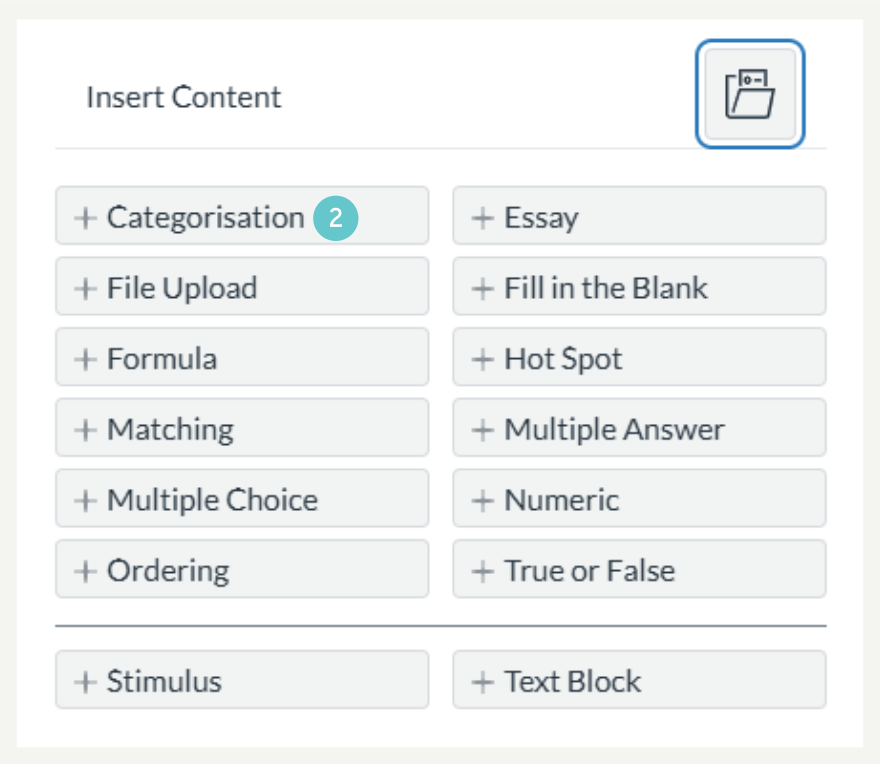
- Write Question Stem: Enter the Question Stem (the instruction, e.g., “Sort the following items into their correct categories below”) and set the Point Value.

Define Categories, Items, and Distractors
- Create Categories: Under the Add Categories section, rename Category 1 and Category 2 (or click + Add Category for more). These are the drop zones for the ākonga.
- Add Correct Items: For each category, type in the answer items that belong to it (e.g., under “Black Tea Types,” enter “Assam,” “Oolong,” etc.). Click + Answer for each item.

- Add Distractors (Optional): Click the + Distractor link at the bottom. Distractors are items that will appear as options for the student but do not belong to any correct category.

- Save: Click Done at the bottom of the question editor to save the completed question to your quiz.
Hints and Tips
- Partial Credit: New Quizzes will automatically assign partial credit based on the number of correct placements and distractors used. Students are only marked on items they place into a category.
- Test Distractors: Make sure your distractors are plausible items that students might mistakenly place into a category, which increases the difficulty and diagnostic value of the question.
- Item Banks are Key: Remember to click the Item Banking option before clicking Done to store this question for easy reuse in future courses.