
Classic Quizzes is a legacy tool. For all new assessments, you are strongly encouraged to use New Quizzes. New Quizzes offers better accessibility, security, advanced question types, and essential features like Item Banks.
Create the Classic Quiz Shell
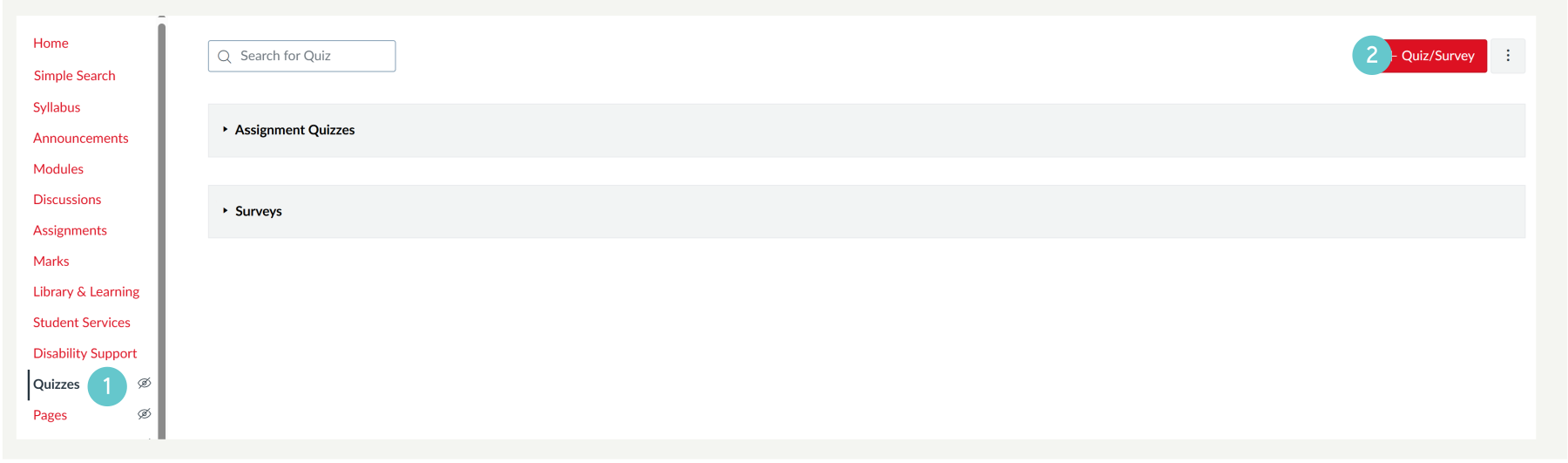
- Start New Quiz: Click the + Quiz button.
- Navigate to Quizzes: Click Quizzes in the course navigation menu.
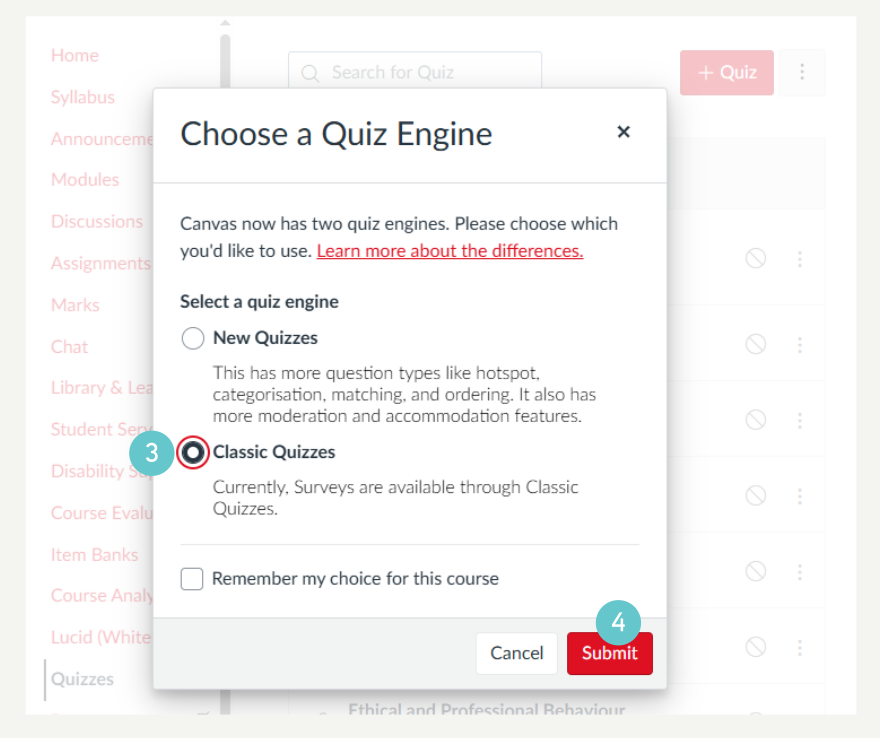
- Select Type (CRITICAL): In the pop-up window, ensure the Quiz Type is set to Classic Quizzes.
- Click Submit.
- Quiz Details: Enter a name for your quiz and add instructions in the Rich Content Editor (RCE) on the Details tab.

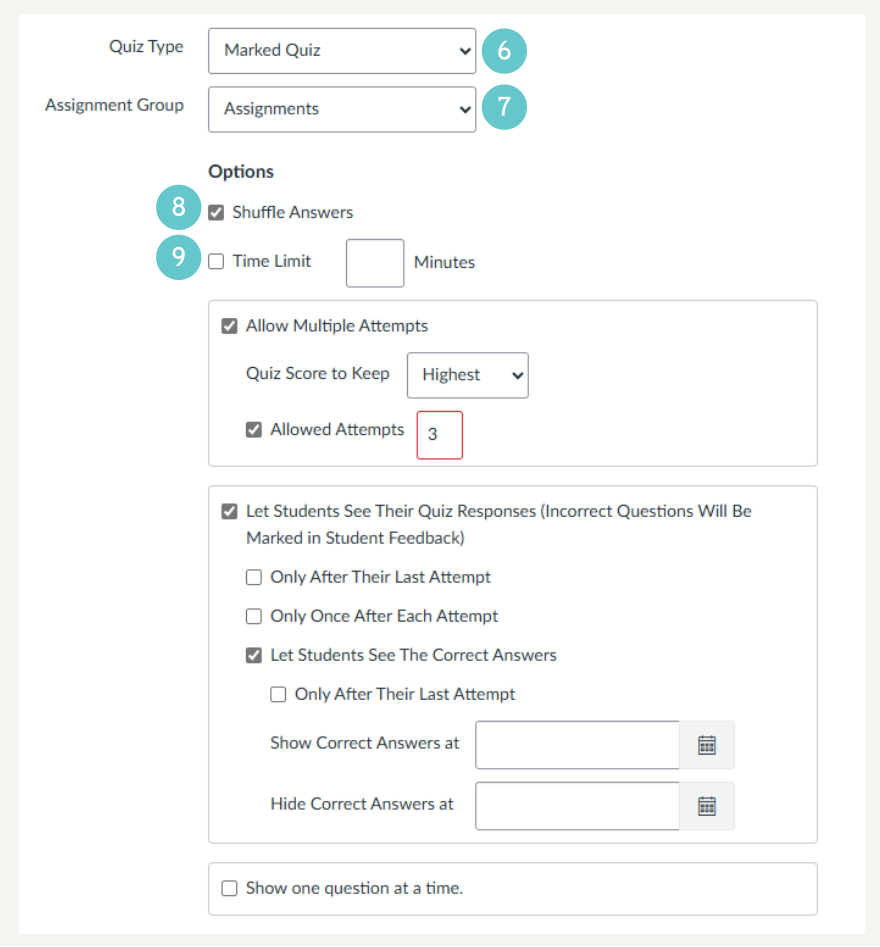
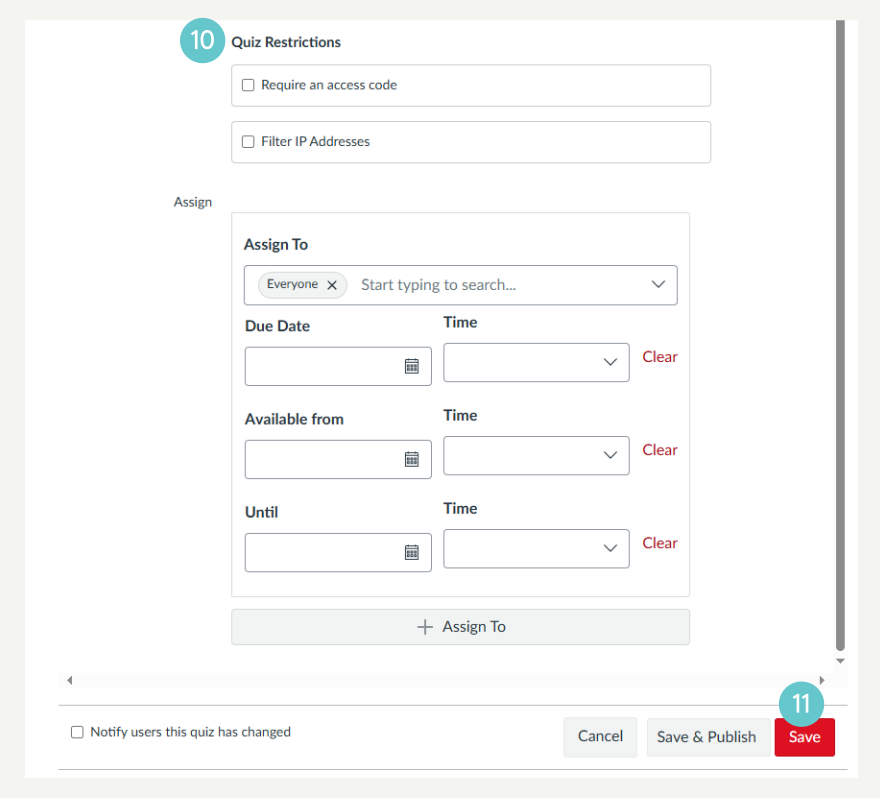
Configure Settings: Scroll down to set the grading type, assignment group, shuffle answers, time limit, and restrict access dates.
- The grading type,
- Assignment group
- Shuffle answers
- Time limit
- Restrict access dates.
- Save: Click Save to create the quiz shell (do not click “Save & Publish” yet).
Add Questions
Once the shell is created, you must switch to the Questions tab to build the content.
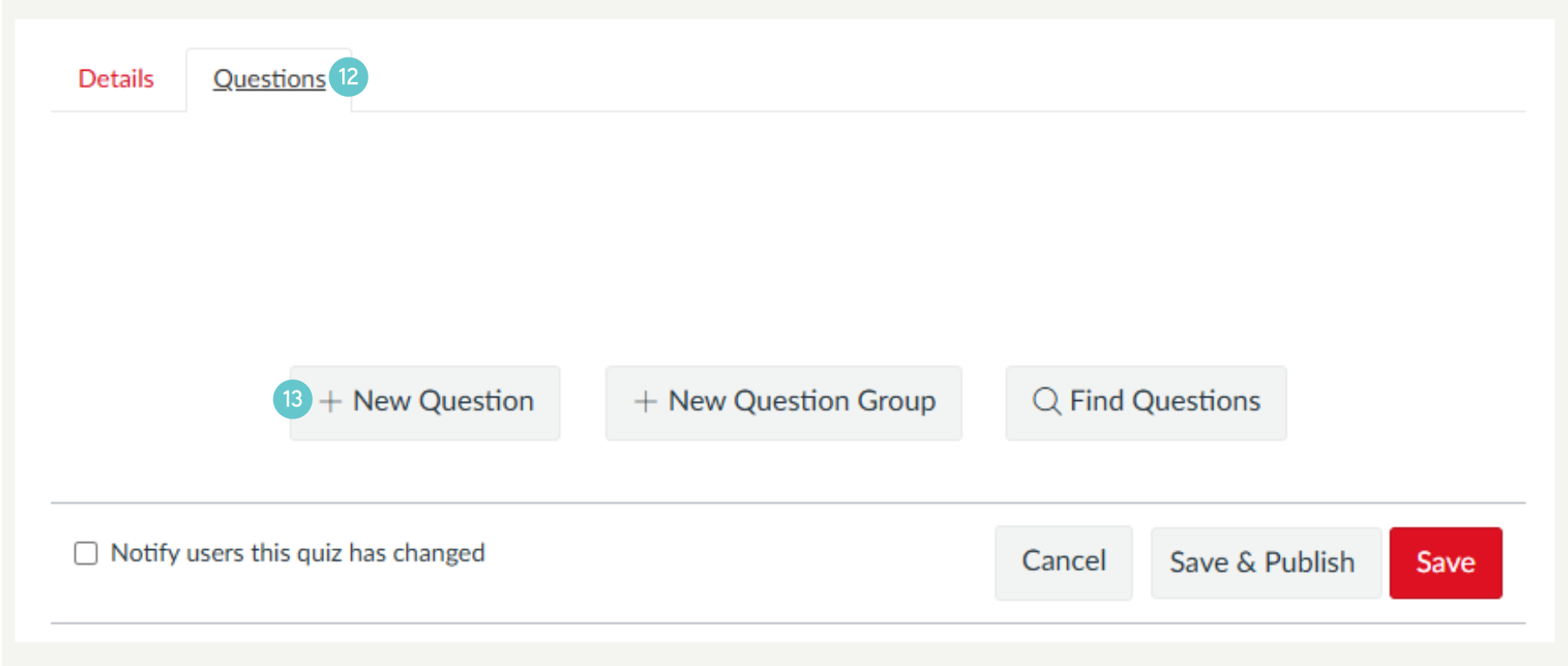
- Access Questions Tab: Click the Questions tab at the top of the quiz editor.
- Add Content: Click + New Question to create a single question or click + New Question Group to create a group that pulls questions randomly.
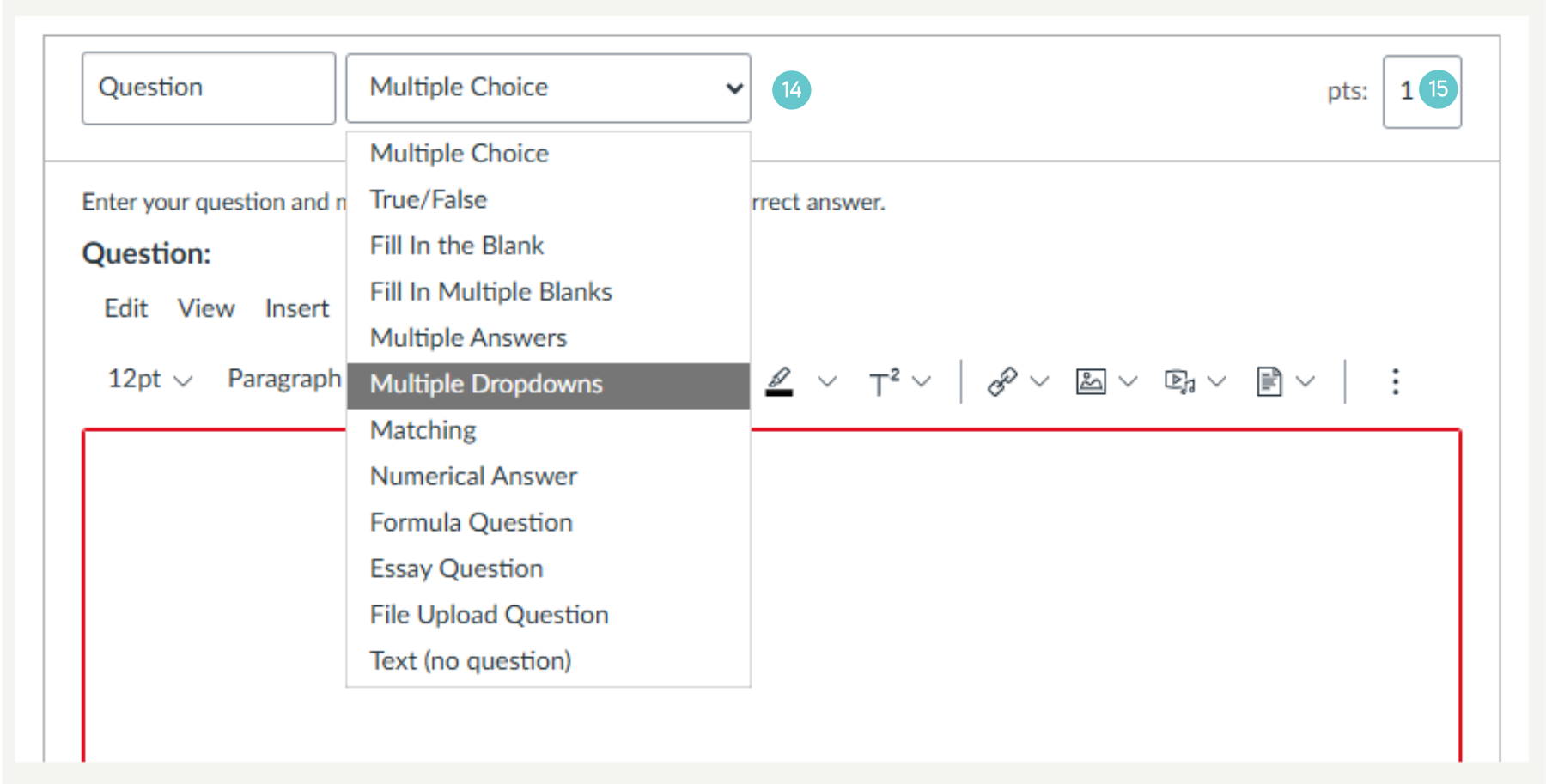
- Build the Question: Select the question type (e.g., Multiple Choice), enter the question text, and configure the possible answers.
- Update Points: Enter the point value for the question and click Update Question.
- Save: Click Save again at the bottom of the page to lock in all your questions and question groups.
Hints and Tips
- Migration is Best: If your course contains questions in a Classic Quiz, use the official workaround to migrate them to New Quizzes Item Banks for better reuse and security.
- Limited Question Reuse: Classic Quizzes can only link to Classic Question Banks. This makes question management and standardisation difficult.
- Accessibility: New Quizzes features better accessibility standards than the older Classic Quiz tool.