
Hot Spot questions are excellent for visual assessments, such as identifying parts of a diagram, country on a map, or features in an image. However, this question type is not accessible to users who rely on keyboard-only access or screen readers. Use this type sparingly or provide an equivalent alternative text-based question.
Upload the image and add question details
You must first create the question container and upload the visual asset you will use.
- Access the Builder: Navigate to your New Quiz and click the Build button to enter the editor.

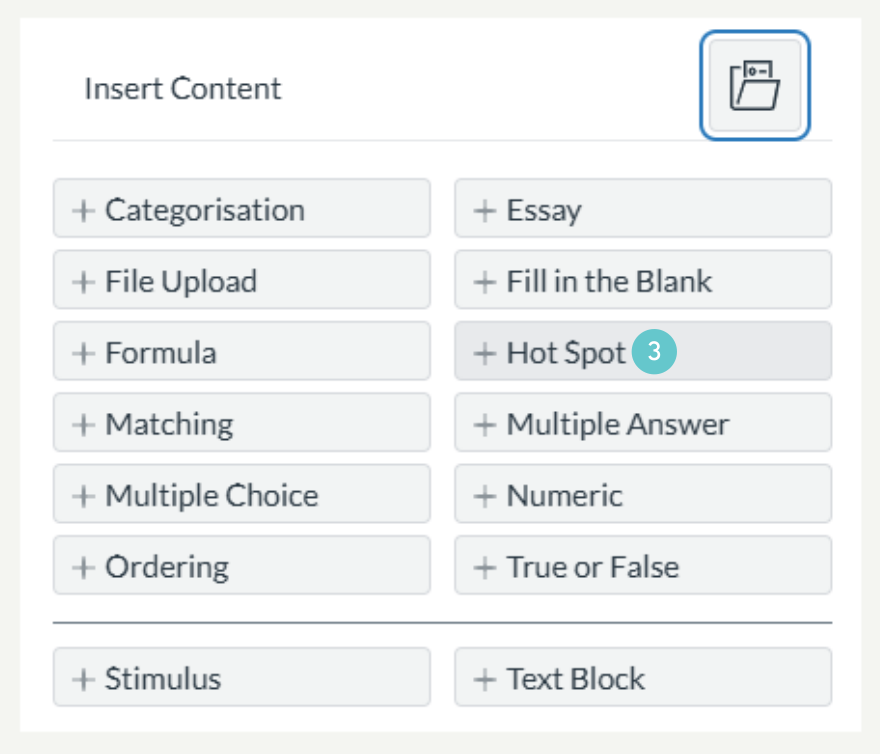
- Add New Question: Click the Blue + button

- Select the Hot Spot icon.
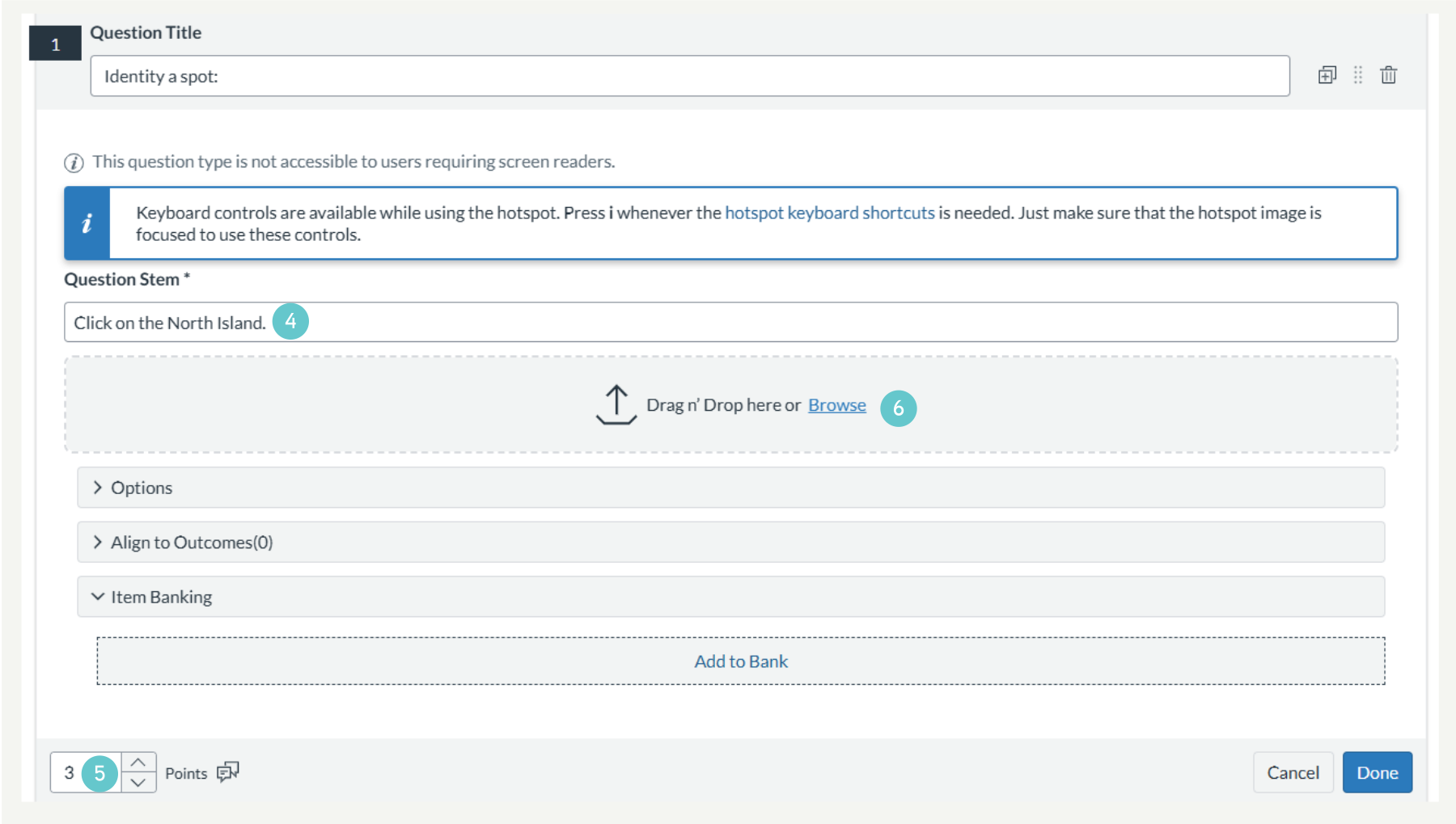
- Write Question Stem: Enter the Question Stem, which provides the instructions (e.g., “Click on the North Island”)
- Set the Point Value.
- Upload Image: Drag and drop your image file into the designated area, or click Browse to upload the image.
Draw the Hot Spot
Once the image is loaded, you can define the correct area(s) for ākonga to click.
- Select Shape: The Hot Spot editor provides three tools: Square, Circle, and Polygon. Click one of these tools (e.g., Polygon for complex shapes) .
- Draw the Spot: Click and drag (or click multiple times for Polygon) on the image to draw the shape around the exact area you want ākonga to select. This area turns green when drawn correctly.

- Save: Click Done at the bottom of the question editor to save the question to your quiz.
Hints and Tips
- Use Polygon for Precision: For irregularly shaped objects (like land masses or organs), use the Polygon tool to ensure the clickable area is accurate.
- Accessibility Alternative: Always consider creating a Multiple Choice or Fill in the Blank question as a parallel, accessible assessment item for the same concept.
- Test the Spot: Before publishing, ensure the Hot Spot area is large enough for a student to click accurately on a tablet or phone screen.