
Creating a New Quiz involves three steps: establishing the assignment settings in Canvas, launching the Quiz Builder, and finally adding your questions and content.
New Quizzes is the recommended tool for assessment, offering advanced question types, greater security, and powerful Item Banks for managing your content. Follow this step-by-step guide to quickly set up your next assessment.
- Click Quizzes in the course navigation menu
- Click + Quiz.

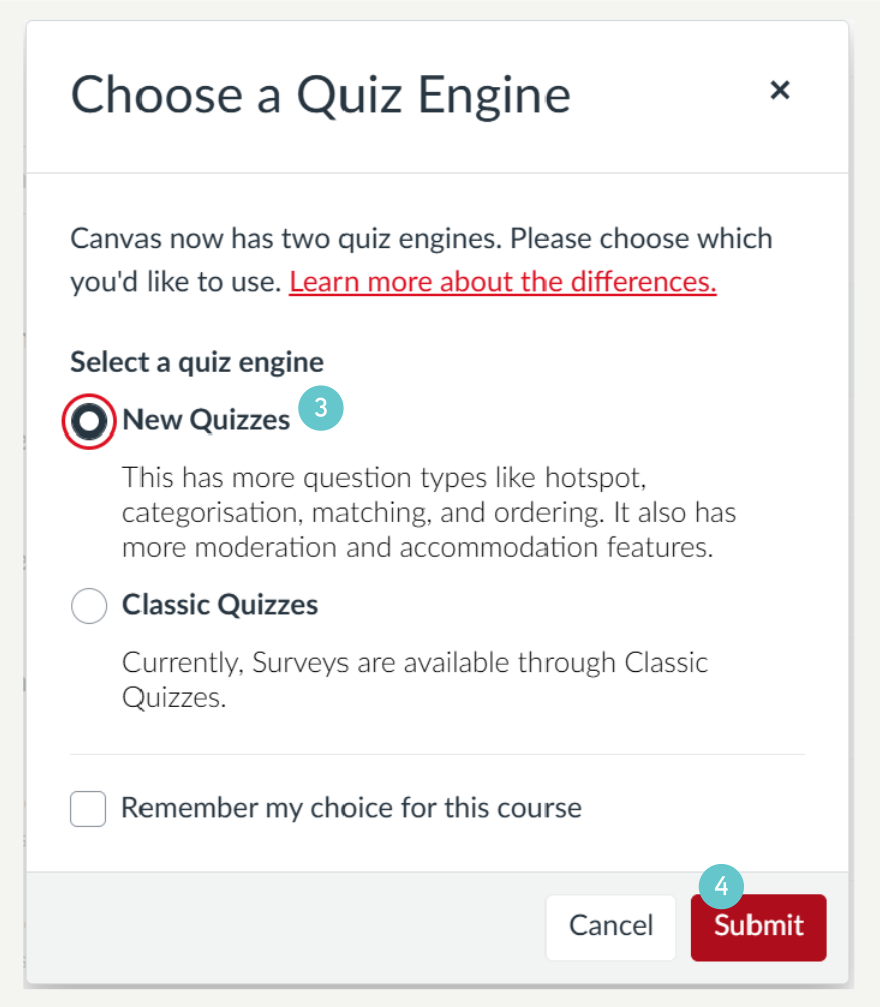
- In the pop-up window, ensure the quiz engine type is set to New Quizzes.
- Click Submit.
On the resulting page;
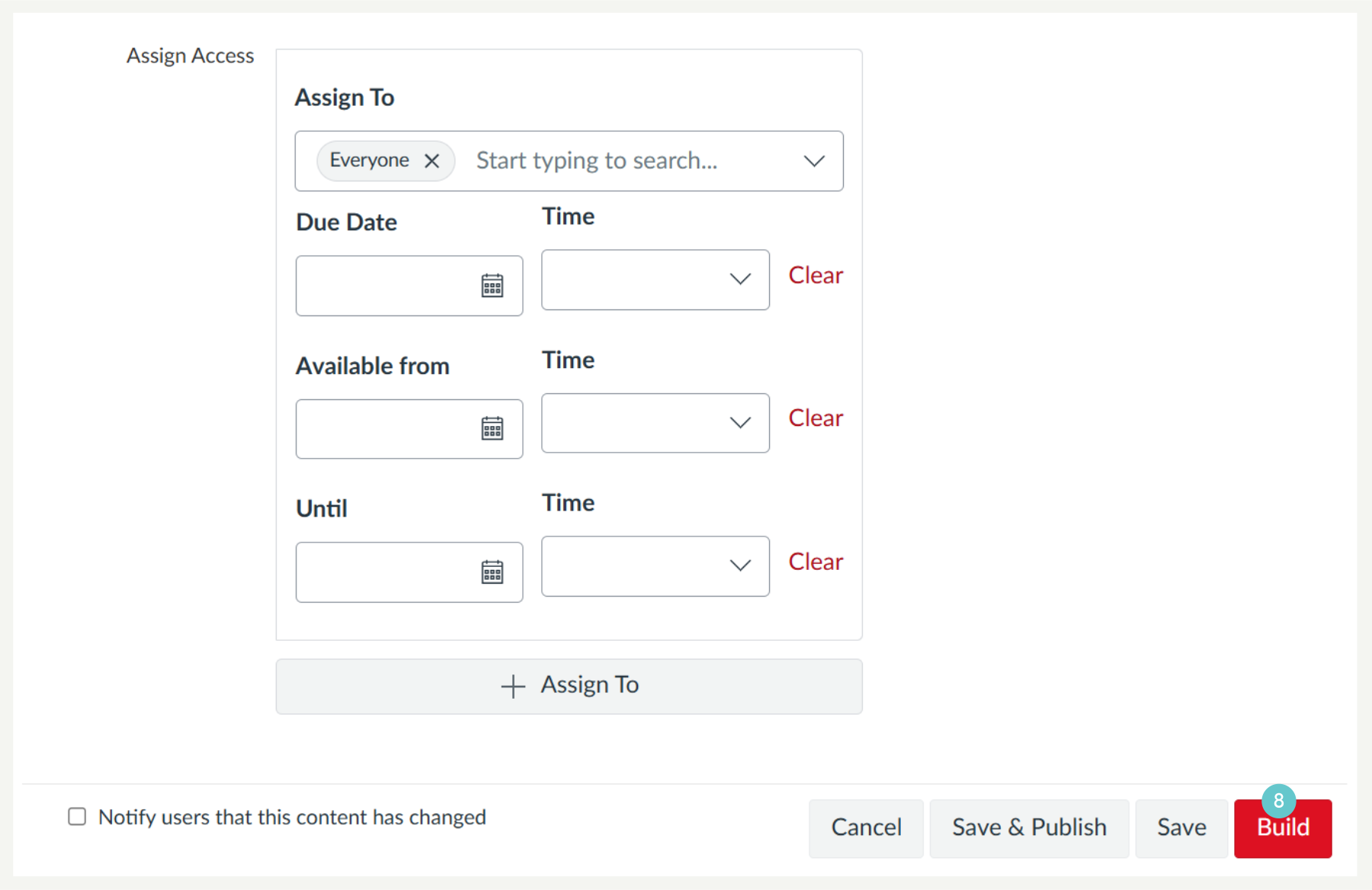
- Set the Points, Assignment Group,
- Due Dates in the Assign section (just like a normal Canvas assignment).
- Click Save to create the quiz shell and lock in these assignment settings.

The Build button launches a separate editor where you configure the quiz-specific rules (like time limits and shuffle).
- After saving the shell, click the Build button to launch the New Quizzes editor.
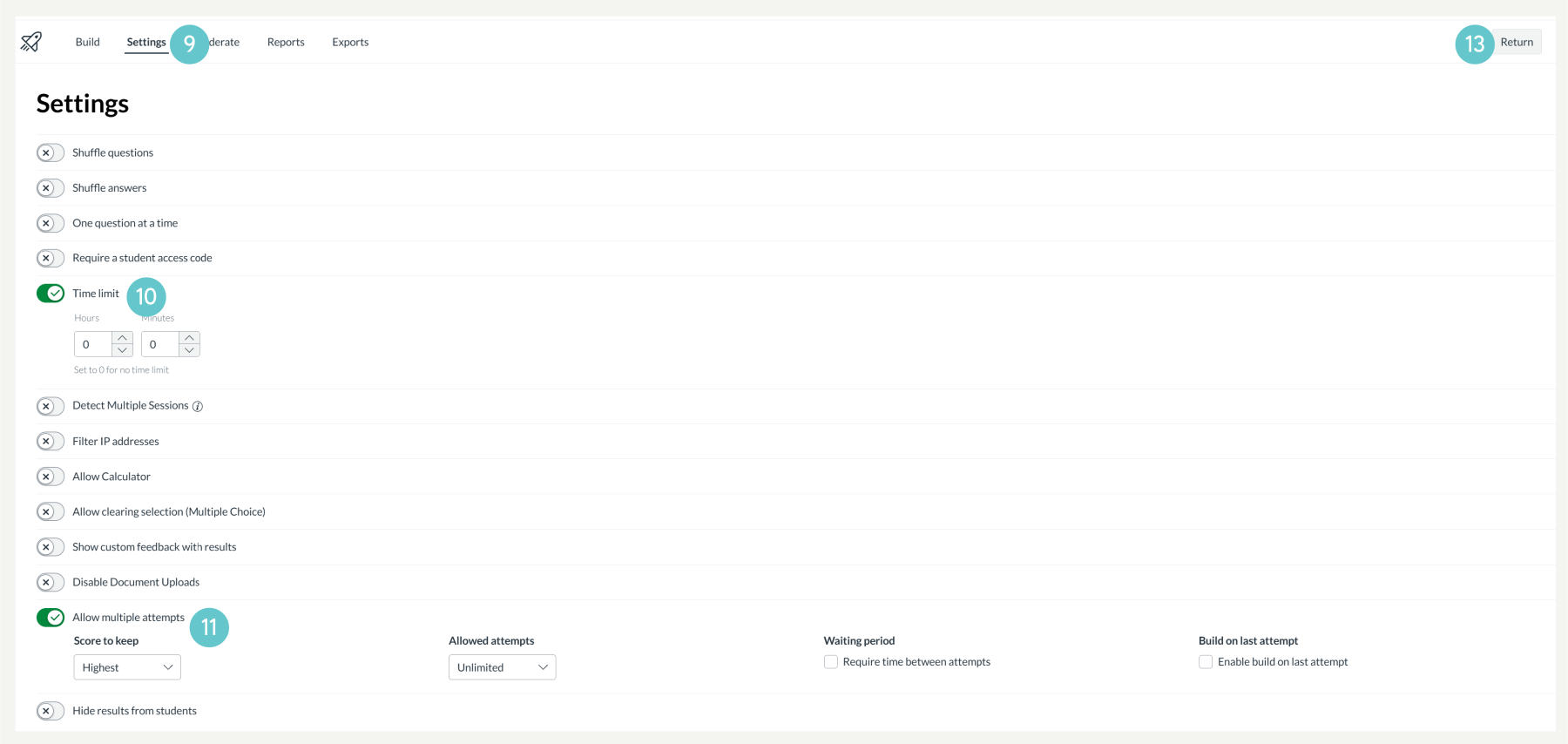
- Click the Settings tab at the top of the New Quizzes editor.
- Set the Time Limit
- Define the Allowed Attempts.
- Enable or disable any other settings you need or don’t need.
- Click Return at the top right of the screen to save the rules and return to your main Canvas course view.
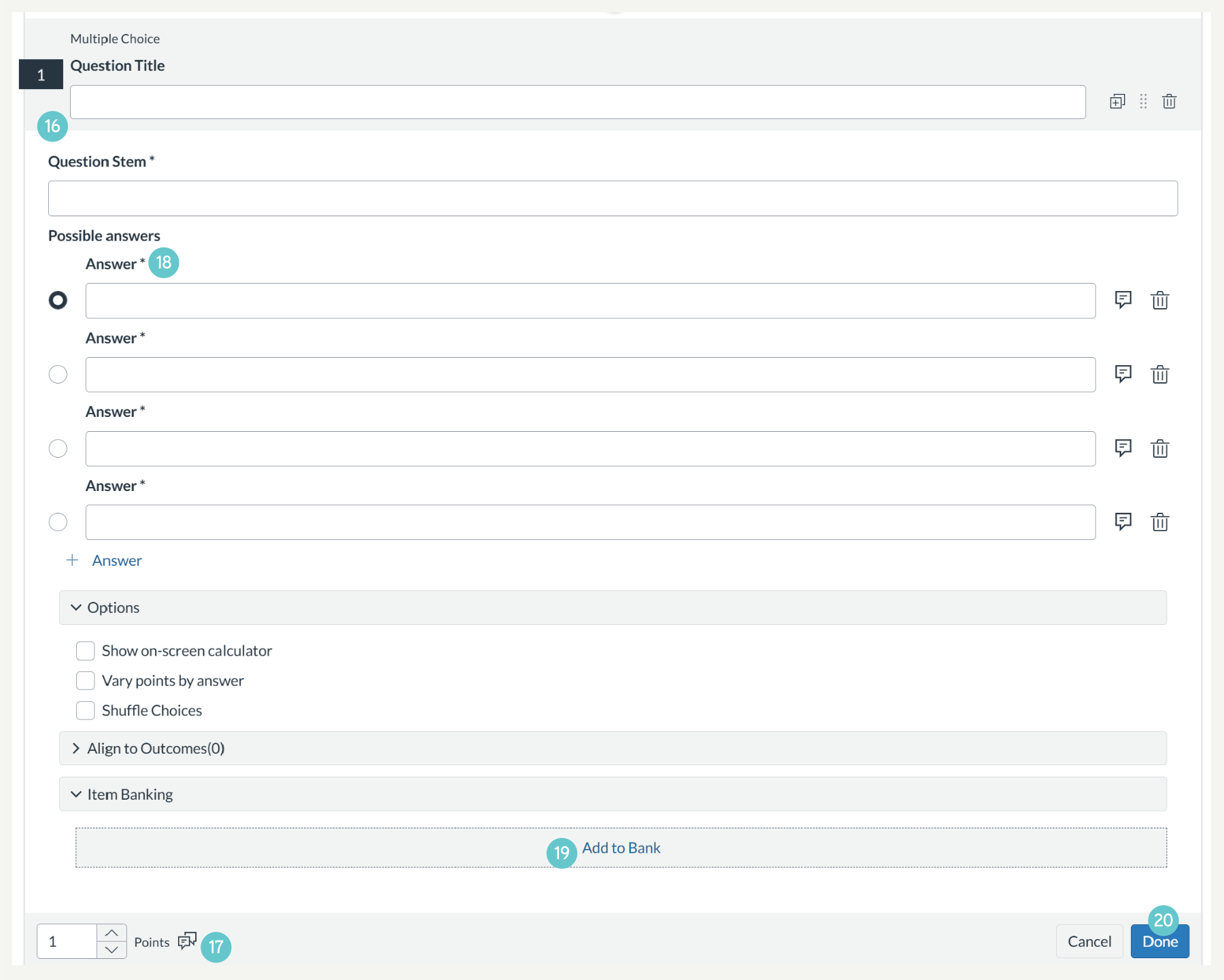
The Build section is where you design the content of the assessment.
- Once you have gone back into your quiz, click the Blue + button at the bottom of the quiz.

- Select the icon for the question type you wish to add (e.g., Multiple Choice or Fill in the Blank).

- Fill in the question details
- Set the point value
- Configure the answers
- Add the question to an Item Bank (highly recommended for question management).
- Click Done at the bottom of the question editor to save it to your quiz.
- Once all questions are added, remember to Publish the quiz on the main Canvas assignment page so students can access it.
Hints and Tips
- Remember that Due Dates are set on the main Canvas assignment page (Part A), while Time Limit and Shuffle are set in the separate New Quizzes Settings tab (Part B).
- Always save questions to an Item Bank (via the Item Banking option at the bottom of the question editor). This allows for efficient reuse and random question selection.
- Use the Stimulus content type for shared text, images, or case studies that a group of questions refers to.