

This Canvas Knowledge Base page will show you how to create a Question Bank.
To make a Question Bank:
- In Course Navigation, click the Quizzes link.

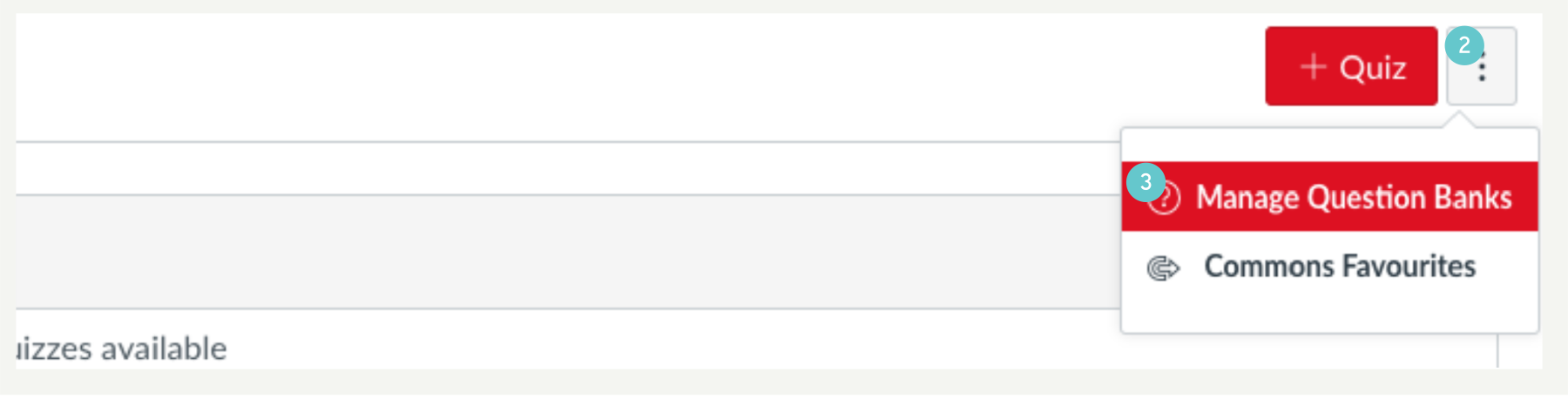
- Click the Options icon
- Click the Manage Question Banks link
- Add Question Bank

- Add a title for Question Bank and instructions.

- Add your questions to your Question Bank.
- Don’t forget to Update Question when have finished creating each question.
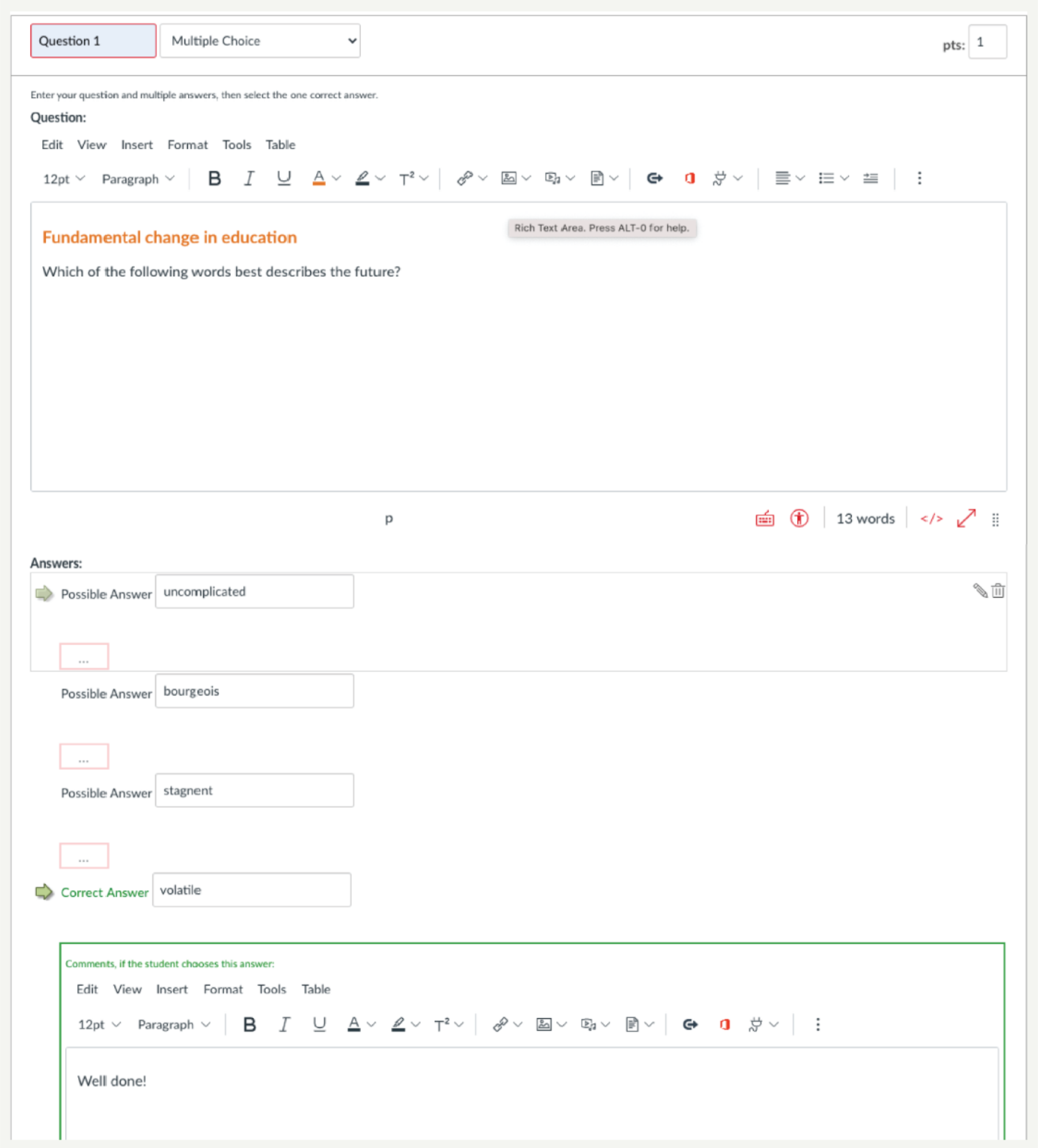
- Update the page each time you have finished adding a Question, using Update Question
Using Question Banks to create Quizzes
- Click the red/white circle with a plus symbol to add Ratings columns to the rubric. Edit the Rating score, Rating Title e.g. Good, and Rating description. Click Update Rating.
- Repeat for the third column in your pre-moderated rubric.
- Edit the fourth Rating.
- If you have a range of marks, make sure you tick the Range box in the Criteria column. This changes e.g. 20 pts to 20 to >14 pts so that you can award a different mark than just 20.
Creation of Quizzes for your Question Banks
- Open Quizzes from the left hand Canvas Menu.

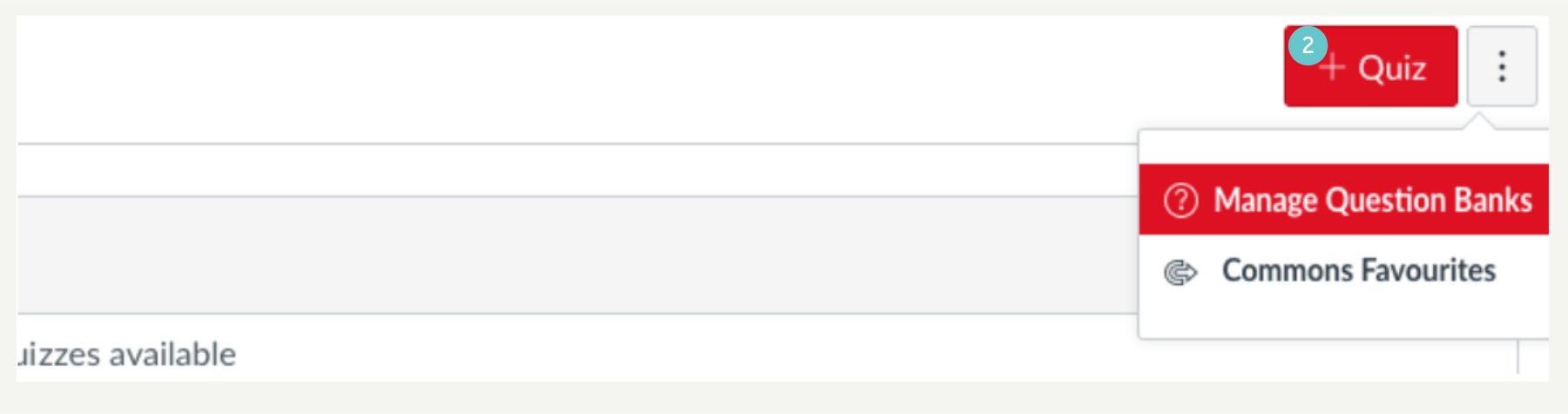
- Click the + Quiz button to create a new Quiz.
- Fill in the details associated with the new Quiz in the boxes provided.
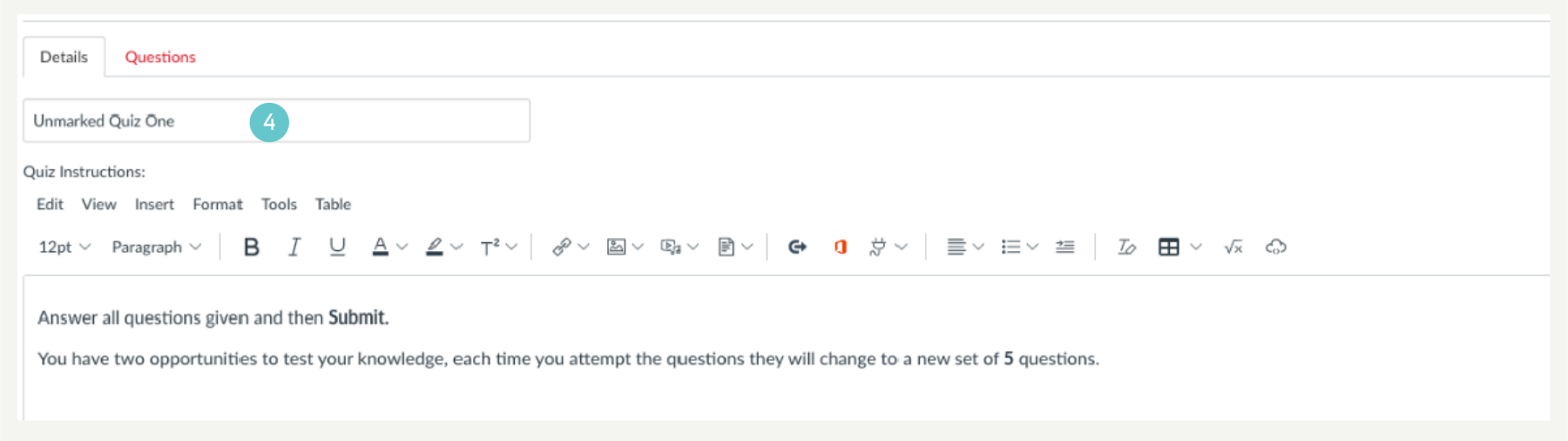

- Then select the Questions tab
- Select the + New Question Group button.

- A new dialogue box opens, fill in your specific details and click the Link to a Question Bank button. Fill the boxes with the correct information, starting with the window that says Group.

- Select the Question Bank you wish to draw from.

- View the results to check that they are correct, by opening the new Quiz and you are good to go.
