
This question type is highly effective for testing knowledge of chronological events, operational procedures (steps in a process), or hierarchical ranking. When setting up the question, you simply define the items in their correct final order; the quiz will automatically shuffle them for the students.
All question configuration occurs within the New Quizzes editor (the “Builder”).
- Navigate to your New Quiz
- Click the Build button to enter the editor.
- Click the Blue + button

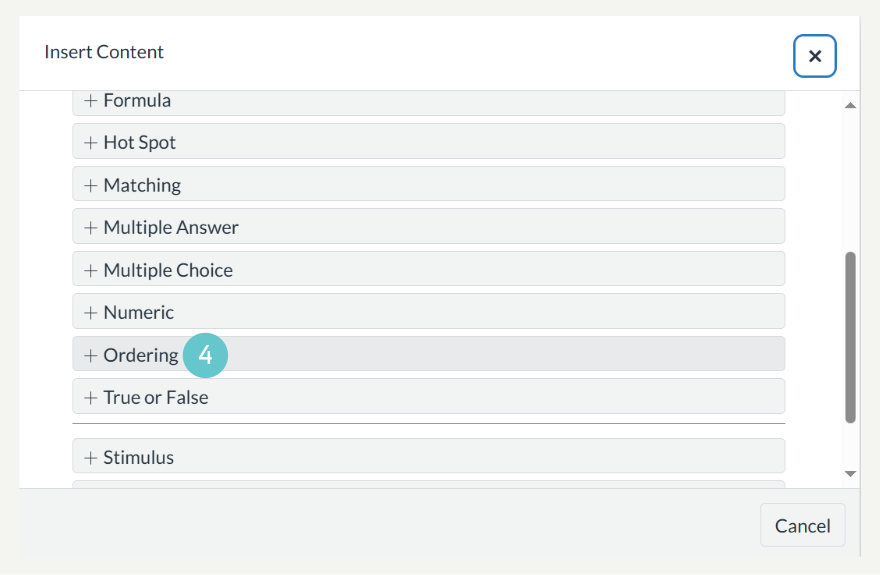
- Select the Ordering icon
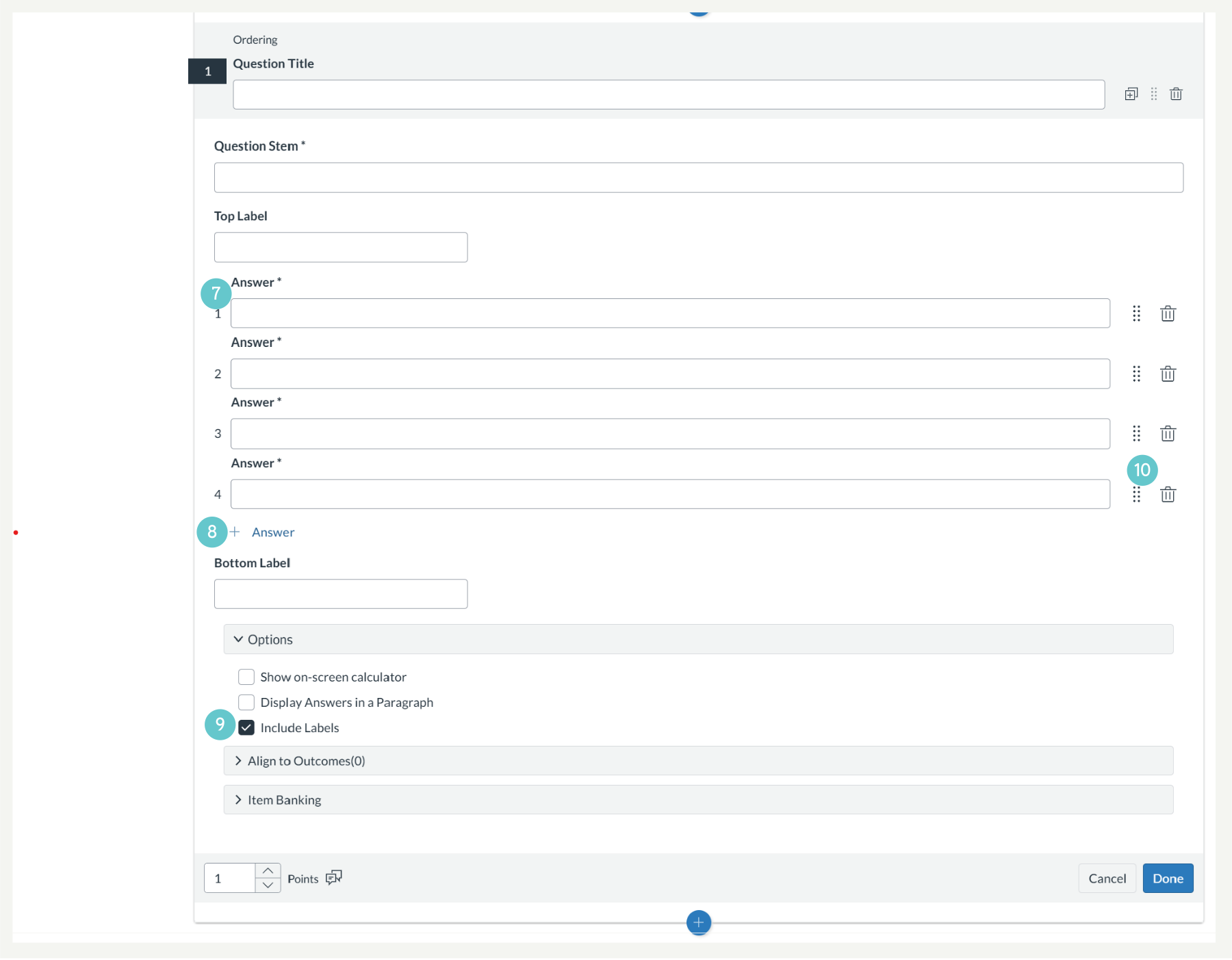
- Enter the Question Stem (the instruction, e.g., “Order the following steps of the scientific method”)
- Set the Point Value.

You must list the items in the editor in the order that you expect the student to reproduce.
- Type the items into the answer fields, ensuring they are in the correct sequential order.
- Use the + Answer button to add more items to the sequence.
- Under Options, select Include Labels. This adds visual labels (e.g., “Most” and “Least,” or “First” and “Last”) to the top and bottom of the sequence to help guide students.
- If you need to rearrange the correct sequence, use the Move icon (a series of dots) to the left of the item to drag and drop it into the correct position.
- Click Done at the bottom of the question editor to save the completed question to your quiz.
Hints and Tips
- New Quizzes automatically assigns partial credit based on how close the student’s final arrangement is to the correct order. The maximum score is achieved only when the sequence is 100% correct.
- Although you enter the correct order, the student view will be shuffled. Always enter the sequence correctly as the answer key.
- Use the Question Stem to clearly indicate the direction of the sequence (e.g., “Order from oldest to newest,” or “Order from most important to least important”).