Learn how to embed a video using Canvas tools, without leaving Canvas or coding.
This feature enables teachers to incorporate a YouTube or Vimeo video into their content through the Canvas Rich Text Editing tools. Kaimahi have the option to explore video libraries like YouTube or directly insert a link to embed the video on a page. It’s can be used on various Canvas components including course pages, quiz questions, assignments, announcements, and discussion pages.
Below are the steps to embed a YouTube video in the Canvas Rich Text Editing page.
- In your Canvas Text Editing page, click on Apps icon, which is like a power plug.
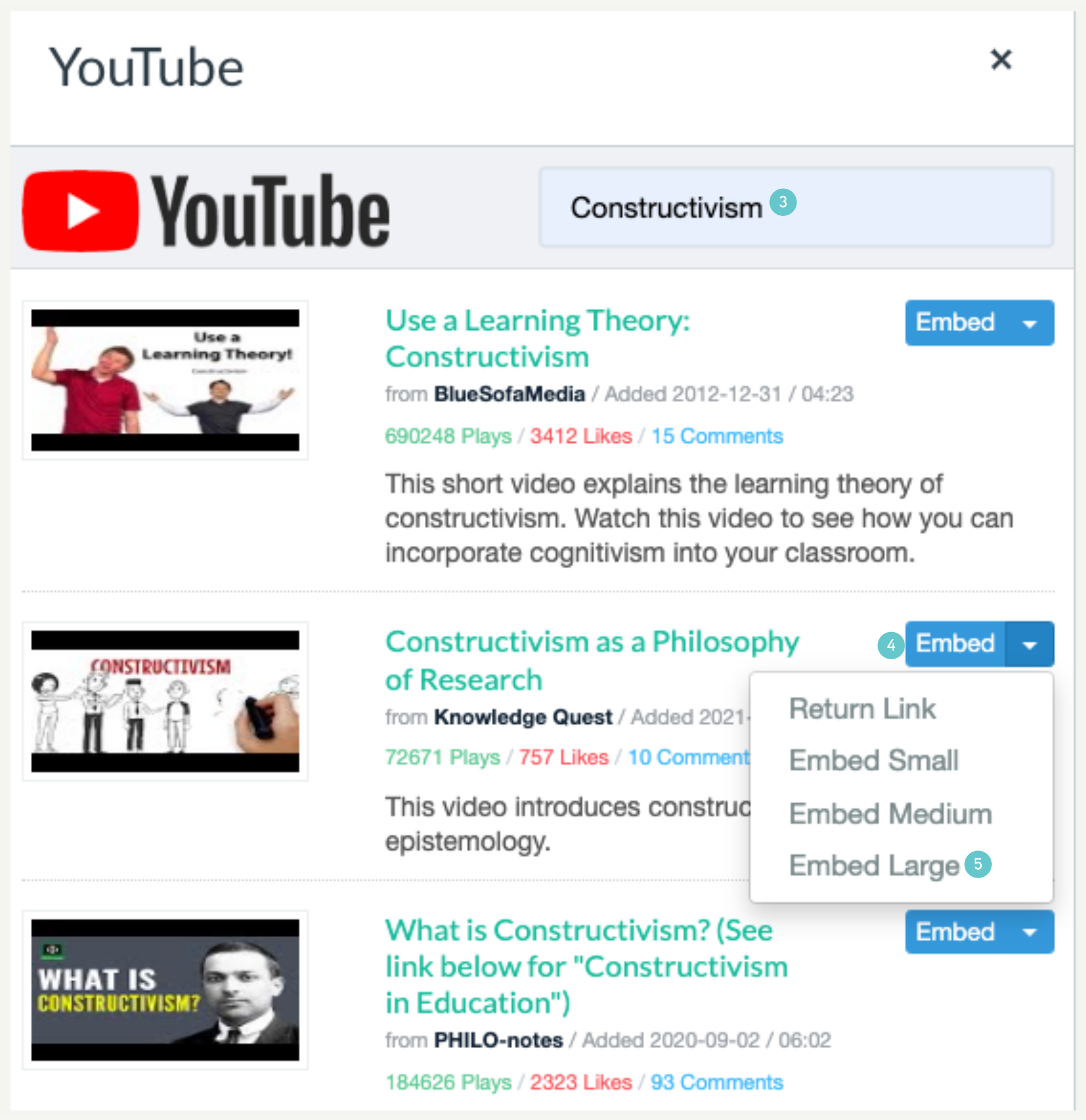
- Click on YouTube from the drop-down menu. If it is not available, click View All and then select it.

- Type the keyword (s) to search.
- Choose the item you want and click Embed beside it.
- Choose an embedding size. We recommend Large.
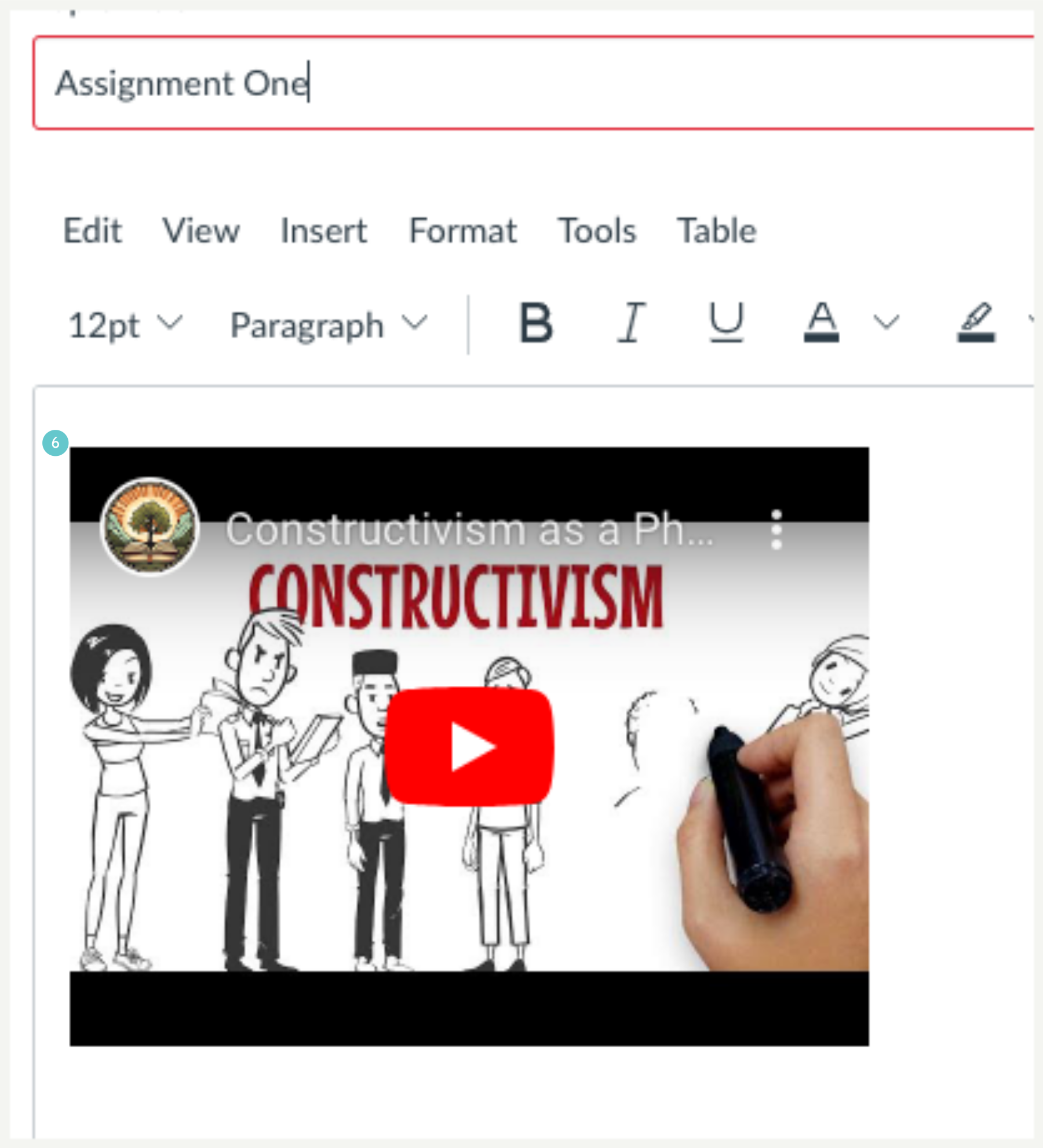
- The selected video is embedded on your page. Remember to save this page.