

A step-by-step guide on how to download Zoom recordings and how to upload them to Stream.
- Sign into zoom.us with your ID and password
- Click Recordings in the left sidebar
- Under the Cloud Recordings tab locate the recorded video you want to download
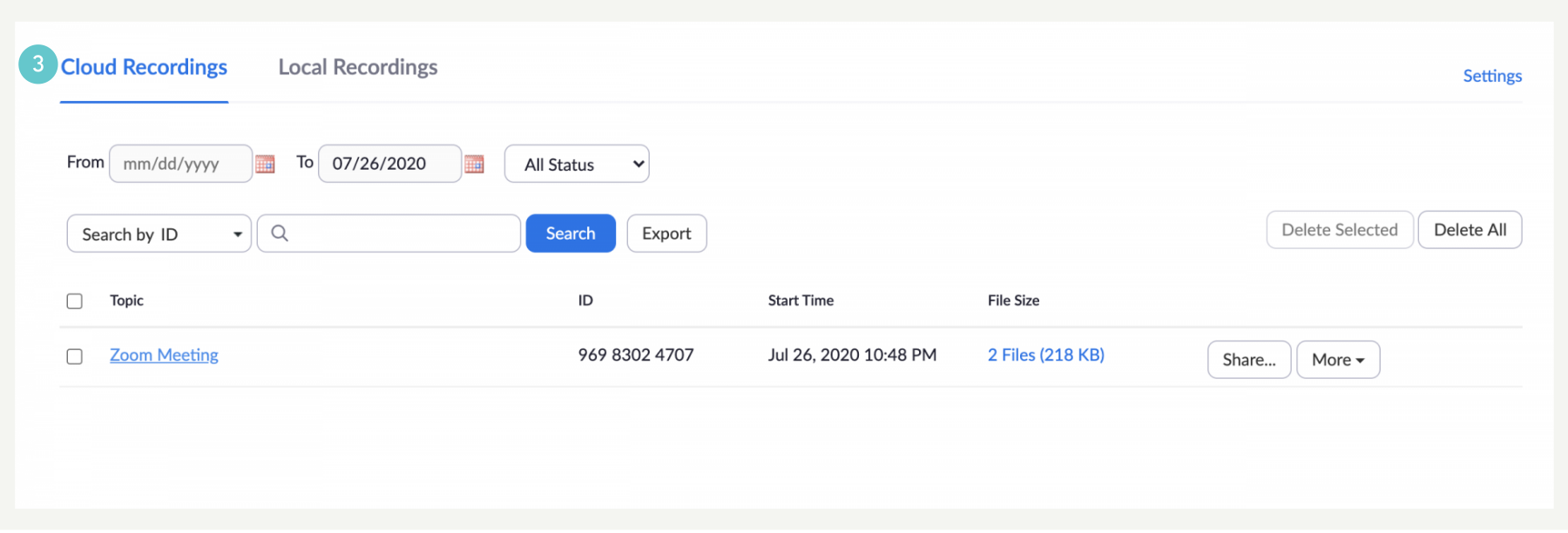
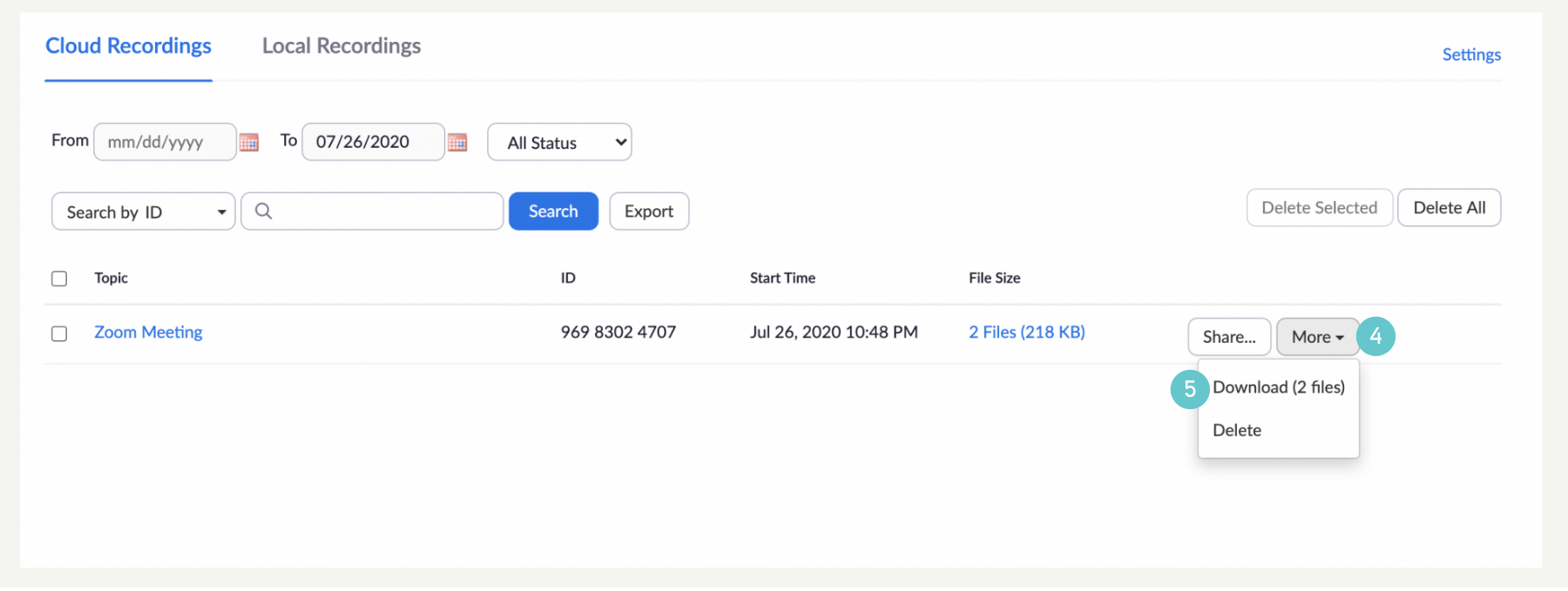
- Click more beside the recording you want to download
- Click download
- Select the location where you want the file saved and select OK.
How to Upload Recordings to Stream
- Open Stream
- Click on the arrow next to Create
- Create a Channel for your recordings to be saved into
- If you already have an existing channel skip the next step.

- Fill in the necessary details for your channel then select Create.
Note: by selecting Companywide, every person at MIT will see the videos, including students.

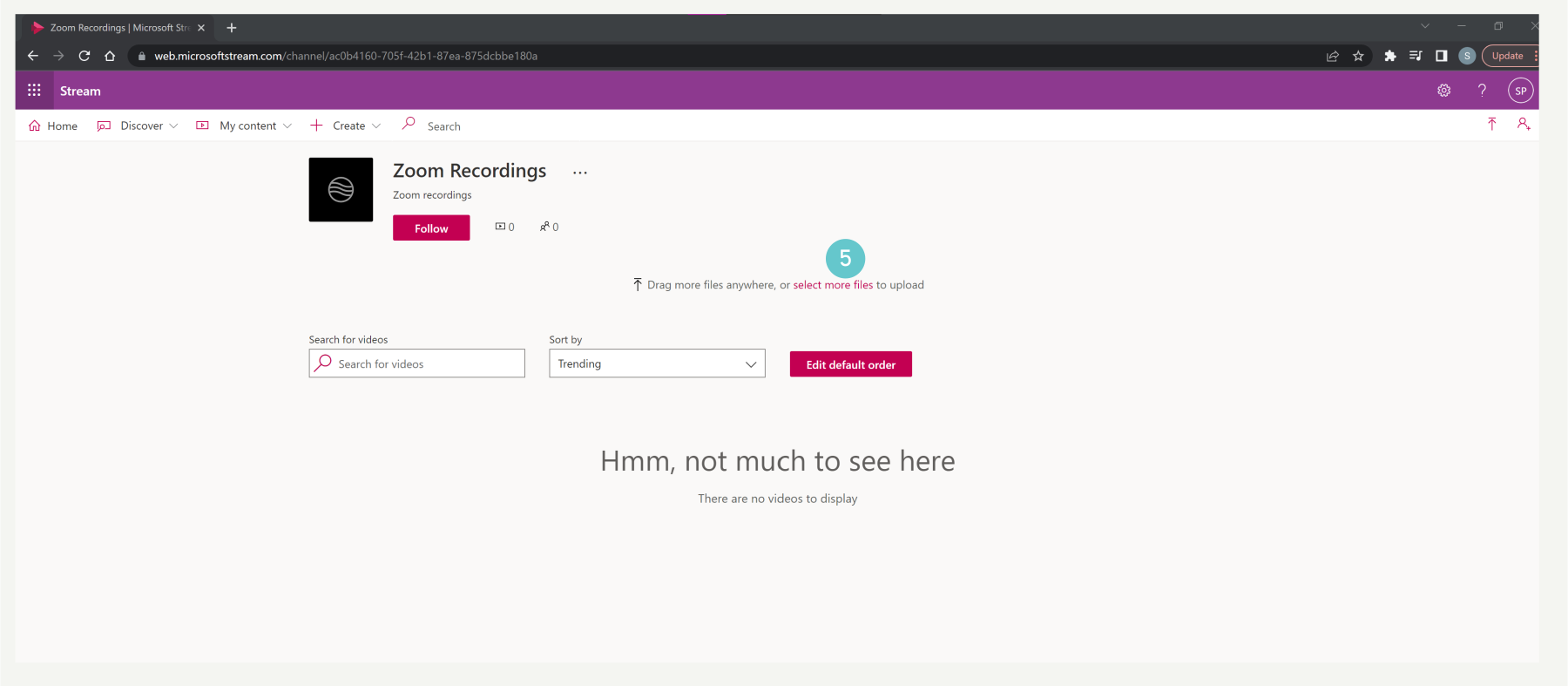
- To upload your recording either drag and drop the file into the channel or click on Select More Files.
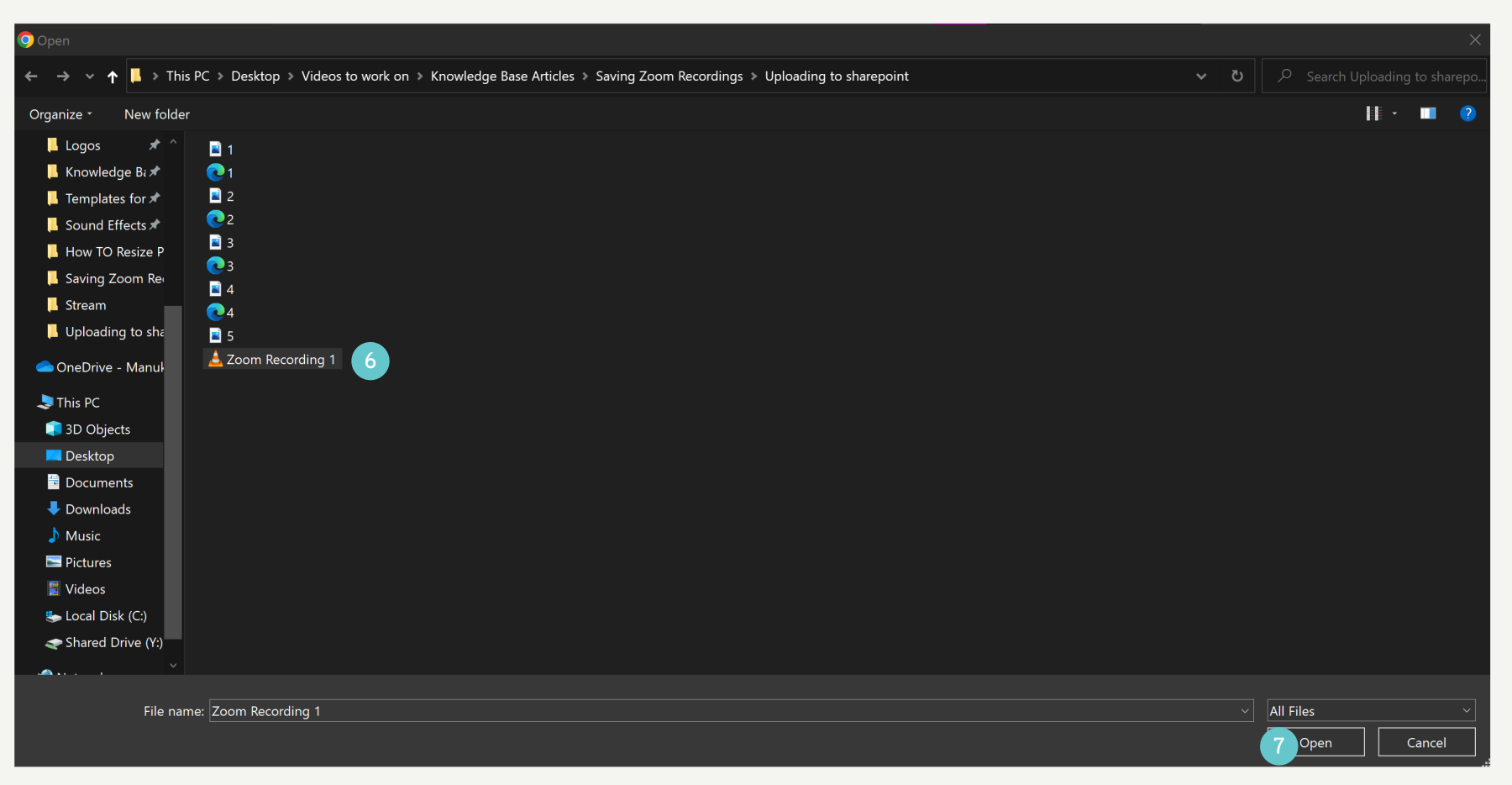
- Select the file(s) you want to upload
Note: you can upload more than one file by holding down shift and selecting multiple files. - Click Open
- Fill out the details, permissions, and options for the video, once it has uploaded click on Publish.

Please Note:
- Recording can be done on desktop version, won’t work for mobile (because we use free subscription).
- We can download videos with free accounts
- Maximum file size that can be uploaded to SharePoint is 250GB
- 40 minutes maximum recording
W
M
4