

A step-by-step guide on how to download Zoom recordings and how to upload them to Sharepoint
- Sign into zoom.us with your ID and password
- Click Recordings in the left sidebar
- Under the Cloud Recordings tab locate the recorded video you want to download
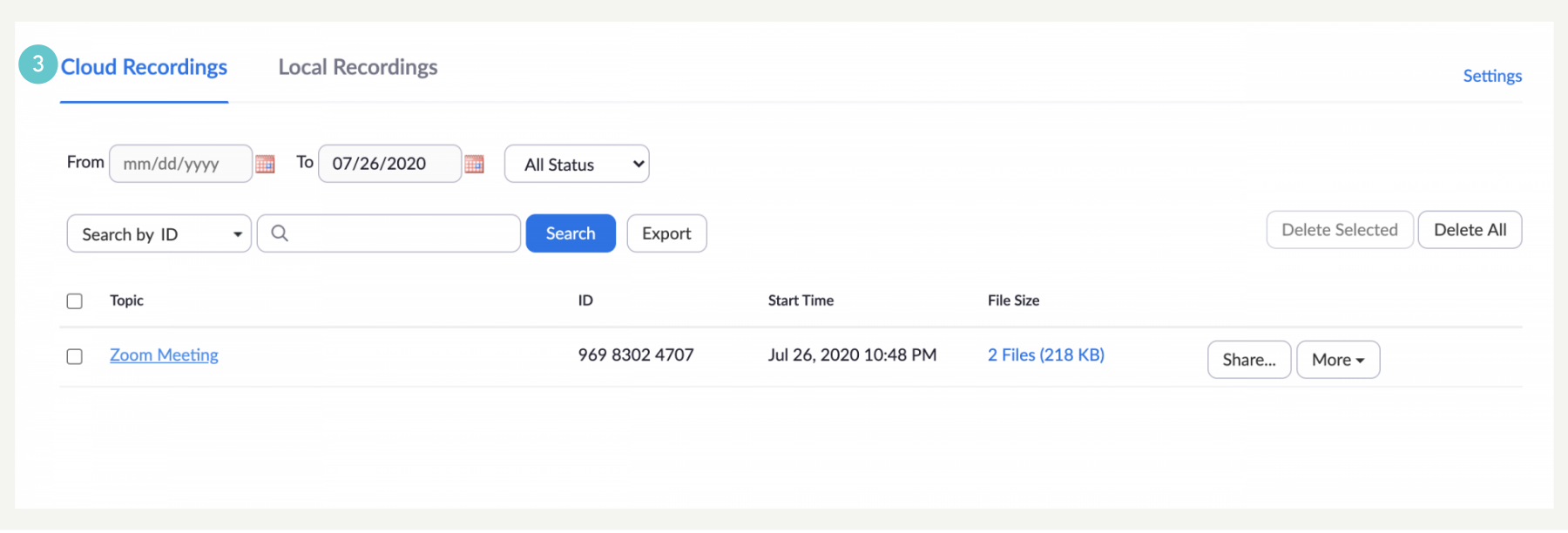
- Click more beside the recording you want to download
- Click download
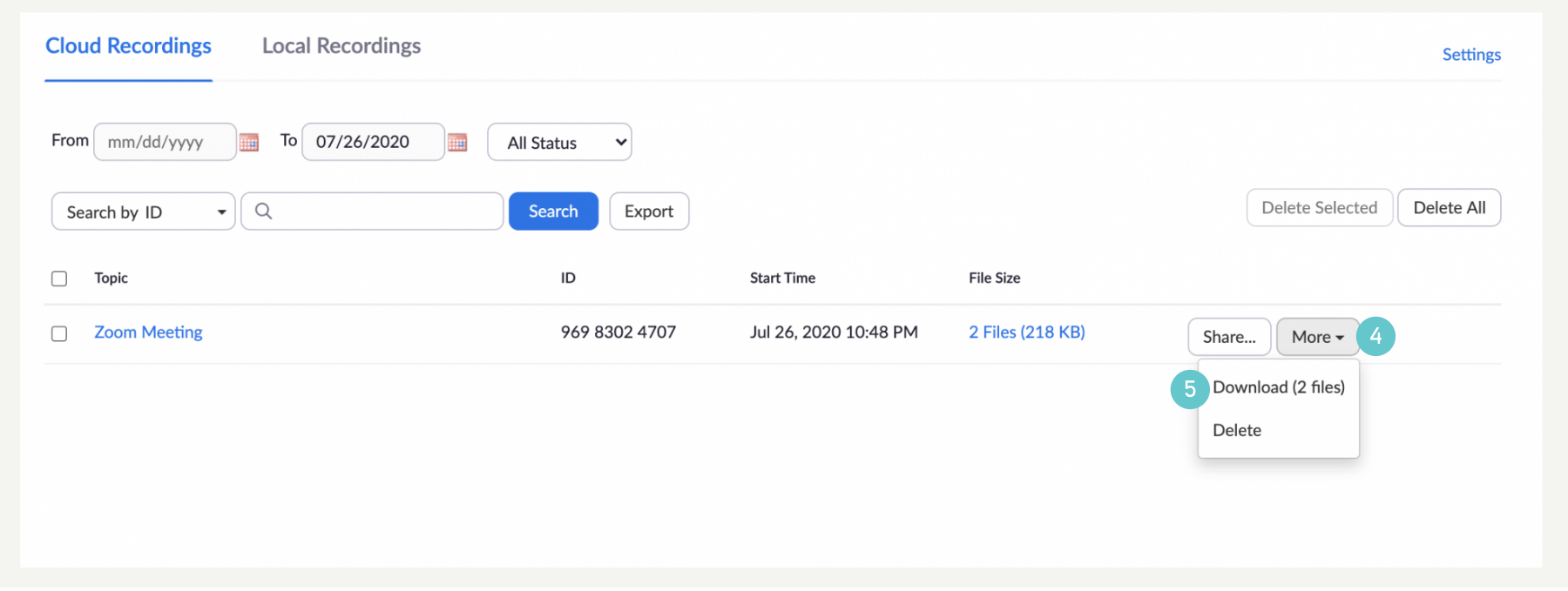
- Select the location where you want the file saved and select OK.
How to Upload Recordings onto SharePoint
SharePoint is a storage area in the Cloud where all saved files belong to all the members of a group. Files in SharePoint can be edited/owned/shared by anyone in the SharePoint group.
- Open SharePoint
- Open the folder you want to save your recordings in by double clicking on the folder name

- Click on Upload and select either option of uploading individual files or an entire folder

- Select the file (or folder) you want to want to upload
- Click on Open

- Your file will now be uploaded and will show in the folder once the upload is complete

- Share the folder by clicking Share and entering an email address. OR
- Share the folder by clicking Copy Link and pasting the link in an email, chat of Teams group.

Please Note:
- Recording can be done on desktop version, won’t work for mobile (because we use free subscription).
- We can download videos with free accounts
- Maximum file size that can be uploaded to SharePoint is 250GB
- 40 minutes maximum recording