

Most Canvas courses at MIT need to use the MIT Canvas Standards (MCS). This is how you import it into your course.
Prepare Your Course
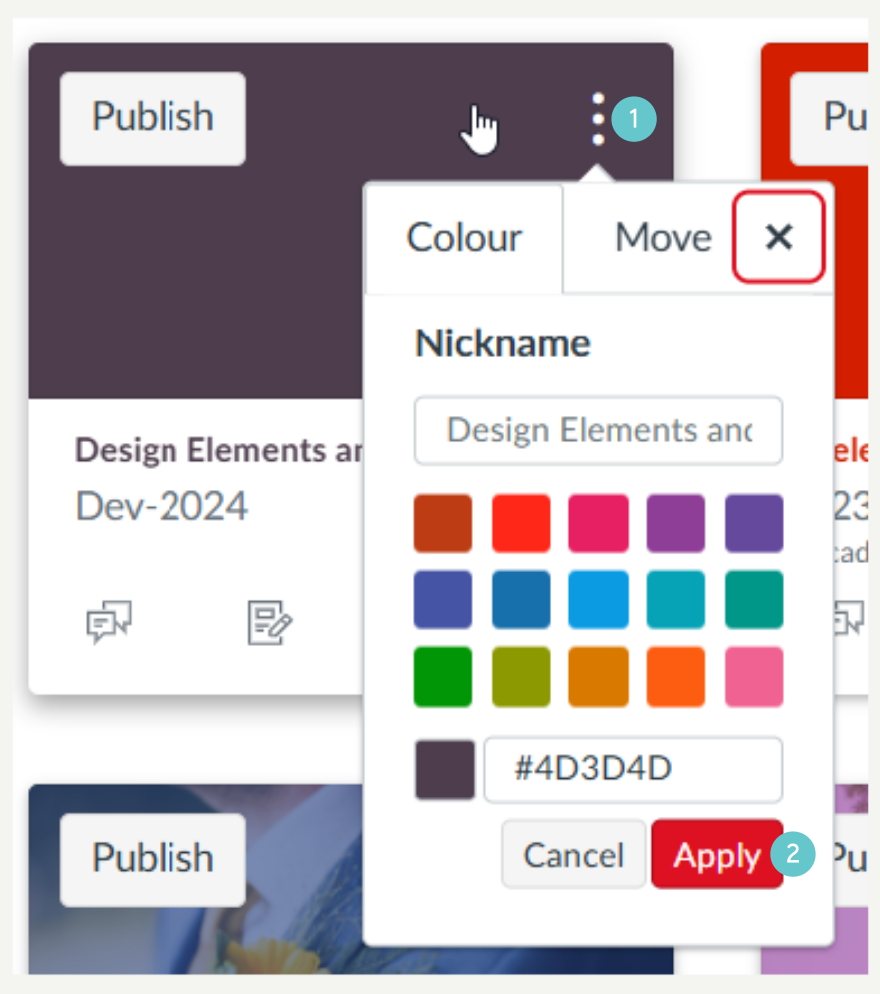
Make it easy to import into the right course by giving your course a nickname. If you’ve delivered a course multiple times, you’ll have lots of courses in your Canvas dashboard called the same thing. Give the one your about to use a nickname so that you’ll always be able to find it.
- Click on the three dots in the top right of the tile for the course and in the Nickname box, give the course a nickname. Only you will be able to see the nickname, your students never will, but use a sensible name anyway!
- Click Apply.
Before you start to import, it’s a good idea to check out your original course and tidy it up before importing anything from it, e.g. remove any pages that you no longer need in a module. Do that now.
Now you can apply the MCS to your course.
Import the MIT Canvas Standards
To import the MCS into your course:
- Open your Canvas course (the one you want to add the MCS to).
- Click Commons on the left menu
- Select the item MCS Pick n Mix 2026. You can find anything in Commons by searching for key words too, in this case, MCS.

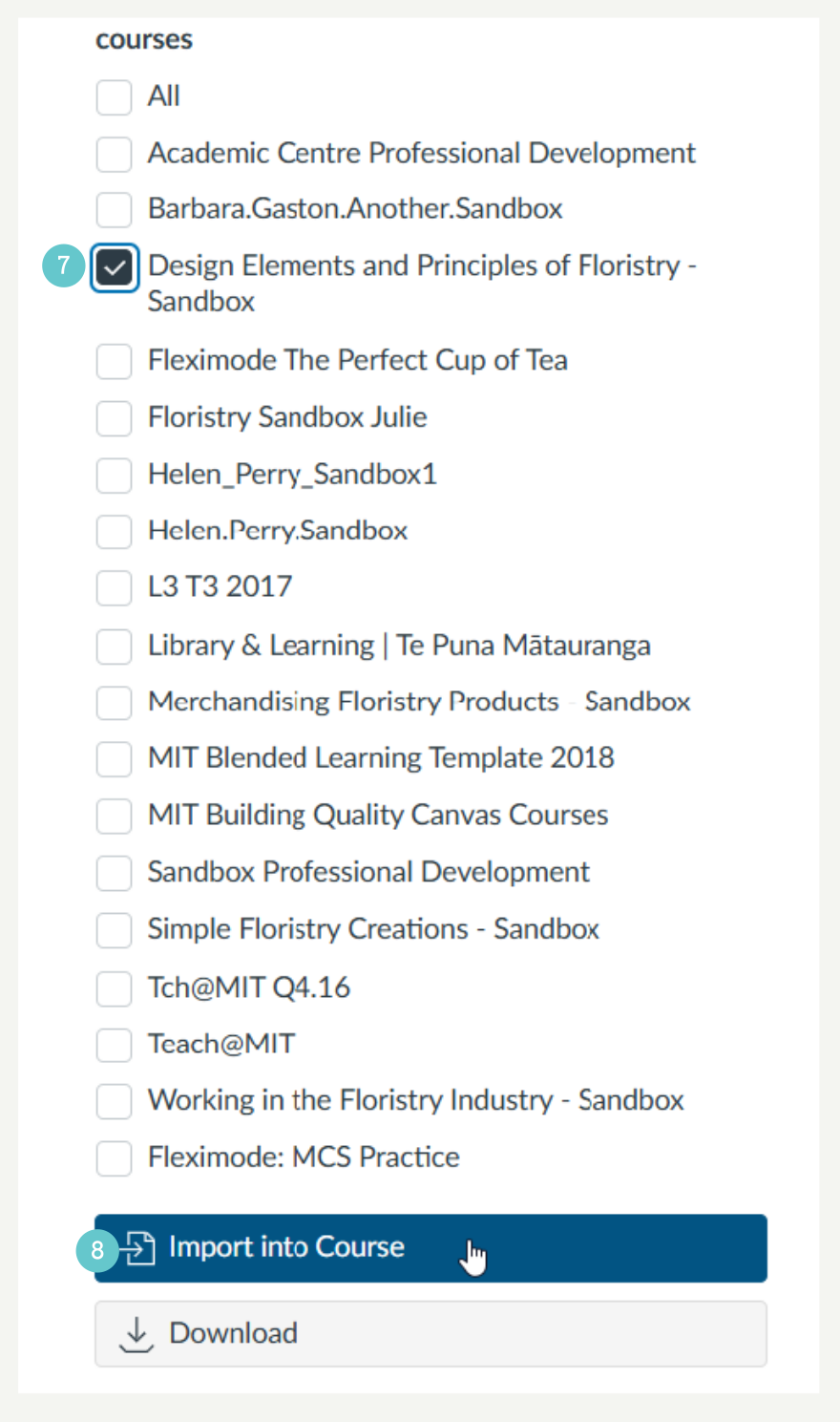
- Tick the course you want to import into
- Then click Import into Course.
- Click on your Dashboard on the left and then click on the course to get back to the course.
Import Existing Content
Now that you’ve imported the MCS, if you’ve got content from a previous occurrence, you can add it now. Make sure you are on the Home page of your course.
- Click Import Existing Content on the menu on the right.

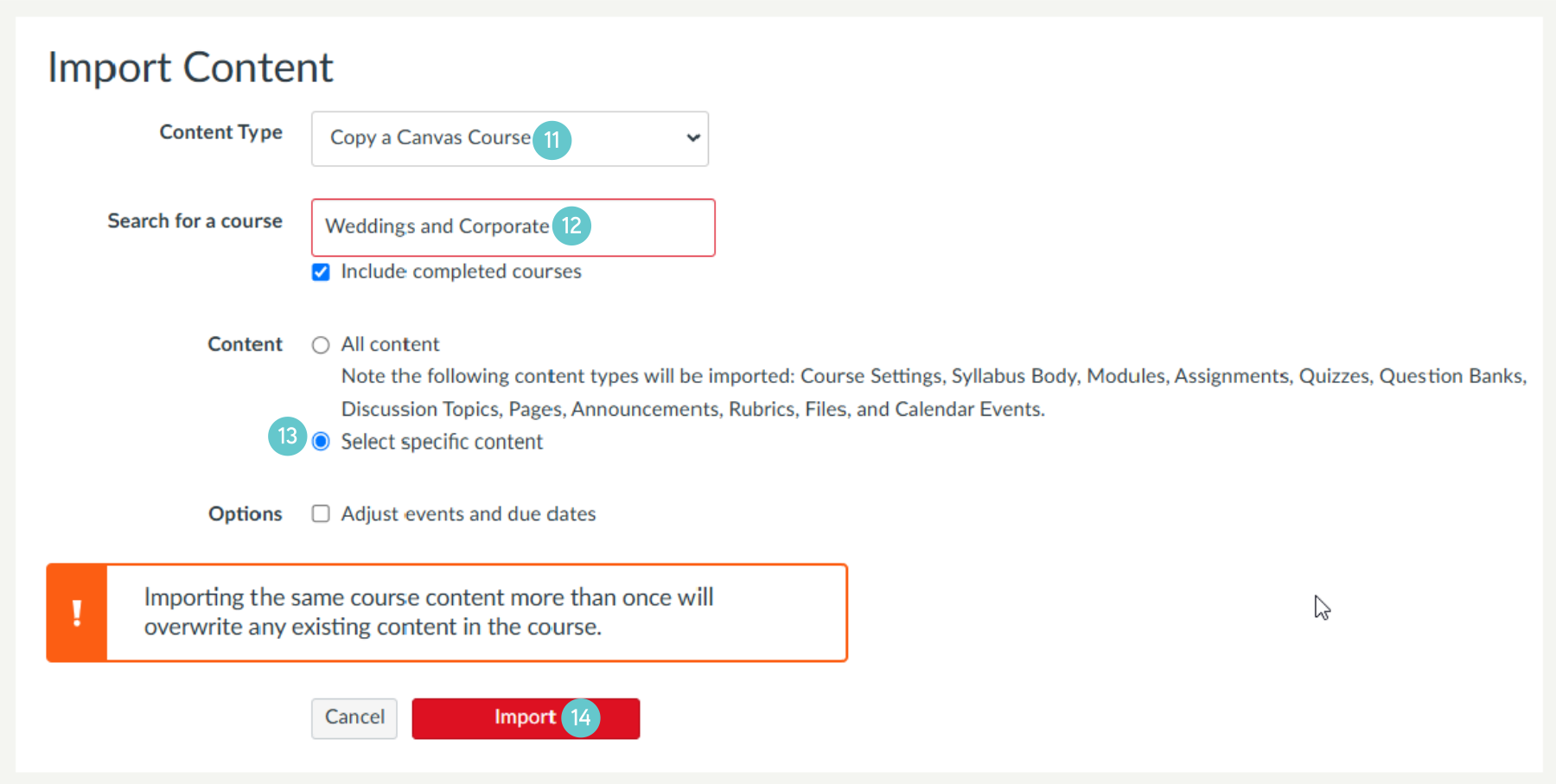
- Select Copy a Canvas Course from the top drop down.
- Search for the course you want to copy from by typing its name in the Search for a course box.
- Choose Select specific content.
- Click Import.
Please note: It is up to you whether you select Adjust events and due dates. If you select this option Canvas will try to align dates in your new course with dates in your old course. This works for some people, but other people prefer to enter new dates for e.g. assessment manually.
You now get the option to choose what you want to import from your old course.
- Click Select Content on the right of the course you want to copy from.
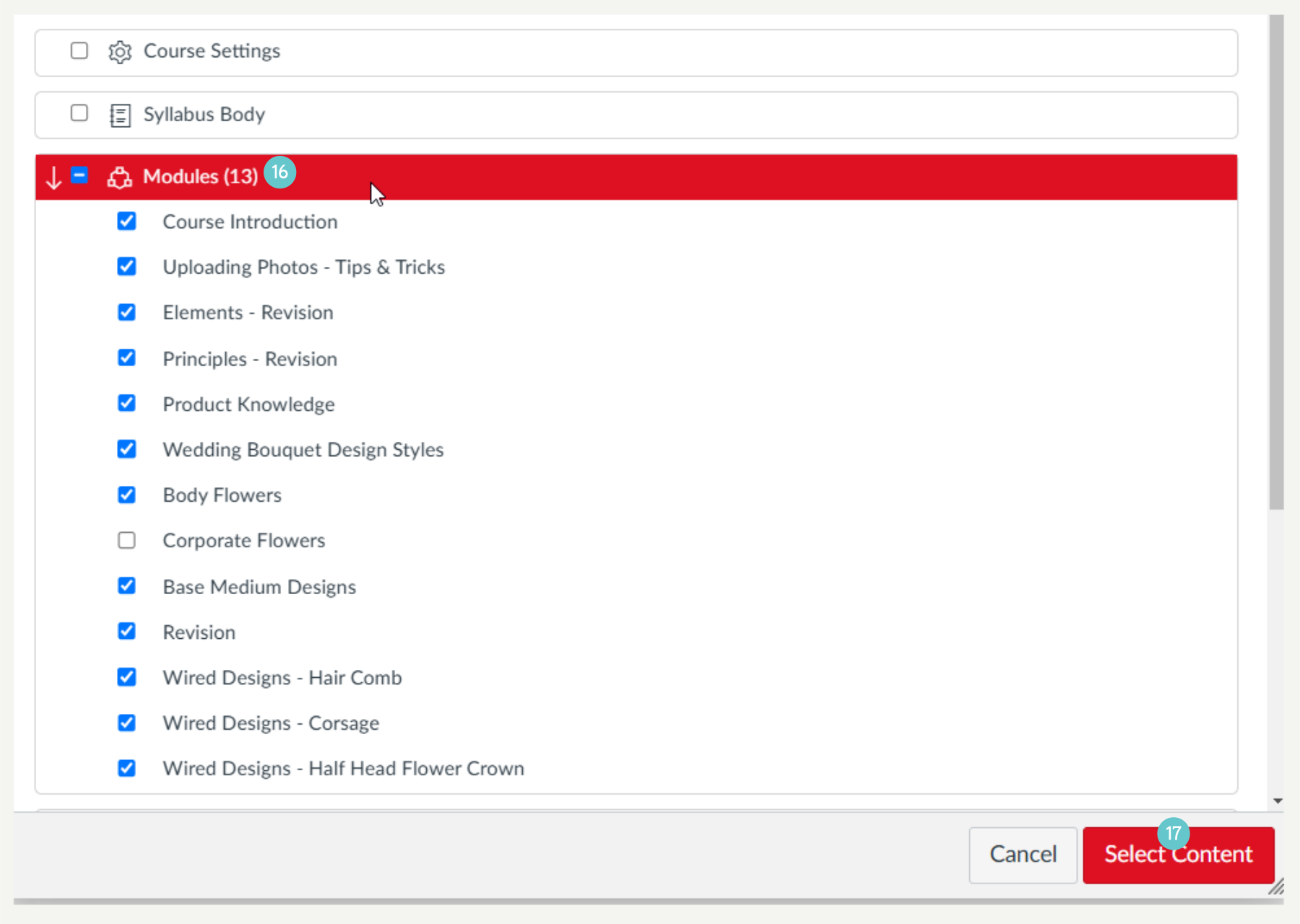
All major sections in the course are listed. Each section has an arrow next to it, click on the arrow to expand the section, e.g. Modules, so that you can import only what you need.
- Select the e.g. Modules that you need,
- Then click Select Content at the bottom of the box.
Canvas will queue up your selection, then import it.
What next?
Now that you’ve imported the MCS and your modules from previous courses, you now need to edit the Home page, Syllabus page and assessments to individualise it for this occurrence.
For more watch the following 60 second videos:
Importing Existing Content into your Canvas Course
Importing a Resource from Canvas Commons
Importing the MCS Template
Hints and Tips
- Tidy up your previous Canvas courses before importing them – it makes your new course, neat and easy to use
- If you can’t see the MCS in Commons, search for MCS.
- Make sure you edit the Home page, Syllabus page and assessments after importing the MCS
- Make sure the course is blank before starting so that you don’t get double up content.