

An introduction on how to message unengaged students using the Canvas course New Analytics
Canvas New Analytics provides an easy way to find a group of inactive students and send messages to each of them as a reminder.
Here is the guide on how to do it.
- Click on New Analytics from your course Navigation list.
- Then click on Weekly Online Activity tab.
- Click on the three dots to extend the options available.
- Select Data Table.
- Find the relevant date range and click on the number beside Page View.

- Click on the number beside Didn’t Participate.
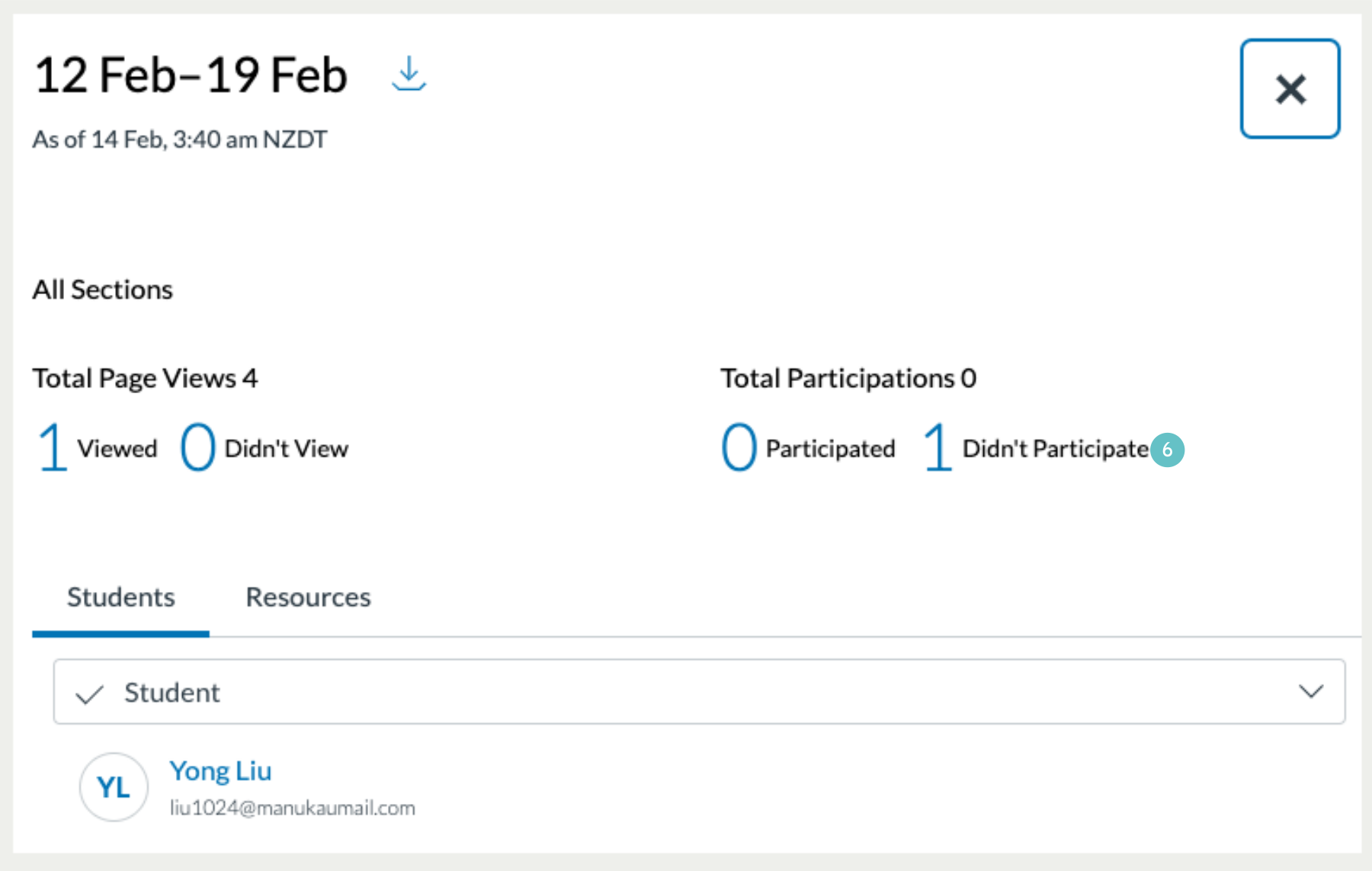
- Click on x Students to show all the inactive student names.
- Add the message title and message to the students.
- Click Send button to send the message to each individual student. Each student will receive a Canvas message in his/her Canvas inbox and an email as well. Each student cannot see other recipients’ names.
