
This guide provides a workaround to move your existing questions from Classic Quizzes into the modern Item Banks without manual re-creation.
Item Banks are the standard for reusing, sharing, and standardising your assessment content in Canvas. If your courses still rely on Classic Quizzes, you’re missing out on key benefits like:
- Sharing questions easily with colleagues and other courses.
- Creating quizzes quickly by drawing a set number of random questions from a larger bank.
- Managing all your reusable questions in one central place.
While there isn’t a direct, one-step conversion tool from the old format to the new Item Banks, the following workaround allows you to move your questions efficiently without having to manually recreate them.
Before You Begin:
- Determine which Classic Quizzes contain the questions you need to migrate.
- Decide on a systematic naming convention for your new Item Banks (e.g., CourseCode_Mod01_Concepts). This is essential for future management.
- Ensure you are comfortable navigating the Settings and Quizzes pages, and managing .zip files on your computer.
Export the Classic Quiz Content
You must first export the questions from the Classic Quiz as a QTI file.
- In your course navigation, go to Settings.
- Click Export Course Content on the right-hand side.
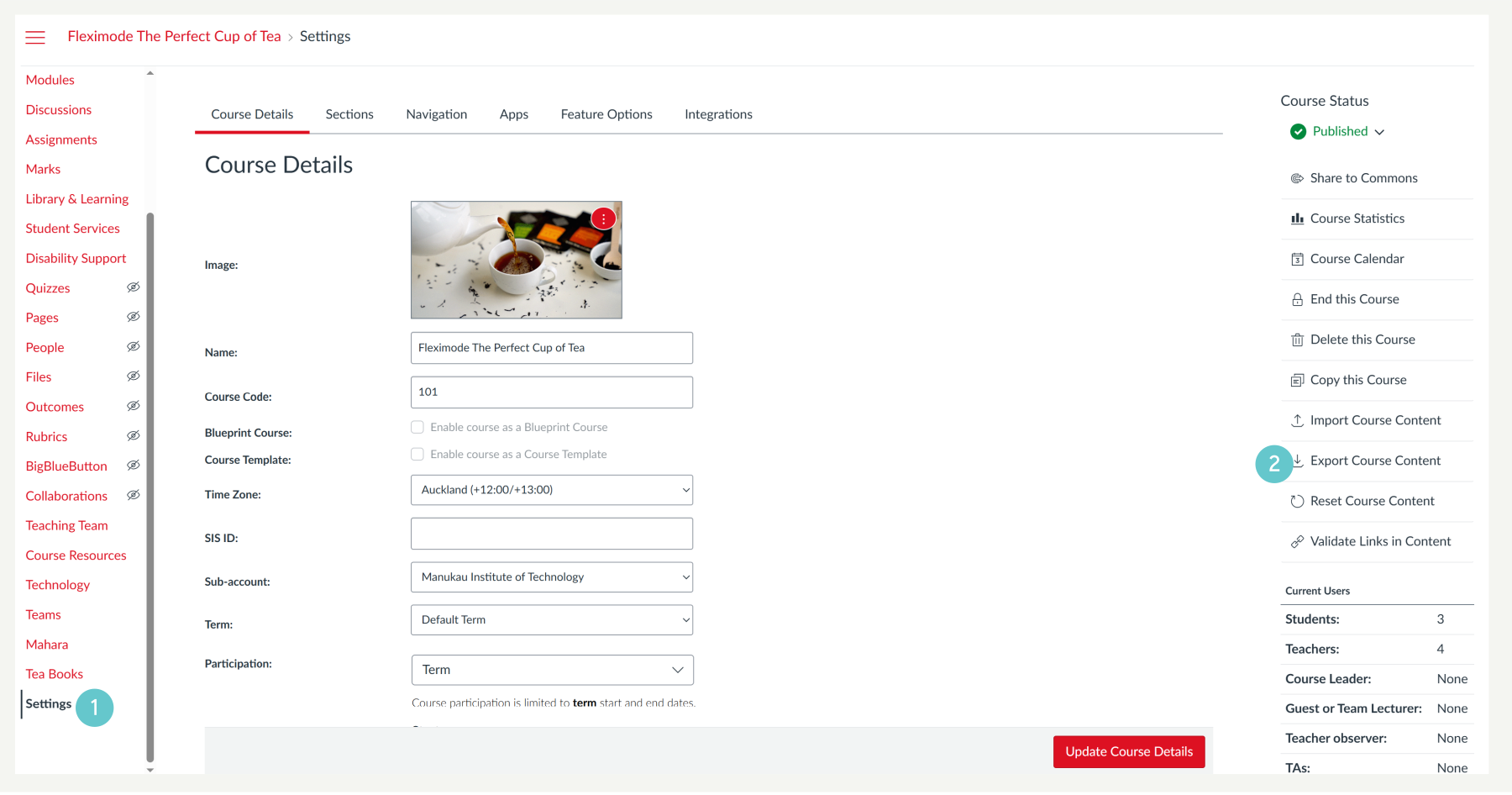
- For the Export Type, select Quiz.
- Under Select Quizzes, select the specific Classic Quiz you want to export.
- Click Create Export.

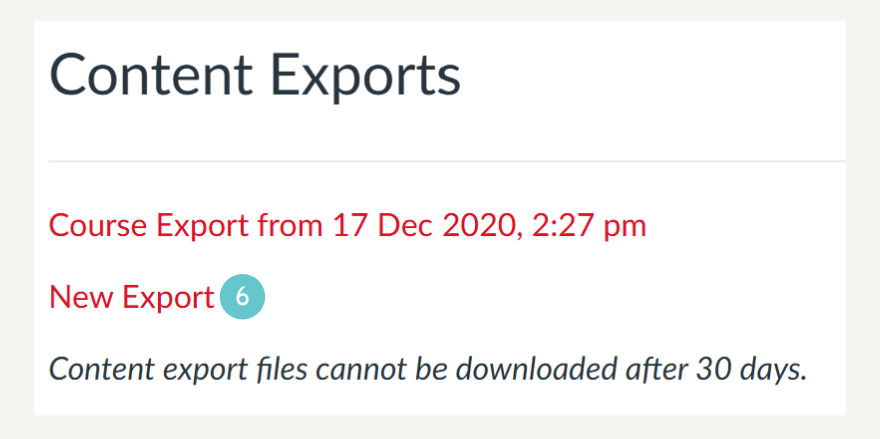
- Once the export is complete, click the New Export link to download the QTI.zip file to your computer.
Create the New Quiz Shell
You must create a new shell using New Quizzes to act as a staging area for your questions.
- Go to Quizzes
- Click the + Quiz button.

- Select New Quizzes from the options.
- Click Submit

- Give the new quiz a descriptive name (e.g., “Import Shell for [Quiz Name]”).
- Save the quiz and click Build.

Import Questions into the New Quiz Shell
Now you will import the QTI file you exported in Step 1 into the new shell.
- Inside the New Quiz Build screen, click the three-dot menu.
- Select Import Content.
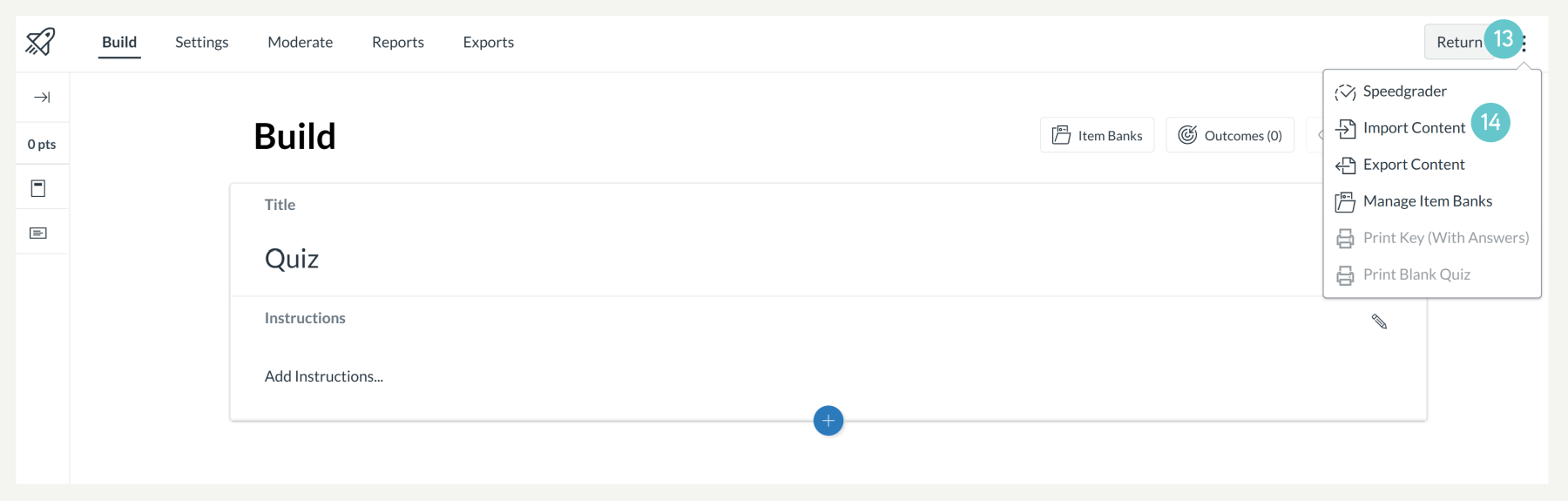
- In the pop-up window, upload the QTI.zip file you downloaded earlier.
- Click Import
- All the questions from your exported Classic Quiz will now populate this new quiz shell.

Add Questions to a Shareable Item Bank
The questions are in the quiz, but not yet in a shareable Item Bank. You must perform this final step for every question you want to save.
- For the first question in the quiz, click the pencil icon (Edit).
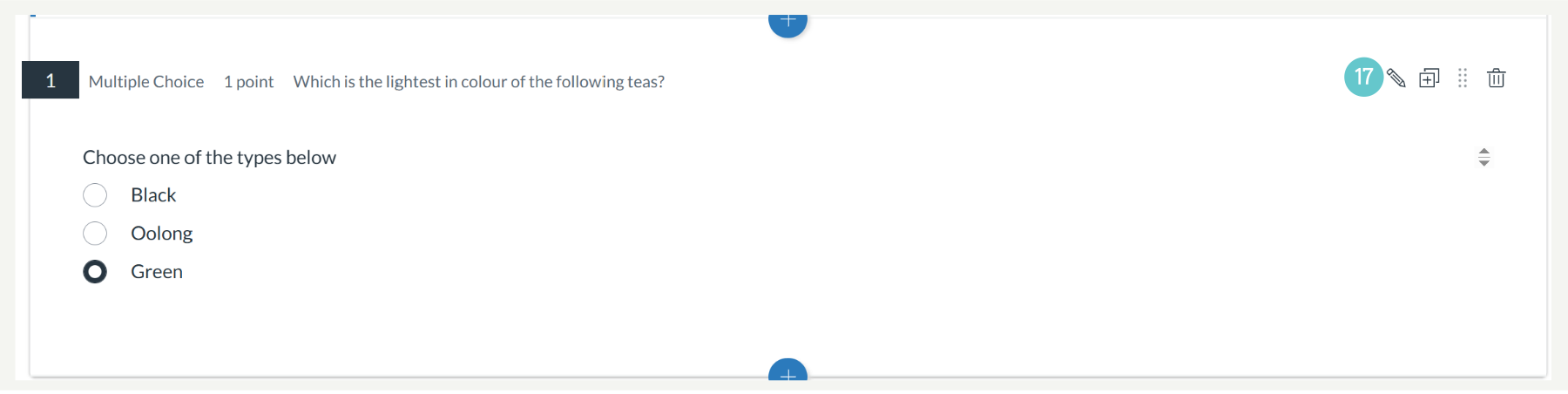
- Scroll to the bottom of the question editor.
- Look for the Item Banking option and click Add to Bank.

- Choose + New item bank (or add to an existing one).
- Enter the systematic name you planned (from your prep phase) and click Add.
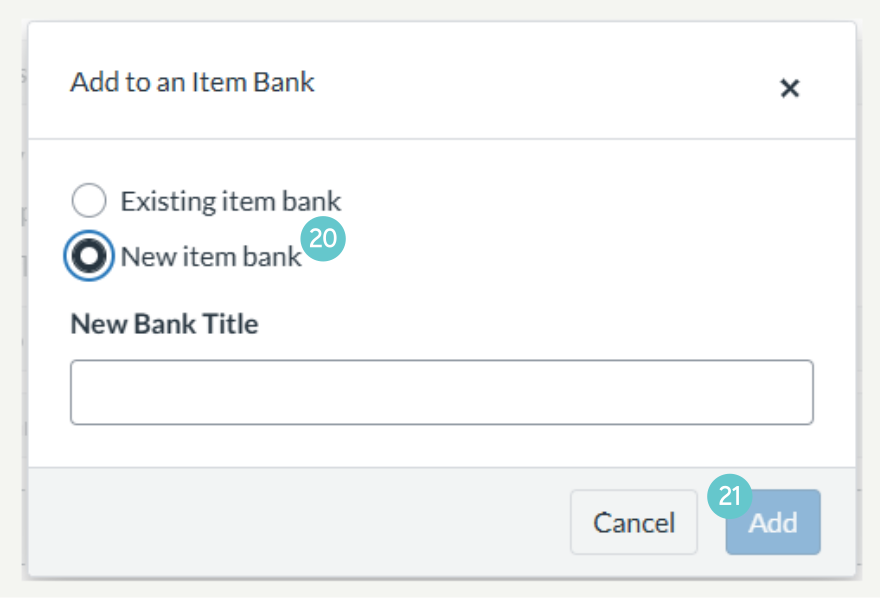
- Repeat this process for every question you want to include in the Item Bank.
Once a question is added to the bank, you can safely delete the “Import Shell” New Quiz—the questions will remain safely stored in the Item Bank, ready for use in any future quiz.
Hints and Tips
- Do NOT skip the naming step. Systematic naming (e.g., CourseCode_Mod01_Concepts) is crucial for finding and sharing banks later.
- You cannot bulk transfer questions to a bank. Unfortunately, the transfer must be done question-by-question once the QTI is imported. Prioritise your most important questions first.
- Check Question Types: Review questions after import, as some complex Classic Quiz types may need minor adjustments to display correctly in New Quizzes.