

How to add Turnitin on Canvas assignments and adjust its similarity check criteria.
Turnitin is an Internet-based plagiarism detection service. It checks the originality of assignments and creates originality reports which show the proportion of similarity to other works in percentage.
You need to go to your Canvas course and follow this guide below to create an assignment with Turnitin as a submission entry.
Create a disclaimer page in your course
Create a disclaimer page in your course
Go to your assignment page and follow the steps below.
- Click on Pages from the Canvas course navigation menu.
- Then click on View all pages button.

- Next click on +Page button at the top left of the page

- Add the title “Use of Plagiarism Checking Software” to this page.
- Copy and paste the content as shown below to the page. The texts are extracted from page 3 of MIT Protocols for the Use of Turnitin on MITNet.
- Click on the Save button.

Create Turnitin assignment on Canvas
Follow the steps below to create an assignment with Turnitin.
- Click on Assignment from the course navigation menu.
- Then find a preferred assignment group and click on + icon on the far right-hand side.

- Make sure the assignment type is Assignment
- Put the assignment name into Name field.
- Click on Save button.

The newly created assignment will be at the bottom of this assignment group.
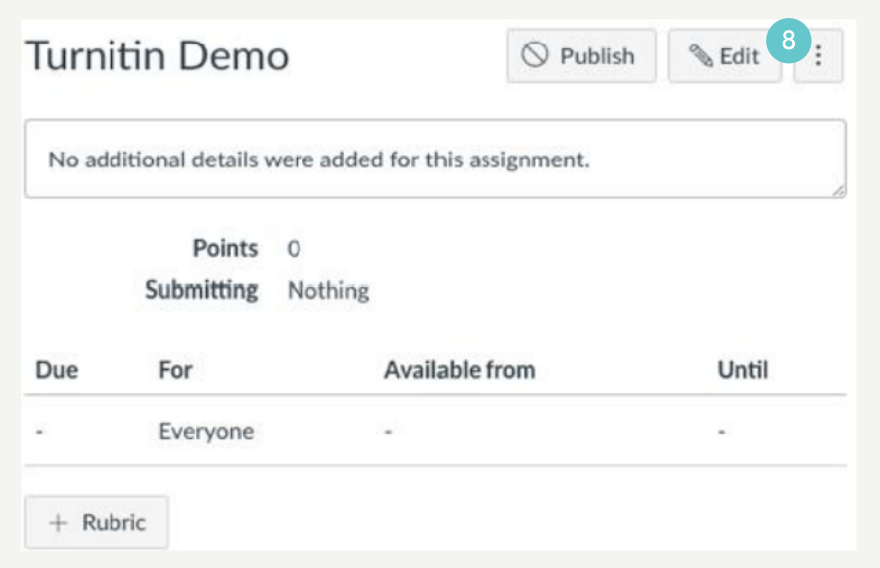
- Click on this assignment.

- If you want to add a rubric, click on +Rubric button and follow the on-screen guide to add it.

- Then click on Edit button to add details of this assignment.
- Add your assignment description in the Rich Text editor field.
- Add a disclaimer about using Turnitin. Here is the text.
- “This assignment will use Turnitin to check the originality of your work. For details please check Use of Plagiarism Checking Software. You can submit your work multiple times before the due date. But after your third submission, the similarity report will be produced 24 hours later.”
- Turnitin will cover your original rubric. Copy (or screenshot) and paste your rubric description here so that students can see it.
- Add student declaration if you are not using MIT standard assignment template. Otherwise, it should be there already.

Add a link to the phrase “Use of Plagiarism Checking Software”.
- Select the phrase “Use of Plagiarism Checking Software”.
- Click on the link drop-down icon.
- Select Course link from the drop-down list.
- Click on Pages from the course content list pop-up panel.
- Type “Use of Plagiarism Checking Software” in the search field to search this page.
- Click on the file name “Use of Plagiarism Checking Software”.
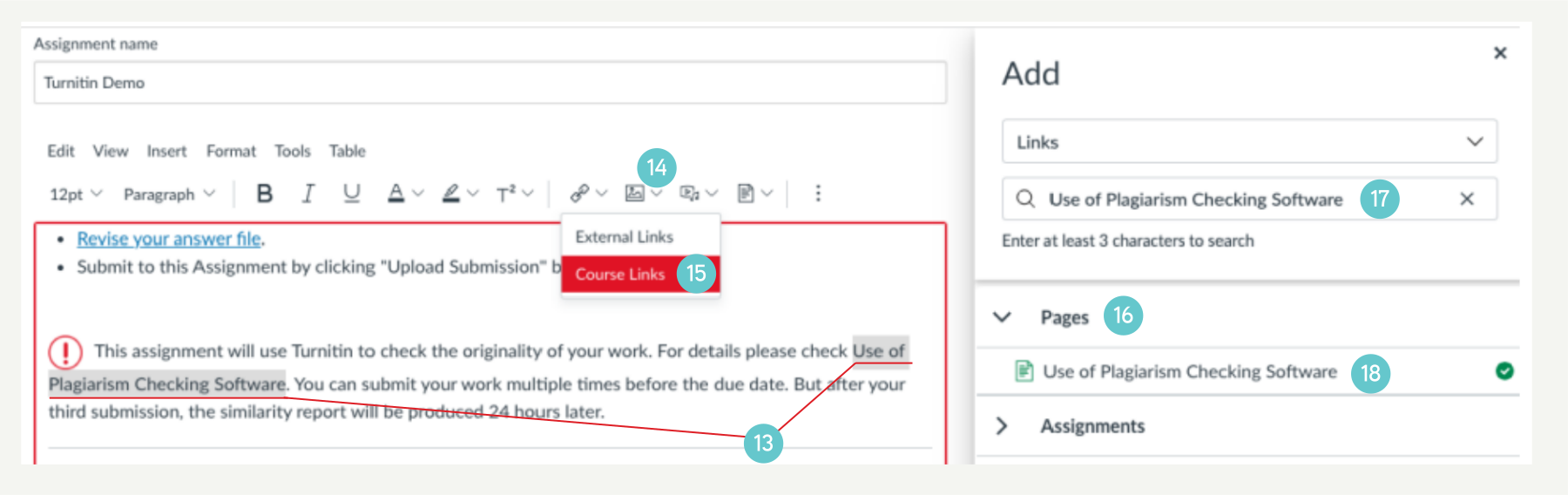
Then the link has been added as below.

- Fill in the grade information fields.
- Click on Submission type drop-down menu and select External tool.
- Then click on the Find button.
- On the Configure external tool panel, scroll down and select Turnitin.
- Click the Select button.
- Next, fill in other fields.
- Click on the Save button.

Adjust Turnitin settings.
- Click the cog icon to bring up the Turnitin settings panel.
- Check all the dates are consistent with the assignment’s settings. Where
- Due Date synchronizes with the assignment’s latest due date and cannot be changed.
- Start Date synchronizes with the assignment’s earliest available date but sometimes can be changed.
- Also, make sure that Feedback Release Date should be equal or later than Due Date.

- Click Optional Settings to bring up other settings.
- Make sure all Submission Settings are the same as shown below.
- And Compare against are set as below.

- For Similarity Report settings, click Generate Similarity Reports for student submission drop-down menu and select Generate reports immediately (students can resubmit until due date): After 3 resubmissions…
- Tick all the checkboxes as shown below.
- Select Percentage radio button and put “5” in the Set source exclusion threshold field.

- Tick the checkbox Save these settings for future use.
- Then click the Submit button.

Now your assignment Turnitin submission has been set up.